
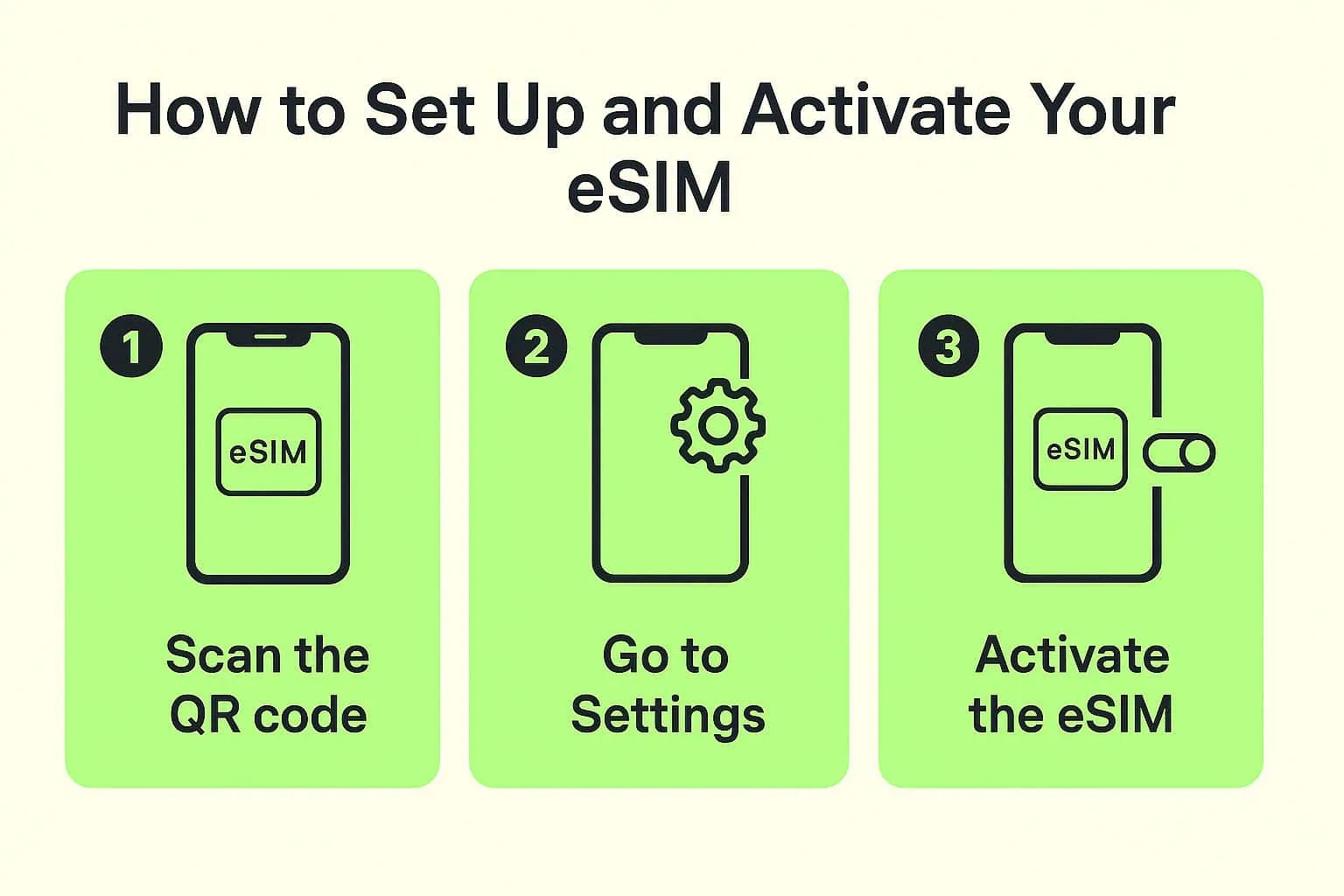
Setting up an eSIM is quick and easy. We recommend doing this from the comfort of your home using a stable Wi-Fi connection. You can either scan the QR code or manually input the activation code. Before you start, make sure your phone is compatible with eSIM and is unlocked by your carrier. Keep in mind, eSIM activation should only take place once you arrive at your destination.
This guide will walk you through the steps to set up and activate your eSIM on both iPhone and Android devices.
Setting Up Your eSIM on iPhone
To set up your eSIM, follow these steps:
- Go to Settings
- Tap on Cellular or Mobile Data
- Select Add eSIM
- Choose Use QR Code
- Scan the QR code or manually enter the activation code
- Tap Next, then follow the on-screen instructions to complete the setup
Setting Up Your eSIM on Android
To set up your eSIM on an Android device, follow these steps:
- Go to Settings
- Tap Connections
- Select SIM Manager
- Choose Add eSIM
- Scan the QR code or enter the activation code
- Make sure to copy and paste the full code, including any colons or “LPA” segments (these are not clickable links, just part of the code).
- Tap Add and continue with the activation process.
How to Activate Your ESIMA eSIM
Your eSIM can only be activated once you’ve arrived at your destination. Here’s how to activate it on both iPhone and Android.
Activating Your eSIM on iPhone
- Go to Settings → Cellular
- Tap on your personal SIMs or eSIMs
- Turn off your personal SIM by disabling the “Turn On This Line” option
- Go back to Cellular or Mobile Data
- Select your Esima eSIM (this may be labeled as Travel, Business, Secondary, or the name you assigned it during setup)
- Make sure Turn On This Line is enabled for your Esima eSIM
- Enable Data Roaming
- Return to Cellular or Mobile Data
- Tap on Cellular Data and choose your Esima eSIM as your mobile data line
Activating Your eSIM on Android
- Go to Settings → Connections
- Tap SIM Manager
- Turn on your Esima eSIM
- Disable other installed SIMs
- Set your newly installed eSIM as your mobile data line
- Go back to Connections
- Tap Mobile Network
- Enable Data Roaming for your Esima eSIM to activate your data plan
For more detailed instructions specific to your device, check out our guides for popular Android phones like Samsung, Pixel, Huawei, Xiaomi, and more.
Important Tips
- Use Wi-Fi: Always connect to a stable Wi-Fi network during installation, and avoid public Wi-Fi to ensure a smooth process.
- Manual Code: The manual installation code is not a clickable link. Copy and paste the code exactly as it appears, without spaces.
- QR Code Troubles: If the QR code doesn’t work, try using the manual code instead.
- Activation Before Arrival: If the eSIM activates during setup, don’t worry. Just keep roaming turned off until you reach your destination.
- eSIM Not Working? If you encounter issues, don’t delete your eSIM. Follow the setup steps again for iPhone or Android to ensure proper activation.
By following these steps, you’ll be ready to enjoy your Esima eSIM data plan as soon as you arrive!