 WhatsApp +44 7367 063273
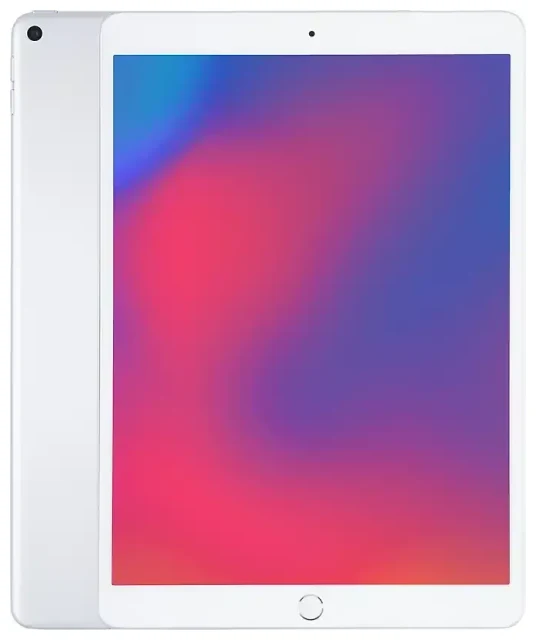
Does the Apple iPad Air (3rd Generation) support eSIM?
Yes, the Apple iPad Air (3rd Generation) supports eSIM, but only on Wi-Fi + Cellular models. If you have the Wi-Fi-only version, you cannot use eSIM or any cellular connectivity. The cellular-capable models were released in 2019 and include built-in eSIM functionality alongside a nano-SIM slot.
Apple iPad Air (3rd Generation) eSIM compatibility
All Wi-Fi + Cellular variants of the Apple iPad Air (3rd Generation) work with eSIM globally, regardless of where you purchased the device. The iPad uses a single nano-SIM tray plus eSIM, so you can run dual SIM: one physical nano-SIM and one eSIM profile active at the same time. You cannot use two eSIM profiles simultaneously on this model—dual eSIM support arrived with later iPad generations.
To confirm your model, check Settings > General > About and look for a cellular or IMEI entry. If you see those fields, you have the Wi-Fi + Cellular version. The model numbers are A2152, A2123, A2153, and A2154.
eSIM vs physical SIM on the iPad Air 3
You can use either a physical nano-SIM card, an eSIM, or both at once. The advantage of eSIM is you don't need to swap physical cards when changing carriers or adding a short-term data plan. Many travellers install a local or regional eSIM for data and keep their home carrier's physical SIM for calls and texts on a phone, though this iPad is data-only (no voice or SMS).
How to set up an eSIM on the Apple iPad Air (3rd Generation)
Setting up an eSIM on the Apple iPad Air (3rd Generation) takes about sixty seconds once you have a QR code from your carrier or eSIM provider. Make sure your iPad is updated to iPadOS 13 or later and that you're connected to Wi-Fi during activation.
Set up an eSIM in Settings
- Open Settings and tap Cellular Data (or Mobile Data in some regions).
- Tap Add a New Plan or Add Cellular Plan.
- Use your iPad's camera to scan the QR code provided by your eSIM carrier. Alternatively, tap Enter Details Manually if you received an SM-DP+ address and activation code.
- Wait for the eSIM profile to download and install—this usually takes thirty to sixty seconds.
- Tap Continue, then label your plan (for example, "Travel Data" or the carrier name) so you can identify it later.
- Choose which line to use for cellular data if you have both a physical SIM and eSIM installed. On the iPad Air 3, you can only use one line for data at a time.
- Toggle on Data Roaming for the eSIM line if you're using it abroad—this is required for most travel eSIM plans.
Once activated, the eSIM will appear under Settings > Cellular Data, and you can switch between your physical SIM and eSIM data sources at any time.
Using a travel eSIM on the Apple iPad Air (3rd Generation)
A travel eSIM is the easiest way to get mobile data abroad on your iPad Air 3 without paying roaming fees to your home carrier. You buy a prepaid data plan that covers the country or region you're visiting, install it before you fly, and activate it when you land. No hunting for a local SIM vendor or dealing with language barriers at the airport.
Install your travel eSIM before departure
You can install the eSIM profile while you're still at home on Wi-Fi—it won't start using data or begin its validity period until you enable it and connect to a network in your destination. This means you arrive with connectivity ready to go. Browse a wide range of regional and country-specific data plans, compare coverage, and install in minutes when you browse eSIM plans.
Most travel eSIM providers deliver the QR code instantly by email, so you can add the plan to your iPad Air 3 within seconds of purchase. Keep your home carrier's physical SIM in place if you have one—it won't interfere, and you can switch back to it anytime. Many users keep a local carrier's physical SIM for calls and texts on their phone and use an iPad with a travel eSIM purely for data.
Tips and troubleshooting
Turn on data roaming for the eSIM line
Even though you're using a local or regional eSIM, you still need to enable Data Roaming for that line under Settings > Cellular Data > [Your eSIM Label] > Data Roaming. This is not the same as expensive home-carrier roaming—it simply allows the eSIM to connect to partner networks. Without it, your eSIM will not deliver data.
Keep your home SIM for two-factor authentication
If you rely on SMS codes for banking or account logins, leave your home carrier's physical SIM installed. It will still receive texts (if your carrier permits it), and you can switch the iPad's data line to the eSIM for internet. On the Apple iPad Air (3rd Generation), you can only have one data line active at a time, but both SIMs remain registered.
Fix an eSIM that won't activate
If the QR code won't scan, check that your camera lens is clean and that you're holding the iPad steady with good lighting. You can also tap Enter Details Manually and type the SM-DP+ address and activation code provided by your eSIM carrier. If the profile installs but won't connect, confirm that the plan is activated (some require you to turn it on in the provider's app or account portal) and that you've toggled on data roaming for that line. If you're still stuck, visit eSIM setup help for troubleshooting steps and live support options.
Check compatibility for other devices
If you're managing multiple tablets or phones, you can quickly check another device's eSIM compatibility to confirm which support eSIM and which require a physical SIM. This is especially useful if you're coordinating plans across family devices or deciding which tablet to take on a trip.









