 WhatsApp +44 7367 063273
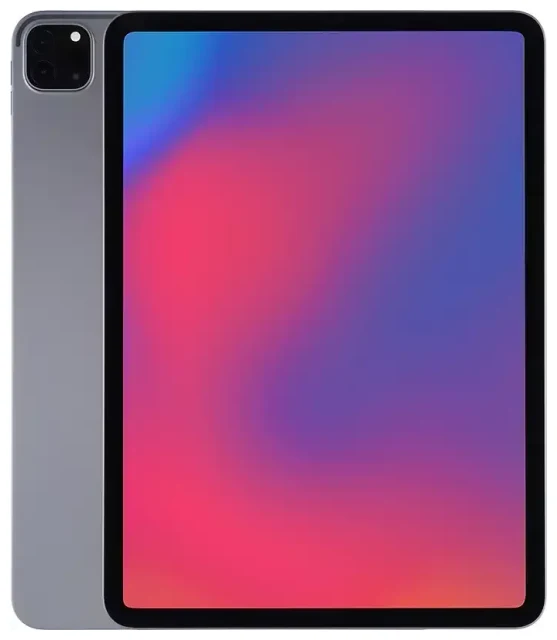
Does the Apple iPad Pro 11-inch (3rd Generation) support eSIM?
Apple iPad Pro 11-inch (3rd Generation) eSIM compatibility
Yes, the Apple iPad Pro 11-inch (3rd Generation) supports eSIM, but only on Wi-Fi+Cellular models. If you purchased the Wi-Fi-only version, you cannot use eSIM or any cellular connectivity. This tablet, released in May 2021, carries model identifiers A2377 (Wi-Fi+Cellular in the US), A2459 (global Wi-Fi+Cellular), and A2301 (China Wi-Fi+Cellular). All cellular variants include built-in eSIM functionality.
The Apple iPad Pro 11-inch (3rd Generation) eSIM operates as a single eSIM device: you can store multiple eSIM profiles, but only one can be active at a time. There is no physical nano-SIM slot on this model. Apple transitioned to eSIM-only architecture for iPad Pro starting with this generation, so all your cellular plans must be digital eSIM profiles.
eSIM vs physical SIM on this iPad
Unlike some earlier iPad models that offered both a nano-SIM tray and eSIM, the third-generation iPad Pro 11-inch relies exclusively on eSIM for cellular service. You cannot insert a physical SIM card. This design choice reduces device thickness and simplifies carrier switching, but it means you must ensure your carrier or travel provider supports eSIM before purchasing a cellular plan.
How to set up an eSIM on the Apple iPad Pro 11-inch (3rd Generation)
Set up an eSIM in Settings
Activating an eSIM on your Apple iPad Pro 11-inch (3rd Generation) typically takes about sixty seconds once you have your QR code or activation details from your carrier or travel eSIM provider. Follow these steps:
- Connect your iPad to Wi-Fi.
- Open Settings and tap Cellular Data (or Mobile Data in some regions).
- Tap Add a New Plan or Set Up Cellular.
- Scan the QR code provided by your carrier or eSIM provider using the iPad's camera, or enter the activation code manually if the QR option isn't available.
- Wait for the profile to download and install—this usually completes within thirty to ninety seconds.
- Label the plan with a recognizable name, such as "Travel Data" or "Home Carrier," to distinguish it if you install multiple profiles over time.
- Turn on the cellular line and enable Data Roaming if you plan to use the eSIM abroad.
Manage multiple eSIM profiles
You can store several eSIM profiles on the Apple iPad Pro 11-inch (3rd Generation), but only one will be active for cellular data at any given moment. To switch between profiles, return to Settings > Cellular Data, tap the plan you want to use, and toggle it on. The previously active plan will automatically turn off. This feature is especially useful if you maintain a home data plan and add a short-term travel eSIM when you fly.
Using a travel eSIM on the Apple iPad Pro 11-inch (3rd Generation)
A travel eSIM is the simplest way to get cellular data abroad on your iPad Pro without paying international roaming fees or hunting for a local SIM shop. Because the Apple iPad Pro 11-inch (3rd Generation) eSIM is digital, you can purchase and install a regional or country-specific data plan from home, then activate it the moment you land. No need to swap hardware or visit a carrier store.
Install your travel eSIM before departure while you still have reliable Wi-Fi. Open the QR code email on another device or print it, then follow the setup steps in Settings. Once installed, the profile sits dormant until you toggle it on. When you arrive at your destination, enable the travel eSIM line and turn on data roaming for that specific plan. Your iPad will connect to a local partner network, giving you high-speed data for maps, email, and video calls.
You can browse eSIM plans that cover dozens of countries across Europe, Asia, the Americas, and beyond. Many plans activate automatically when they detect the destination network, so you'll have connectivity within minutes of switching on airplane mode off.
Tips & troubleshooting
Turn on data roaming for the eSIM line
A common mistake is forgetting to enable data roaming for your eSIM profile. Even though you've installed a local or regional plan, iOS keeps roaming off by default to protect you from unexpected charges. Go to Settings > Cellular Data, tap your eSIM plan, and toggle Data Roaming on. This allows the profile to connect to partner networks abroad. Your home carrier SIM (if you use a separate device for calls) and your travel eSIM operate independently, so turning on roaming for the eSIM won't affect your primary line.
Fix an eSIM that won't activate
If the QR code won't scan, check that your iPad camera lens is clean and the code is well-lit. Alternatively, ask your provider for a manual activation code—enter it by tapping Enter Details Manually during setup. If the eSIM installs but shows "No Service," restart your iPad, confirm you've enabled the correct line under Cellular Data, and verify that data roaming is on. Occasionally, carrier activation systems take a few minutes to provision the profile; wait five minutes and toggle airplane mode on and off to force a network search.
If you continue to see errors, remove the eSIM profile under Settings > Cellular Data, tap the plan, scroll down, and choose Remove Cellular Plan. Then reinstall using the same QR code. For persistent issues, contact your eSIM provider's support team or visit our eSIM setup help page for step-by-step troubleshooting.
Keep security codes and two-factor authentication accessible
Because the iPad Pro 11-inch (3rd Generation) is eSIM-only and many users rely on it as a secondary device, plan ahead for two-factor authentication when travelling. If your bank or email sends SMS codes to a phone number, ensure that number remains active—either on a smartphone with you or via a forwarding service. The iPad itself can receive iMessages tied to your Apple ID, but SMS to a traditional phone number requires a separate iPhone or cellular-capable device.
Before you leave, confirm which services use SMS versus app-based authentication. Install authenticator apps or note backup codes so you can access accounts even if you lose connectivity on your primary phone. If you need to check another device's eSIM compatibility, our directory covers hundreds of smartphones and tablets to help you choose a backup travel device.









