 WhatsApp +44 7367 063273
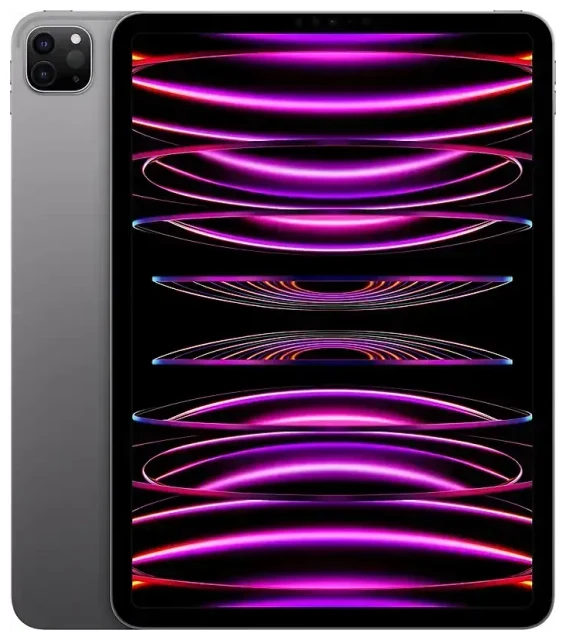
Does the Apple iPad Pro 11-inch (4th Generation) support eSIM?
Apple iPad Pro 11-inch (4th Generation) eSIM compatibility
Yes, the Apple iPad Pro 11-inch (4th Generation) supports eSIM, but only on Wi-Fi + Cellular models. If you purchased the Wi-Fi-only version, eSIM functionality is not available—you'll need a cellular-capable model to use eSIM or any mobile data connection.
Released in October 2022, the Apple iPad Pro 11-inch (4th Generation) Wi-Fi + Cellular models work with eSIM globally across all storage configurations (128GB, 256GB, 512GB, 1TB, 2TB). This device does not have a physical nano-SIM tray; it relies exclusively on eSIM for cellular connectivity. You can store multiple eSIM profiles on the device, though only one can be active at a time.
eSIM-only design with no physical SIM slot
Unlike earlier iPad Pro models that offered both physical SIM and eSIM options, the 4th generation 11-inch iPad Pro uses eSIM only. This design gives you flexibility to switch carriers or add travel data plans without handling physical SIM cards, but it means you must have eSIM support from your carrier to use cellular features.
How to set up an eSIM on the Apple iPad Pro 11-inch (4th Generation)
Set up an eSIM in Settings
Installing an eSIM on your Apple iPad Pro 11-inch (4th Generation) takes about 60 seconds once you have your activation details from your carrier or travel eSIM provider. Most providers send a QR code by email; some offer in-app installation or manual entry codes.
- Connect your iPad to Wi-Fi—you need internet to download the eSIM profile.
- Open Settings and tap Cellular Data (or Mobile Data in some regions).
- Tap Add a New Plan or Set Up Cellular if this is your first eSIM.
- Use your iPad's camera to scan the QR code provided by your carrier or eSIM provider. Alternatively, tap Enter Details Manually if you have an activation code.
- Follow the on-screen prompts to confirm and activate the plan—this usually completes within a minute.
- Label the line with a recognizable name (like "Travel Data" or "Home Plan") so you can identify it easily.
- Toggle Turn On This Line to enable cellular data on the new eSIM.
Managing multiple eSIM profiles
Your iPad Pro 11-inch (4th Generation) can store several eSIM profiles, making it simple to switch between carriers or keep a travel eSIM ready for your next trip. To switch profiles, go back to Settings > Cellular Data, select the plan you want to use, and toggle it on. Only one eSIM can be active at a time on this device.
Using a travel eSIM on the Apple iPad Pro 11-inch (4th Generation)
Stay connected abroad without roaming fees
A travel eSIM is the easiest way to get mobile data on your Apple iPad Pro 11-inch (4th Generation) when you're traveling internationally. Instead of paying roaming charges or hunting for a local SIM card shop, you install a regional or country-specific data plan directly on your iPad before you leave home. Once you land, your iPad connects to local networks automatically.
Install your travel eSIM while you still have Wi-Fi—at home, at the airport lounge, or in your hotel. Most eSIM providers let you purchase and install the profile days or weeks in advance; the plan typically activates when you arrive in the destination country and the iPad detects the local network. You can browse eSIM plans covering dozens of countries and regions, compare data allowances, and install instantly.
Keep your home plan available for essential services
Because the iPad Pro 11-inch (4th Generation) stores multiple eSIM profiles, you can keep your home carrier's eSIM installed alongside your travel eSIM. This is especially useful if you need to receive two-factor authentication codes or check messages linked to your home number (though most iPad cellular plans are data-only). Simply switch between profiles in Settings whenever you need to change which line is active.
Tips & troubleshooting
Turn on Data Roaming for your eSIM line
If your eSIM won't connect after activation, check that Data Roaming is enabled for that line. Go to Settings > Cellular Data, tap the eSIM plan, and toggle Data Roaming on. Travel eSIMs require roaming to be enabled because they operate on partner networks in the country you're visiting. This won't trigger surprise charges with a prepaid travel eSIM—the data allowance is already paid for.
Fix an eSIM that won't activate
If the QR code won't scan, make sure your iPad's camera lens is clean and you're holding the code steady in good light. If scanning still fails, ask your provider for manual activation details (SM-DP+ address and activation code) and enter them by tapping Enter Details Manually during setup. Restart your iPad after installation if the plan doesn't appear immediately, and confirm your Wi-Fi connection is stable during the download.
Verify compatibility before purchase
Not all eSIM providers support tablets, and some travel eSIM plans are smartphone-only. Check the provider's device compatibility list before buying. If you want to verify eSIM compatibility for another device in your household, you can check another device's eSIM compatibility on our dedicated tool. For step-by-step assistance with activation issues, visit our eSIM setup help page.
eSIM vs physical SIM on the iPad Pro 11-inch (4th Generation)
The Apple iPad Pro 11-inch (4th Generation) does not offer a physical SIM option—it's eSIM-only. This simplifies the design and eliminates the SIM tray, but it means your carrier must support eSIM to provide cellular service. Most major carriers worldwide now offer eSIM for tablets, but if you're with a smaller regional provider, confirm eSIM availability before purchasing a cellular-capable iPad Pro.









