 WhatsApp +44 7367 063273
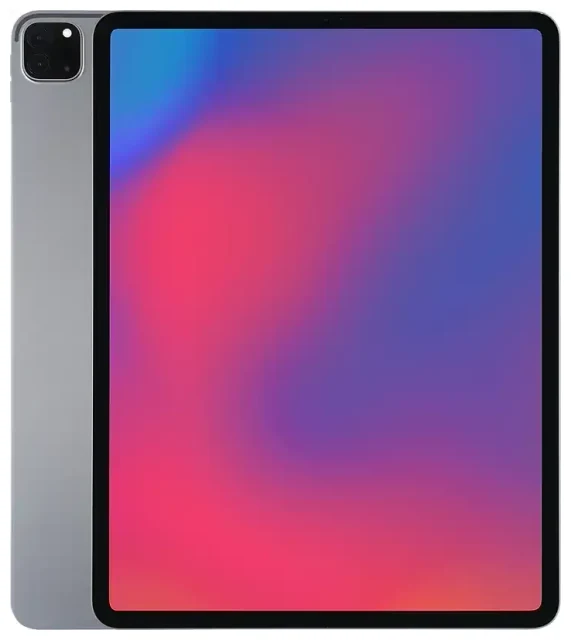
Does the Apple iPad Pro 12.9-inch (4th Generation) support eSIM?
Yes, the Apple iPad Pro 12.9-inch (4th Generation) supports eSIM, but only if you have a Wi-Fi+Cellular model. The Wi-Fi-only version does not include cellular connectivity and therefore cannot use eSIM or physical SIM cards.
Apple iPad Pro 12.9-inch (4th Generation) eSIM compatibility
Released in March 2020, all Wi-Fi+Cellular variants of the 12.9-inch iPad Pro 4th generation include eSIM support worldwide. This applies to every storage configuration—whether you have the 128GB, 256GB, 512GB, or 1TB WiFi+Cellular model. The device includes both a nano-SIM card slot and an embedded eSIM chip, so you can use a physical SIM card, an eSIM profile, or both simultaneously.
Dual SIM capability on the iPad Pro 4th generation
This iPad supports dual SIM functionality: one physical nano-SIM and one active eSIM at the same time. You can switch between carriers or data plans without swapping physical cards. Unlike some newer Apple devices that support multiple eSIM profiles stored simultaneously, the 4th generation iPad Pro 12.9 can store multiple eSIM profiles but only one eSIM can be active at a time alongside the physical SIM.
How to set up an eSIM on the Apple iPad Pro 12.9-inch (4th Generation)
Setting up an eSIM on your iPad Pro takes about a minute once you have your QR code from your carrier or eSIM provider. Make sure you're connected to Wi-Fi during the installation process.
Step-by-step eSIM setup process
- Open Settings on your iPad Pro and tap Cellular Data (or Mobile Data in some regions).
- Tap Add a New Plan or Add Cellular Plan.
- Use your iPad's camera to scan the QR code provided by your eSIM provider. The code usually arrives by email or appears in your carrier's app.
- Wait 30–60 seconds while your iPad downloads and installs the eSIM profile. You'll see a confirmation message when complete.
- Label your plan with a recognizable name like "Travel Data" or "Work Line" to distinguish it from other SIM cards if you're using dual SIM.
- Choose which line you want to use for cellular data in the Cellular Data menu if you have multiple plans installed.
Alternative activation methods
If your provider supports it, you can also enter eSIM details manually by tapping Enter Details Manually instead of scanning a QR code. Some carriers offer direct activation through their iOS apps, which can transfer the eSIM profile without needing a QR code at all. Check with your specific provider for their supported methods.
Using a travel eSIM on the Apple iPad Pro 12.9-inch (4th Generation)
A travel eSIM gives you local data rates abroad without the roaming fees your home carrier typically charges. You can install the eSIM profile before you leave home, then activate it when you land. Your iPad stays connected for maps, translation apps, ride-sharing, and work without hunting for airport SIM vendors or dealing with physical cards.
Why choose eSIM for travel on your iPad Pro
Because the 12.9-inch iPad Pro 4th generation supports both a physical SIM and an eSIM simultaneously, you can keep your home SIM in the tray for important calls or messages (if you use a cellular-enabled iPad for calls via iPhone) while the travel eSIM handles all your data. Install the travel profile a day or two before departure, then simply toggle on data roaming for that eSIM line when you arrive. You can browse eSIM plans for your destination and have the QR code ready in minutes.
Best practices for travel eSIM use
Download your eSIM QR code and take a screenshot or save the email to your iPad before you fly—you'll need Wi-Fi to complete the installation if you haven't done it already. Once installed, go to Settings > Cellular Data, select your travel eSIM, and confirm that Data Roaming is turned on for that specific line. Turn off data roaming on your home SIM to avoid accidental charges. Many travelers leave the travel eSIM installed and simply recharge it for future trips to the same region.
Tips & troubleshooting
Enable data roaming for your eSIM line
A common mistake: forgetting to turn on data roaming for the eSIM while abroad. Even though the eSIM is active, cellular data won't work if roaming is disabled. Go to Settings > Cellular Data, tap the eSIM line you want to use, and toggle Data Roaming on. If you have a physical SIM installed, make sure you've selected the correct line as your default for cellular data in the main Cellular Data menu.
QR code scanning issues
If your iPad's camera won't focus on the QR code or the code isn't recognized, increase your screen brightness (if scanning from another device) or print the code on paper. Hold the code steady about six inches from the camera. Alternatively, tap Enter Details Manually and type in the SM-DP+ address and activation code your provider sent. If the profile still won't install, restart your iPad and confirm you're connected to Wi-Fi.
Managing multiple eSIM profiles
Your iPad Pro 12.9 4th generation can store several eSIM profiles at once, but only one eSIM can be active alongside the physical SIM. To switch between stored profiles, go to Settings > Cellular Data, tap the plan you want to activate, and toggle Turn On This Line. You can also remove old profiles you no longer need by tapping the plan and selecting Remove Cellular Plan. If you run into persistent activation problems, eSIM setup help can walk you through carrier-specific issues.
Check compatibility for other devices
If you're considering eSIM for a phone or a different tablet model—such as the 11-inch iPad Pro 4th generation or an iPad Air—you can check another device's eSIM compatibility to confirm support and learn the setup process for that specific hardware. Apple's eSIM implementation is consistent across iPads, but storage capacity, activation methods, and dual-SIM behavior can vary by model and generation.









