 WhatsApp +44 7367 063273
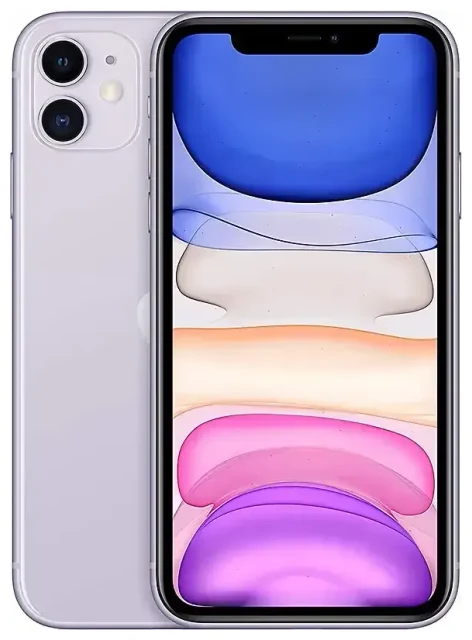
Does the Apple iPhone 11 support eSIM?
Yes, the Apple iPhone 11 supports eSIM. Apple introduced eSIM technology with the iPhone XS generation, and every model since—including the iPhone 11—comes with embedded SIM capability built in.
Apple iPhone 11 eSIM compatibility
All Apple iPhone 11 models worldwide support eSIM, regardless of where you bought the device. Whether you purchased your iPhone 11 in the UK, United States, Europe, or elsewhere, eSIM functionality is available. There are no regional restrictions or specific variants that lack this feature.
Dual SIM with eSIM and physical SIM
The Apple iPhone 11 offers dual SIM capability by combining one physical nano-SIM card with one eSIM. This means you can have two active phone numbers on the same device—useful if you want to keep your home number for calls and texts while using a travel eSIM for data abroad, or if you need separate work and personal lines. The iPhone 11 does not support dual eSIM functionality; you must use the physical SIM slot alongside the eSIM.
How to set up an eSIM on the Apple iPhone 11
Setting up an eSIM on your Apple iPhone 11 takes about sixty seconds once you have your QR code or activation details from your carrier or travel eSIM provider. The process happens entirely in Settings and requires an internet connection—use Wi-Fi or your current mobile data.
Set up an eSIM in Settings
- Open Settings and tap Cellular (or Mobile Data in some regions).
- Tap Add Cellular Plan.
- Scan the QR code provided by your carrier or eSIM provider using your iPhone's camera. If the code won't scan, tap Enter Details Manually and type the activation information.
- Wait while your iPhone activates the eSIM. This usually takes ten to thirty seconds.
- Label your new line with a clear name—for example, "Travel Data" or "Work"—so you can easily tell your lines apart.
- Choose which line you want to use for cellular data, calls, and iMessage in the settings that appear. You can change these preferences any time in Settings > Cellular.
Your eSIM is now active and ready to use. You'll see both your physical SIM and eSIM listed under Cellular in Settings, and you can toggle each line on or off as needed.
Using a travel eSIM on the Apple iPhone 11
A travel eSIM is the easiest way to stay connected abroad without paying expensive roaming charges from your home carrier. Instead of hunting for a local SIM card when you land, you install an eSIM plan before you fly and have data ready the moment your plane touches down.
Install before you depart
Purchase and install your travel eSIM while you're still at home and connected to Wi-Fi. Most eSIM plans activate when you arrive in the destination country and connect to a local network, so there's no risk of using up your data early. You can browse eSIM plans by destination to find coverage that suits your trip.
Keep your home physical SIM in the phone. Set your travel eSIM as the primary line for cellular data, and leave your home SIM active for calls and text messages. This way, you can receive two-factor authentication codes and important calls on your usual number without incurring data roaming fees. The dual SIM setup on the Apple iPhone 11 makes this straightforward—just choose "Travel Data" (or whatever you named the eSIM) as your default data line in Settings.
Tips & troubleshooting
Turn on data roaming for the eSIM line
This catches many people off guard: even though you're using a local eSIM, you still need to enable data roaming for that line. Go to Settings > Cellular, tap your eSIM line, then tap Data Roaming and toggle it on. Without this, your eSIM won't connect to the network abroad. Your physical home SIM can stay set to roaming off, so you won't accidentally use expensive home-carrier data.
Fix an eSIM that won't activate
If your Apple iPhone 11 eSIM isn't working, first check that your iPhone is running the latest version of iOS—go to Settings > General > Software Update. Restart your phone, then check that the eSIM line is turned on in Settings > Cellular and that data roaming is enabled for that line. If the QR code won't scan during setup, make sure your screen brightness is high, the code isn't creased or blurry, and you're holding the phone steady. You can always enter the activation details manually if scanning fails.
Some carriers, including Verizon and others in the United States and UK, may lock the eSIM functionality until your device is paid off or your contract terms allow it. Contact your carrier if you see an error stating that your iPhone can't add a cellular plan.
If you're still stuck, you can get eSIM setup help or check another device's eSIM compatibility if you're considering switching phones.









