 WhatsApp +44 7367 063273
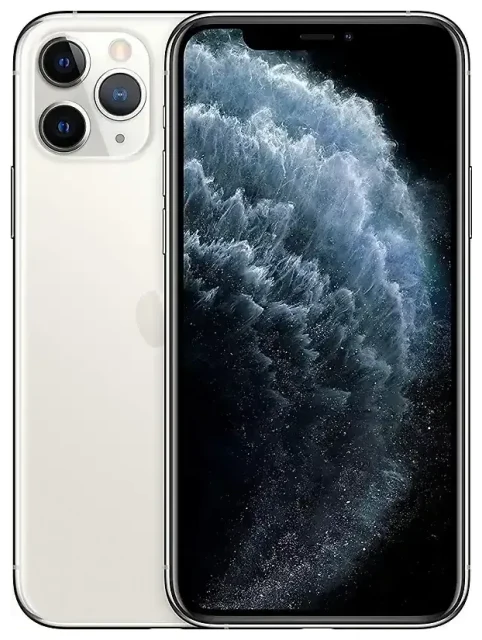
Does the Apple iPhone 11 Pro support eSIM?
Apple iPhone 11 Pro eSIM compatibility
Yes, the Apple iPhone 11 Pro supports eSIM. Apple introduced eSIM to the iPhone line with the XS and XR series in 2018, and the iPhone 11 Pro continues this functionality. You can use one physical nano-SIM and one eSIM simultaneously for dual SIM operation, giving you two active phone numbers on a single device.
Regional exceptions and dual SIM configuration
Nearly all Apple iPhone 11 Pro models worldwide support eSIM, with two notable exceptions: devices sold in mainland China and Hong Kong use dual physical SIM slots instead of eSIM. If you purchased your iPhone 11 Pro in mainland China or Hong Kong, it will not support eSIM—you'll have two physical nano-SIM trays. For all other regions, including the United States, Canada, Europe, Australia, and most of Asia, your Apple iPhone 11 Pro includes eSIM capability alongside the physical SIM slot.
Your iPhone 11 Pro supports one eSIM profile active at a time, though you can store multiple eSIM profiles and switch between them in Settings. Only one eSIM and one physical SIM can be active simultaneously.
How to set up an eSIM on the Apple iPhone 11 Pro
Activate an eSIM profile in Settings
Setting up an eSIM on your Apple iPhone 11 Pro takes about a minute once you have your QR code or activation details from your carrier or eSIM provider. Make sure your device is connected to Wi-Fi before you begin.
- Open Settings and tap Cellular (or Mobile Data in some regions).
- Tap Add Cellular Plan.
- Use your camera to scan the QR code provided by your carrier or eSIM provider. The code contains all the profile information needed.
- If the QR code won't scan, tap Enter Details Manually at the bottom and input the activation code or SM-DP+ address provided.
- Wait 30–60 seconds while your iPhone downloads and installs the eSIM profile.
- Once installed, label your new line—for example, "Travel" or "Work"—to distinguish it from your primary SIM.
- Choose which line you want to use for cellular data, iMessage, and FaceTime. You can change these settings later.
- Tap Done. Your eSIM is now active.
Set up an eSIM in Settings
After installation, both your physical SIM and eSIM will appear in Settings > Cellular. You can customize which line handles voice calls, messages, and data. The Apple iPhone 11 Pro lets you keep both lines active, so you'll receive calls and texts on both numbers. Only one line can use cellular data at a time, but you can switch this in Settings whenever needed.
Using a travel eSIM on the Apple iPhone 11 Pro
A travel eSIM is one of the easiest ways to stay connected when you travel internationally without paying roaming fees from your home carrier. Instead of hunting for a local SIM card at the airport or dealing with expensive roaming packages, you install a data eSIM before you leave and activate it when you land.
Your Apple iPhone 11 Pro can hold multiple eSIM profiles, so you can install a travel eSIM weeks before your trip and keep your home physical SIM in place. Once you arrive at your destination, switch your cellular data to the travel eSIM line in Settings. You'll get local data rates while still receiving calls and texts on your primary number.
Travel eSIMs typically offer data-only plans, which is perfect for navigation, messaging apps, and staying online. Your home SIM stays active for voice calls and SMS, including two-factor authentication codes. You can browse eSIM plans for your destination, purchase one that fits your trip length and data needs, and receive the QR code instantly by email.
Install the travel eSIM while you still have Wi-Fi at home. Go to Settings > Cellular > Add Cellular Plan and scan the QR code. Label it clearly—something like "France Travel"—so you know which line to activate. When your plane lands, turn on the travel eSIM line for data and leave your home SIM on for calls.
Tips & troubleshooting
Turn on data roaming for your eSIM line
Even though you've installed a travel eSIM, you need to enable data roaming for that specific line. Go to Settings > Cellular, tap your eSIM line, then tap Data Roaming and toggle it on. This is not the same as using your home carrier's roaming—you're using the travel eSIM provider's network, so you won't incur surprise charges. If data roaming is off, your eSIM won't connect even though it's installed.
Keep your home SIM active for calls and two-factor authentication
Leave your physical home SIM active while using a travel eSIM for data. This way you'll receive calls, text messages, and authentication codes without switching lines. In Settings > Cellular, set your home SIM as the default for voice and your travel eSIM for cellular data. Both lines stay on, and you control which one provides your internet connection.
Fix an eSIM that won't activate
If your QR code won't scan, make sure you're in good light and holding the phone steady. If scanning still fails, tap Enter Details Manually and type in the activation code. If your eSIM installs but won't connect to a network, restart your iPhone 11 Pro and check that you've enabled data roaming for the eSIM line. Occasionally, you'll need to toggle Airplane Mode on and off to force the device to search for the network again.
If your eSIM won't install at all, confirm that your device isn't carrier-locked. A locked iPhone won't accept eSIM profiles from other providers. Contact your carrier to unlock your device, or check another device's eSIM compatibility if you're troubleshooting multiple phones.
For persistent issues, delete the eSIM profile and reinstall it. Go to Settings > Cellular, tap the eSIM line, select Remove Cellular Plan, then start the installation process again with your QR code. You can also find eSIM setup help if you need step-by-step guidance specific to your provider.









