 WhatsApp +44 7367 063273
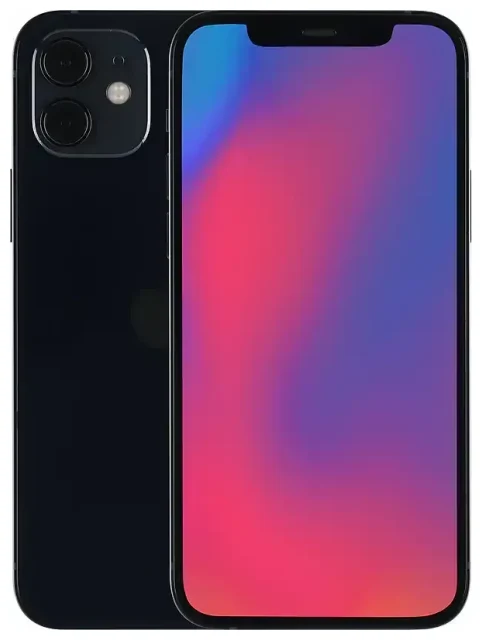
Does the Apple iPhone 12 support eSIM?
Yes, the Apple iPhone 12 supports eSIM. All variants of the iPhone 12—regardless of storage capacity or region—include eSIM functionality built into the device.
Apple iPhone 12 eSIM compatibility
Every Apple iPhone 12 model sold worldwide supports eSIM technology. This includes the standard iPhone 12, as well as the iPhone 12 mini, iPhone 12 Pro, and iPhone 12 Pro Max. There are no regional restrictions or carrier-locked versions that disable eSIM support.
Dual SIM capability
The Apple iPhone 12 offers dual SIM capability by combining one physical nano-SIM slot with one eSIM. You can have two active phone numbers at the same time—your primary number on the physical SIM and a second line on the eSIM, or vice versa. This setup is useful if you want to separate work and personal calls, or if you need a local data plan while traveling without removing your home SIM card. The iPhone 12 does not support dual eSIM mode; you must use the physical SIM slot alongside the eSIM.
How to set up an eSIM on the Apple iPhone 12
Setting up an eSIM on your Apple iPhone 12 takes about a minute once you have your QR code from your carrier or eSIM provider. The process happens entirely through the Settings app, and you'll see your new line appear alongside your physical SIM once activation completes.
Step-by-step eSIM activation
- Open Settings and tap Cellular (or Mobile Data in some regions).
- Tap Add Cellular Plan.
- Use your iPhone's camera to scan the QR code provided by your carrier or eSIM provider. If you received an activation code as text, tap Enter Details Manually instead and type the code.
- Wait while your iPhone 12 activates the eSIM. This usually takes 30 to 60 seconds and requires an internet connection via Wi-Fi or your physical SIM's data.
- Once activated, label your lines—for example, "Personal" for your physical SIM and "Travel" for the eSIM—so you can easily choose which line to use for calls, texts, and data.
- Set your default line for cellular data by going to Settings > Cellular > Cellular Data and selecting the line you want to use for internet access.
What you need before you start
You'll need a QR code or activation code from your eSIM provider, and your iPhone 12 must be connected to the internet. If you're adding a travel eSIM, it's best to complete the setup while still connected to Wi-Fi at home, though the eSIM won't use data until you enable it and arrive at your destination.
Using a travel eSIM on the Apple iPhone 12
A travel eSIM lets you get mobile data abroad without paying international roaming fees from your home carrier. Instead of hunting for a local SIM card at the airport or dealing with roaming charges, you install a data-only eSIM before you leave and activate it when you land.
Install before you fly
Download and install your travel eSIM while you're still at home with a stable Wi-Fi connection. The eSIM will sit dormant on your iPhone 12 until you're ready to use it. When you arrive at your destination, turn on the eSIM line in your Cellular settings, enable data roaming for that line, and you'll have internet access within seconds. Your physical SIM stays in place, so you can still receive calls and text messages on your home number while browsing, navigating, and messaging on the travel eSIM's data. You can browse eSIM plans for your destination and compare coverage and data allowances before you travel.
Keep your home number active
Because the Apple iPhone 12 supports dual SIM, you don't need to remove or deactivate your home SIM when using a travel eSIM. Set the travel eSIM as your default data line, and leave your home SIM enabled for voice and SMS. This way, you'll receive two-factor authentication codes and important calls without any extra cost, while all your data traffic routes through the local eSIM.
Tips & troubleshooting
Most eSIM installations on the Apple iPhone 12 go smoothly, but a few settings tweaks and troubleshooting steps can save you time if something doesn't work as expected.
Turn on data roaming for the eSIM line
Even though your eSIM is a local or regional plan, your iPhone treats it as a secondary line, and you must enable data roaming for that line. Go to Settings > Cellular, tap the eSIM line, then tap Data Roaming and switch it on. If data roaming is off, the eSIM won't connect to the network. This setting is line-specific, so enabling roaming for your travel eSIM won't affect your home SIM's roaming status.
Fix an eSIM that won't activate
If your QR code won't scan, check that your camera lens is clean and that the lighting is adequate. You can also tap Enter Details Manually and type the activation code if your provider supplied one. If the eSIM installs but won't connect, restart your iPhone 12 and check that the eSIM line is enabled in Settings > Cellular. Make sure you have an active internet connection during installation—either Wi-Fi or cellular data from your physical SIM. If you continue to have trouble, you can check another device's eSIM compatibility or contact your eSIM provider for a replacement QR code, as some codes expire or can only be used once.
Managing multiple eSIM profiles
Your Apple iPhone 12 can store multiple eSIM profiles, but only one eSIM can be active at a time alongside the physical SIM. If you travel frequently, you can install eSIMs for several destinations and switch between them in Settings > Cellular without scanning a new QR code each time. Tap the eSIM you want to use and turn it on; the other stored profiles remain installed but inactive until you need them.









