 WhatsApp +44 7367 063273
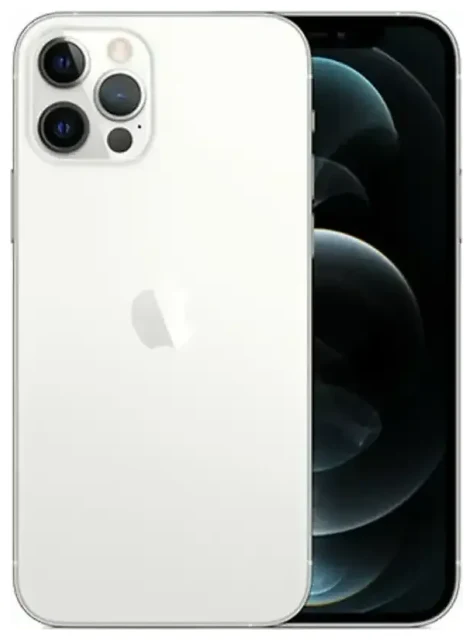
Does the Apple iPhone 12 Pro support eSIM?
Yes, the Apple iPhone 12 Pro supports eSIM. Every Apple iPhone 12 Pro sold worldwide—whether unlocked, carrier-locked, or purchased from a specific network—includes eSIM functionality built into the device.
Apple iPhone 12 Pro eSIM compatibility
All regional variants of the Apple iPhone 12 Pro support eSIM, including models sold in North America, Europe, Asia, and other markets. This applies to both unlocked units and those sold through carriers. The hardware is identical across regions for eSIM support.
Dual SIM: eSIM plus physical SIM
The Apple iPhone 12 Pro supports dual SIM through one physical nano-SIM slot and one eSIM. You can have two active phone numbers at the same time—one on your physical SIM and one on your eSIM. This lets you keep your home number while adding a local or travel data plan. The device supports only one eSIM active at a time, though you can store multiple eSIM profiles and switch between them in Settings. Models sold in mainland China, Hong Kong, and Macau have dual physical SIM trays instead of eSIM support.
How to set up an eSIM on the Apple iPhone 12 Pro
Setting up an eSIM on your Apple iPhone 12 Pro takes about a minute once you have your QR code or activation details from your carrier or eSIM provider. Make sure your device is connected to Wi-Fi before you start.
Set up an eSIM in Settings
- Open Settings and tap Cellular (or Mobile Data in some regions).
- Tap Add Cellular Plan.
- Scan the QR code provided by your carrier or eSIM provider using your camera. Hold your phone steady so the entire code is visible in the frame.
- If you can't scan the code, tap Enter Details Manually and type in the activation information provided.
- Tap Add Cellular Plan when prompted.
- Label your lines—for example, "Personal" for your main number and "Travel" for your eSIM. This makes it easy to choose which line to use for calls, messages, and data.
- Choose which line you want as your default for cellular data. You can change this anytime in Settings.
The eSIM profile installs in roughly 60 seconds. You'll see the new carrier name appear in the status bar alongside your existing SIM if you're running dual SIM.
Switching between eSIM profiles
You can store multiple eSIM profiles on the Apple iPhone 12 Pro, but only one eSIM can be active at a time alongside your physical SIM. To switch profiles, go to Settings > Cellular, tap the plan you want to use, and toggle Turn On This Line. The previous eSIM will deactivate automatically.
Using a travel eSIM on the Apple iPhone 12 Pro
A travel eSIM is the easiest way to get mobile data when you're abroad without paying roaming fees from your home carrier. You keep your primary SIM active for calls and texts, and you add a local or regional data plan on your eSIM.
Install before you fly
You can install your travel eSIM before you leave home—just connect to Wi-Fi and follow the setup steps above. The eSIM won't start using data or its validity period until you arrive in your destination country and turn on data roaming for that line. This means you land with connectivity already configured, no need to find a SIM card shop at the airport. Browse eSIM plans for your destination and install the profile a day or two before departure.
When you arrive, go to Settings > Cellular, tap your travel eSIM line, and turn on Data Roaming. Set this line as your default for cellular data. Your home SIM stays active for incoming calls and two-factor authentication codes, but won't rack up data charges because you've switched data to the travel eSIM.
Tips and troubleshooting
Most eSIM activations on the Apple iPhone 12 Pro work without issues, but a few common questions come up—especially for first-time users or when switching between multiple profiles.
Turn on data roaming for the eSIM line
If your eSIM shows bars but you have no internet, the most common fix is enabling data roaming. Go to Settings > Cellular, tap your eSIM line, and toggle Data Roaming on. Travel eSIMs require this setting turned on even though you're not being charged roaming fees—the eSIM treats any network outside its home region as roaming.
Keep your home SIM for calls and two-factor authentication
When you use a travel eSIM for data, leave your physical home SIM installed and active. Set your home line as the default for voice calls and messages in Settings > Cellular > Default Voice Line. This way you'll still receive calls, SMS, and authentication codes on your regular number while your data runs through the travel eSIM. You won't be charged for incoming texts or calls in most plans, but confirm with your home carrier.
Fix an eSIM that won't activate
If the QR code won't scan, make sure you're in good lighting and the code isn't blurry or partially obscured. You can also tap Enter Details Manually and type in the SM-DP+ address and activation code provided by your eSIM seller. If the installation fails completely, restart your Apple iPhone 12 Pro and try again—this clears temporary network registration issues. Check that your device is unlocked; carrier-locked iPhones may block eSIM activation from providers outside your carrier's approved list. If you're still stuck, eSIM setup help can walk you through carrier-specific steps.
For users researching whether the Apple iPhone 12 Pro eSIM feature is supported when unlocked: yes, an unlocked Apple iPhone 12 Pro supports eSIM from any compatible carrier or travel eSIM provider worldwide. Carrier-locked devices may have restrictions until you complete the unlock process with your network. You can store up to eight eSIM profiles on the device, though only one can be active at a time alongside the physical SIM. If you need to check another device's eSIM compatibility, the process is similar for most modern iPhones from the iPhone XS onward, including the iPhone 11 and later models.









