 WhatsApp +44 7367 063273
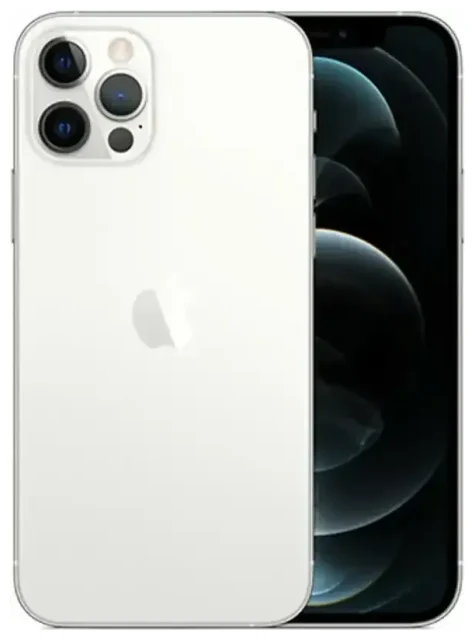
Does the Apple iPhone 12 Pro Max support eSIM?
Yes, the Apple iPhone 12 Pro Max supports eSIM technology. All models of the Apple iPhone 12 Pro Max worldwide come with eSIM capability built in, regardless of where you purchased the device.
Apple iPhone 12 Pro Max eSIM compatibility
Your Apple iPhone 12 Pro Max supports both a physical nano-SIM card and an eSIM, enabling dual SIM functionality. You can use one physical SIM and one eSIM simultaneously, which means you can maintain two separate phone numbers or plans on the same device. This makes the Apple iPhone 12 Pro Max ideal for separating work and personal lines, or for adding a local data plan when you travel without removing your primary SIM card.
Unlike some newer iPhone models that support dual eSIM operation, the Apple iPhone 12 Pro Max can only use one eSIM at a time alongside the physical SIM slot. You can store multiple eSIM profiles on the device, but only one eSIM can be active for cellular service at any given time.
How to set up an eSIM on the Apple iPhone 12 Pro Max
Setting up an eSIM on your Apple iPhone 12 Pro Max takes about 60 seconds once you have your QR code from your carrier or eSIM provider. You need an active Wi-Fi connection to download the eSIM profile.
Step-by-step eSIM activation process
- Connect your Apple iPhone 12 Pro Max to Wi-Fi.
- Open the Settings app and tap "Cellular" or "Mobile Data."
- Tap "Add Cellular Plan" or "Add eSIM."
- Position your device camera over the QR code provided by your carrier or eSIM provider until it scans automatically.
- Tap "Add Cellular Plan" when prompted to confirm the installation.
- Wait for the eSIM profile to download and activate—this typically takes 30–60 seconds.
- Label your new line with a descriptive name like "Travel," "Work," or "Personal" so you can easily identify it.
- Choose which line you want to use as your default for cellular data, voice calls, and iMessage.
Alternative activation methods
If you don't have a QR code, some carriers allow you to install an eSIM using their dedicated app or by entering activation details manually. You can also transfer an eSIM from another iPhone using the carrier's app if they support eSIM transfer functionality.
Using a travel eSIM on the Apple iPhone 12 Pro Max
Your Apple iPhone 12 Pro Max makes international travel simpler by supporting travel eSIM plans. Instead of paying expensive roaming fees on your home carrier or hunting for a local SIM card when you land, you can install a data eSIM before you leave.
Getting connected abroad without roaming charges
Travel eSIMs give you local data rates in your destination country without replacing your physical SIM card. Your home number stays active for calls and text messages, while the travel eSIM handles your data connection. Install the eSIM profile while you're still at home on Wi-Fi, and it will be ready to connect as soon as you arrive at your destination.
You can browse eSIM plans covering over 200 countries and regions, with options ranging from single-country coverage to global plans that work across multiple destinations. Most travel eSIMs are data-only, which is exactly what you need for maps, messaging apps, ride-sharing, and staying connected on the go.
Tips & troubleshooting
Getting the most from the Apple iPhone 12 Pro Max eSIM feature requires a few configuration tweaks, especially when using dual SIM or traveling internationally.
Enable data roaming for your eSIM line
When you install a travel eSIM, you must turn on data roaming specifically for that line. Go to Settings > Cellular, tap on your eSIM line, then toggle "Data Roaming" to on. This setting is per-line, so enabling roaming on your travel eSIM won't affect your home SIM. Choose which line handles cellular data under "Cellular Data" in the main Cellular settings menu.
Keep your home SIM active for calls and verification codes
Leave your primary physical SIM enabled even when using a travel eSIM for data. This way you can still receive calls, SMS messages, and two-factor authentication codes on your home number. Configure your default line for voice calls separately from your data line in the Cellular settings.
Fix an eSIM that won't activate
If your QR code won't scan, make sure your camera lens is clean and you have adequate lighting. You can also enter the activation code manually by tapping "Enter Details Manually" instead of using the camera. If the eSIM profile downloads but won't activate, restart your Apple iPhone 12 Pro Max and check that your carrier or provider hasn't restricted the eSIM to specific device models. Contact the eSIM provider if activation fails repeatedly—occasionally a profile needs to be regenerated on their end.
If you're still having trouble, you can get eSIM setup help or verify settings with your carrier. Make sure your device is running the latest iOS version, as updates sometimes resolve connectivity issues.









