 WhatsApp +44 7367 063273
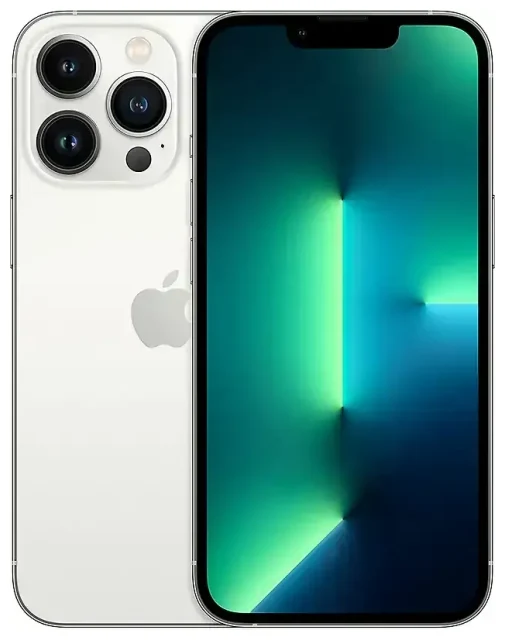
Does the Apple iPhone 13 Pro support eSIM?
Apple iPhone 13 Pro eSIM compatibility
Yes, the Apple iPhone 13 Pro supports eSIM. All Apple iPhone 13 Pro models sold worldwide include eSIM functionality, regardless of region or carrier. This applies to both unlocked and carrier-locked versions.
The Apple iPhone 13 Pro offers flexible dual SIM capabilities. You can use one eSIM alongside the physical nano-SIM slot, or activate two eSIMs simultaneously if you prefer not to use the physical slot. The device can store multiple eSIM profiles (up to eight), but only two lines can be active at once—either dual eSIM or one eSIM plus one physical SIM.
eSIM vs physical SIM on the Apple iPhone 13 Pro
The dual SIM setup lets you maintain two phone numbers on one device. Many travelers use their home carrier's physical SIM for calls and texts while adding a travel eSIM for affordable local data. Others keep work and personal numbers separate without carrying two phones.
How to set up an eSIM on the Apple iPhone 13 Pro
Set up an eSIM in Settings
Setting up an eSIM on your Apple iPhone 13 Pro takes about sixty seconds once you have your QR code from your carrier or eSIM provider. Your phone must be connected to Wi-Fi during setup, and if the device is carrier-locked, you'll need to use an eSIM from that carrier or unlock the phone first.
- Open Settings and tap Cellular (or Mobile Data in some regions).
- Tap Add Cellular Plan.
- Use your camera to scan the QR code provided by your eSIM carrier. If scanning doesn't work, tap Enter Details Manually and input the activation code.
- Tap Add Cellular Plan when prompted to confirm.
- Label your new line—choose a preset like "Travel" or "Secondary," or create a custom label to identify it easily.
- Choose which line to use as your default for cellular data and which for calls. You can change these preferences anytime in Settings.
- Enable or disable each line as needed by toggling Turn On This Line under each plan in Settings > Cellular.
How to activate eSIM on iPhone 13 Pro
The eSIM activates automatically once you complete the steps above and your carrier provisions the profile. You'll see the signal bars appear for your new line within a few moments. If activation doesn't happen immediately, restart your Apple iPhone 13 Pro and wait a few minutes for the network to register.
Using a travel eSIM on the Apple iPhone 13 Pro
Travel eSIMs give you local data rates abroad without paying roaming fees to your home carrier. Instead of hunting for a SIM card shop when you land, install a travel eSIM before you fly. You'll have data the moment your plane touches down.
Purchase a travel eSIM for your destination, receive the QR code by email, and install it on your Apple iPhone 13 Pro using the steps above. You can install the profile days or weeks ahead—it won't activate or start counting down until you arrive in the destination country and connect to the local network. Keep your home SIM active in the physical slot so you can still receive calls and text messages for two-factor authentication. Simply set the travel eSIM as your default data line in Settings, and all your apps will use the affordable local data while your home number remains reachable.
Browse and compare coverage, data allowances, and validity periods to find the right plan for your trip. Browse eSIM plans by destination to see what's available before you travel.
Tips & troubleshooting
Turn on data roaming for the eSIM line
Your Apple iPhone 13 Pro requires data roaming enabled for travel eSIMs to work. Go to Settings > Cellular, tap your eSIM line, then toggle Data Roaming on. This won't trigger roaming charges on your travel eSIM—it simply allows the phone to connect to networks outside your eSIM provider's home country. Keep data roaming off for your home carrier's SIM to avoid surprise charges.
Fix an eSIM that won't activate
If your QR code won't scan, ensure you have good lighting and hold the phone steady. Alternatively, tap Enter Details Manually and type the activation code your provider sent. If the eSIM installs but shows no signal, confirm your device is unlocked—carrier-locked phones reject eSIMs from other networks. Restart your Apple iPhone 13 Pro, toggle Airplane Mode on and off, or remove and reinstall the eSIM profile under Settings > Cellular.
If you're still stuck after trying these steps, eSIM setup help can walk you through device-specific fixes. You can also check another device's eSIM compatibility if you're considering a different phone or tablet.
Keep the home SIM for calls and two-factor authentication
Leave your home carrier's physical SIM in place when you add a travel eSIM. Set your home line as the default for voice calls and messages, and assign the travel eSIM as the default for cellular data. This way, you receive important calls and SMS codes without paying data roaming fees, and all your internet traffic uses the local eSIM's affordable rates.









