 WhatsApp +44 7367 063273
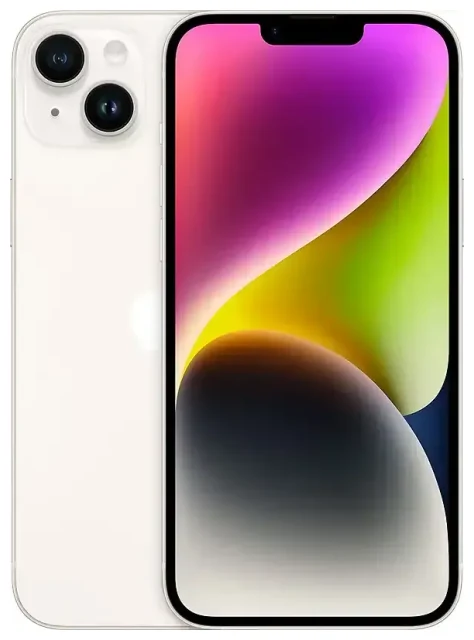
Does the Apple iPhone 14 Plus support eSIM?
Yes, the Apple iPhone 14 Plus supports eSIM. All models sold globally include eSIM capability, but the implementation varies by region.
Apple iPhone 14 Plus eSIM compatibility by region
US models of the Apple iPhone 14 Plus (model A2632) are eSIM-only devices with no physical SIM card tray. You can activate up to eight eSIMs and use two active lines simultaneously in dual eSIM mode.
International models of the Apple iPhone 14 Plus (models A2885, A2886, A2887, A2888) include both eSIM support and a nano-SIM tray. These versions support dual SIM: one physical nano-SIM plus one eSIM active at the same time, or two eSIMs if you prefer not to use the physical slot.
Dual SIM capabilities
Regardless of your region, the Apple iPhone 14 Plus lets you maintain two active phone lines. US owners use dual eSIM exclusively, while international owners can mix a physical SIM with an eSIM or run two eSIMs together. You can store multiple eSIM profiles and switch between them in Settings.
How to set up an eSIM on the Apple iPhone 14 Plus
Setting up an eSIM on your Apple iPhone 14 Plus takes about sixty seconds once you have your QR code or activation details from your carrier or travel eSIM provider.
Activate eSIM on iPhone 14 Plus step by step
- Open Settings on your Apple iPhone 14 Plus.
- Tap Cellular (or Mobile Data in some regions).
- Tap Add Cellular Plan (or Add eSIM if you already have one line configured).
- Point your camera at the QR code provided by your carrier or eSIM vendor. The code will scan automatically.
- Tap Add Cellular Plan when prompted to confirm the installation.
- Label your new line with a descriptive name—such as "Travel" or "Work"—so you can identify it easily.
- Choose which line to use as your default for cellular data and which for calls, or allow your iPhone to switch automatically based on coverage and signal strength.
Alternative activation methods
If your carrier supports it, you may see an option for carrier activation or eSIM Quick Transfer, which moves a line from another iPhone without a QR code. Some providers also let you enter activation details manually by tapping "Enter Details Manually" if the QR code won't scan.
Using a travel eSIM on the Apple iPhone 14 Plus
A travel eSIM is the easiest way to get mobile data abroad without paying international roaming charges on your home plan. You keep your primary number active for calls and texts while routing data through an affordable local or regional eSIM.
Install your travel eSIM before departure
Purchase and install your travel eSIM while you still have Wi-Fi or data at home. The profile installs immediately, but the plan won't start billing until you land, enable the travel line, and connect to a supported network. You can browse eSIM plans for your destination and complete setup in minutes.
Once you arrive, go to Settings > Cellular, tap your travel eSIM line, turn it on, and set it as your default data line. Your Apple iPhone 14 Plus will use the travel eSIM for internet while your home SIM stays available for calls and two-factor authentication codes.
Why travel eSIM beats physical SIM swapping
Because the Apple iPhone 14 Plus supports multiple eSIM profiles, you avoid the hassle of removing and storing a tiny physical SIM card (especially relevant if you own a US model with no SIM tray at all). You can switch between eSIM plans in Settings whenever you cross borders, and you won't lose your home number or miss incoming messages.
Tips & troubleshooting
Enable data roaming for your eSIM line
Even though you've installed a local or regional travel eSIM, you still need to turn on Data Roaming for that specific line. Go to Settings > Cellular, tap the travel eSIM, and toggle Data Roaming on. This is not the same as expensive roaming on your home carrier—your travel eSIM plan includes roaming across its supported countries.
Keep your home SIM active for calls and texts
If you're using a travel eSIM for data, leave your home line enabled but set it to allow calls and SMS only. In Settings > Cellular, choose your travel eSIM as the default for Cellular Data and leave your home line selected under Default Voice Line. This setup keeps you reachable at your regular number while avoiding roaming data charges.
What to do if the QR code won't scan
If your camera won't focus or recognize the QR code, increase screen brightness, ensure the code isn't blurry or partially obscured, and hold your iPhone steady about six inches from the screen or printout. If the scan still fails, tap Enter Details Manually and type the SM-DP+ address and activation code provided by your carrier. You can also take a screenshot of the QR code on another device and scan it from your Photos app by tapping "Use Image" in the Add Cellular Plan screen.
Check compatibility for other devices
If you're managing multiple phones or tablets in your household, you can check another device's eSIM compatibility to confirm which models support eSIM before purchasing a plan. For additional help with installation or activation issues, visit our eSIM setup help resources.









