 WhatsApp +44 7367 063273
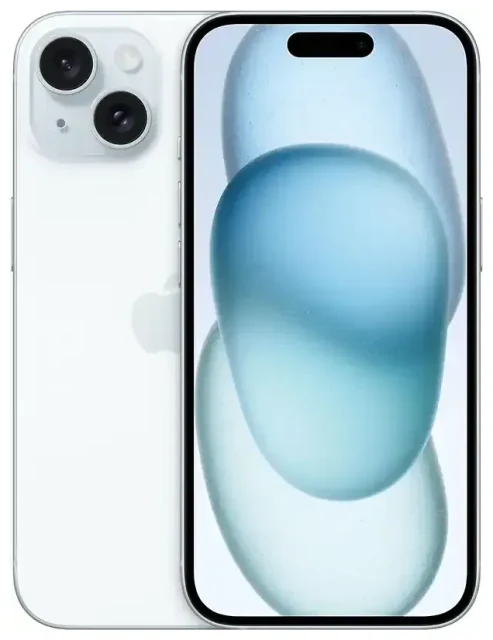
1. Does the Apple iPhone 15 support eSIM?
Apple iPhone 15 eSIM compatibility
Yes, the Apple iPhone 15 supports eSIM. Every model—iPhone 15, iPhone 15 Plus, iPhone 15 Pro, and iPhone 15 Pro Max—ships with eSIM capability worldwide.
If you bought your iPhone 15 in the United States, it is eSIM-only and has no physical SIM card slot. US models support up to eight eSIM profiles stored on the device, with two active at once (dual eSIM). This applies to all four models sold through US carriers and Apple stores.
International models—sold in the UK, Europe, Asia, Australia, Canada, and other regions—include both a nano-SIM tray and eSIM support. You can use a physical SIM plus one active eSIM simultaneously, or run dual eSIM without inserting a physical card. These models also store up to eight eSIM profiles.
Dual SIM options on the Apple iPhone 15
The Apple iPhone 15 offers flexible dual SIM configurations. US buyers get dual eSIM (two eSIMs active at the same time). International buyers choose between one physical SIM plus one eSIM, or two eSIMs with the tray empty. You switch between stored profiles in Settings whenever you need a different line active.
2. How to set up an eSIM on the Apple iPhone 15
Install an eSIM using a QR code
Setting up an eSIM on your Apple iPhone 15 takes about sixty seconds. Your carrier or eSIM provider will send a QR code by email or display it in their app. Make sure you have a Wi-Fi connection before you start.
- Open Settings and tap Cellular (or Mobile Data in some regions).
- Tap Add eSIM.
- Choose Use QR Code and position your camera over the code, or tap Enter Details Manually if you have an activation code string.
- Tap Continue when the system recognizes the QR code.
- Label your new line—something like "Travel" or "Work"—so you know which plan handles data, calls, and messages.
- Choose which line you want as your default for cellular data and which for voice calls.
- Tap Done.
The eSIM activates within a few seconds. You'll see the new carrier name or label in the status bar. If you're installing a travel eSIM while still at home, you can leave it installed but turned off until you land abroad.
How to activate eSIM on iPhone 15 from your carrier app
Some carriers let you activate an eSIM directly in their app without scanning anything. Open the app, look for an option like "Convert to eSIM" or "Activate eSIM," and follow the prompts. The profile downloads and activates automatically. This method works for converting a physical SIM to eSIM if your home carrier supports it in the UK, US, and many other countries.
3. Using a travel eSIM on the Apple iPhone 15
A travel eSIM gives you mobile data abroad without paying roaming fees to your home carrier. You buy a data plan for your destination, install the eSIM profile before you fly, and switch it on when you arrive. Your phone connects to a local network, so you get fast data at local rates.
Install your travel eSIM while you still have Wi-Fi at home or at the airport. Open the QR code email on a second device or print it, then follow the setup steps above. Label the line "Travel" or with the country name. Leave your home SIM or eSIM active so you can still receive calls and text messages for two-factor authentication.
When you land, go to Settings > Cellular, tap your travel eSIM line, and turn on Data Roaming. Set this line as your default for cellular data. Your home line stays available for calls and SMS, but won't rack up data charges because it's no longer your data line. You can browse eSIM plans for more than 200 destinations and compare coverage and data allowances.
4. Tips & troubleshooting
Turn on data roaming for your eSIM line
Even though you're using a local eSIM, the iPhone still treats it as "roaming" because it's not your primary home carrier. Go to Settings > Cellular, tap the travel eSIM line, and toggle Data Roaming on. Without this step, your eSIM won't connect to mobile data abroad.
Keep your home SIM or eSIM turned on but not selected for data. This way, you receive calls and verification codes on your usual number while the travel eSIM handles all internet traffic. You avoid surprise roaming bills and stay reachable.
Fix an eSIM that won't activate
If the QR code won't scan, check that your camera lens is clean and the code is well lit. You can also tap Enter Details Manually and type the activation code your provider supplied. Make sure you're connected to Wi-Fi—eSIM downloads require an internet connection.
If the profile installs but won't connect, restart your iPhone and verify that the eSIM line has Data Roaming and This Line turned on under Settings > Cellular. Check that you've set the correct line as your default for cellular data. If you're still stuck, eSIM setup help is available, or contact your eSIM provider for a new QR code.
When switching between multiple eSIM profiles, remember the Apple iPhone 15 supports up to eight stored profiles but only two active at once (or one eSIM plus one physical SIM on international models). You can turn profiles off and on without deleting them, which is useful if you travel frequently to the same places. If you want to check another device's eSIM compatibility for a secondary phone or tablet, the process is similar across most modern devices.
iPhone 15 eSIM or physical SIM—which should you use?
If you're in the US, the choice is made for you—eSIM only. Everywhere else, eSIM offers more flexibility: you can switch carriers digitally, add a travel plan in seconds, and run two numbers without carrying a SIM tool. Physical SIM still works if you prefer it or if a carrier in your country doesn't support eSIM yet. For travel, eSIM is faster and easier because you activate it at home and land with data already ready.









