 WhatsApp +44 7367 063273
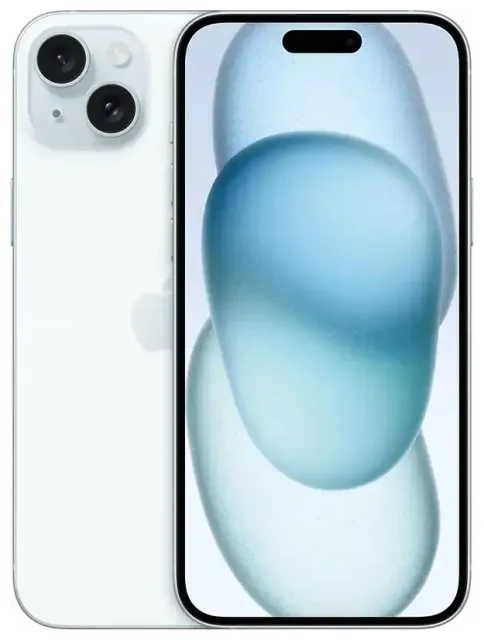
Does the Apple iPhone 15 Plus support eSIM?
Yes, the Apple iPhone 15 Plus supports eSIM. Every model of the Apple iPhone 15 Plus sold worldwide includes eSIM functionality, allowing you to activate cellular plans digitally without a physical SIM card.
Apple iPhone 15 Plus eSIM compatibility by region
The eSIM implementation varies by region. Models sold in the United States are eSIM-only—they have no physical SIM card tray at all. You must use eSIM for all cellular connectivity. Models sold outside the US include both eSIM support and a nano-SIM tray, giving you the flexibility to use either or both.
Dual SIM capabilities
The Apple iPhone 15 Plus supports dual SIM in multiple configurations. On US models, you can activate two eSIMs simultaneously. On international models, you can use one physical nano-SIM plus one active eSIM, or two eSIMs if you prefer not to use the physical slot. Your device can store multiple eSIM profiles and switch between them in Settings, though only two lines can be active at once.
How to set up an eSIM on the Apple iPhone 15 Plus
Setting up an eSIM on your Apple iPhone 15 Plus takes about a minute once you have your QR code or activation details from your carrier or eSIM provider. The process is the same whether you're adding your first eSIM or a second line for travel.
Step-by-step eSIM activation
- Open Settings and tap Cellular (or Mobile Data in some regions).
- Tap Add eSIM or Add Cellular Plan.
- Choose Use QR Code and point your camera at the QR code provided by your carrier or travel eSIM provider. Alternatively, select Enter Details Manually if you have an activation code.
- Wait while your Apple iPhone 15 Plus downloads and installs the eSIM profile—this usually takes 30 to 60 seconds with a stable internet connection.
- Label your new line with a name like "Travel" or "Work" to tell your plans apart.
- Choose which line to use for cellular data, and which for default voice calls and iMessage.
Set up an eSIM in Settings
If your carrier supports eSIM Quick Transfer or carrier activation, you may see additional options when you tap Add eSIM. Some carriers allow you to transfer an existing plan from another iPhone or activate a plan tied to your account without scanning anything. Follow the on-screen prompts if these options appear.
Using a travel eSIM on the Apple iPhone 15 Plus
A travel eSIM is the simplest way to get local data rates abroad without paying roaming fees or hunting for a physical SIM card at the airport. Because the Apple iPhone 15 Plus supports multiple eSIM profiles, you can install a travel plan before you leave home and activate it the moment you land.
How to use eSIM on iPhone abroad
Install your travel eSIM while you're still connected to Wi-Fi at home or at the airport. Once you arrive at your destination, go to Settings > Cellular, select your travel eSIM line, and turn it on for cellular data. Your Apple iPhone 15 Plus will connect to a local network, giving you data for maps, messaging, and browsing at local rates. Keep your home line active if you want to receive calls and text messages, or if you need it for two-factor authentication codes.
You can browse eSIM plans for over 200 countries and regions, compare data allowances, and install your plan in minutes—all without swapping physical cards.
Tips & troubleshooting
Most eSIM installations on the Apple iPhone 15 Plus work smoothly, but a few settings adjustments can save you trouble, especially when traveling.
Turn on data roaming for your eSIM line
Even though your travel eSIM is "local" to the country you're visiting, the setting is still called Data Roaming on your iPhone. Go to Settings > Cellular, tap your travel eSIM, then toggle Data Roaming on. Without this, your eSIM won't connect to the network. Your home line can stay off to avoid accidental roaming charges.
Fix an eSIM that won't activate
If the QR code won't scan, make sure your camera lens is clean and you have good lighting. You can also tap Enter Details Manually and type the activation code provided by your eSIM supplier. If the installation stalls, confirm you have an active internet connection—Wi-Fi or cellular data from another active line. Restart your Apple iPhone 15 Plus and try again. If the profile installs but won't connect, check that the plan is activated in your provider's app or account dashboard, and confirm Data Roaming is on for that line.
If you're still stuck, you can always eSIM setup help or contact your eSIM provider's support team. You can also check another device's eSIM compatibility if you're considering a second phone or tablet for travel.
Keep your home SIM active for calls and two-factor authentication
When using dual SIM, assign your home line for voice calls and your travel eSIM for data. This way, you'll receive incoming calls and SMS—including banking and app verification codes—on your regular number, while browsing and apps use the cheaper local data. You control these settings when you first add the eSIM, and you can change them anytime in Settings > Cellular.









