 WhatsApp +44 7367 063273
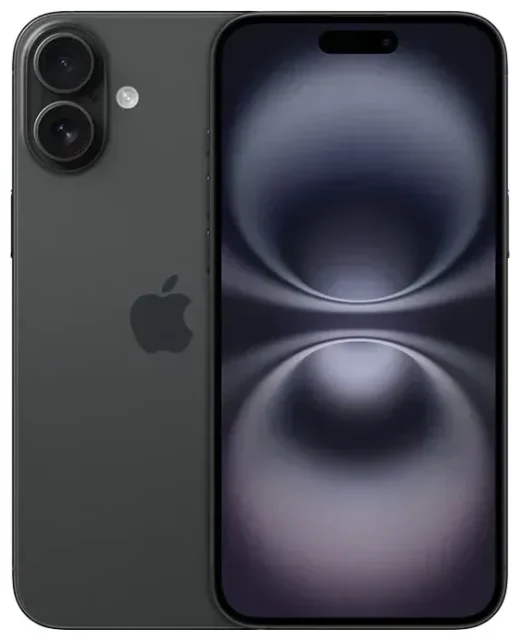
Does the Apple iPhone 16 support eSIM?
Yes, the Apple iPhone 16 supports eSIM. All variants of the Apple iPhone 16 offer eSIM compatibility, regardless of storage capacity or color.
Apple iPhone 16 eSIM compatibility by region
Regional differences matter. Models sold in the United States and Puerto Rico are eSIM-only and do not include a physical SIM card tray. You must use eSIM for all your mobile plans on US models.
Models sold outside the US—including the UK, Europe, Asia, Australia, and Canada—feature dual SIM capability: one physical nano-SIM slot plus eSIM support. This means you can run a physical SIM and an eSIM simultaneously, or use multiple eSIMs at once.
How many eSIMs can the Apple iPhone 16 hold?
The Apple iPhone 16 can store up to eight eSIM profiles and use two lines simultaneously (Dual SIM Dual Standby). On international models, that's either one physical SIM plus one eSIM active at the same time, or two eSIMs active together. US models support two active eSIMs since there's no physical slot.
How to set up an eSIM on the Apple iPhone 16
Setting up an eSIM on your Apple iPhone 16 typically takes about sixty seconds. You'll receive a QR code or activation details from your carrier or eSIM provider.
Apple iPhone 16 eSIM setup steps
- Make sure your iPhone 16 is connected to Wi-Fi.
- Open Settings and tap Cellular (or Mobile Data in some regions).
- Tap Add eSIM or Add Cellular Plan.
- Choose Use QR Code and scan the QR code provided by your carrier or eSIM provider, or select Enter Details Manually if you received an activation code.
- Wait while the eSIM activates—this usually takes 10–60 seconds.
- Label your new line (e.g., "Travel," "Work," or "Primary") to keep track if you're using multiple SIMs.
- Choose which line to use for cellular data, calls, and iMessage in the Cellular settings.
Converting a physical SIM to eSIM
If your carrier supports SIM-to-eSIM conversion and you have a physical SIM currently in use, you can convert it directly on your iPhone 16 (international models). Go to Settings > Cellular, tap your physical SIM line, then look for Convert to eSIM. This process transfers your number to an eSIM profile and frees up the physical slot.
The same setup process applies whether you're activating an eSIM on iPhone 16, iPhone 15, or iPhone 14—the Settings path and QR-code scanning remain consistent across recent models.
Using a travel eSIM on the Apple iPhone 16
Travel eSIMs give you mobile data in other countries without expensive roaming charges from your home carrier. Instead of hunting for a local SIM card at the airport, you install a travel eSIM before you leave and activate it when you land.
Why use a travel eSIM on your iPhone 16
You keep your primary number active for calls and two-factor authentication texts, while the travel eSIM handles data. This dual-line setup means friends and banks can still reach you on your usual number, but you're browsing, mapping, and messaging over affordable local data rates.
Install your travel eSIM while you're still at home on Wi-Fi. The profile sits dormant on your iPhone 16 until you enable it. Once you arrive at your destination, turn on that eSIM line in Settings, and you're connected. You can browse eSIM plans that cover single countries or entire regions, depending on your itinerary.
Managing multiple eSIM profiles for travel
Because the Apple iPhone 16 stores up to eight eSIM profiles, you can keep plans for different countries ready to go. Activate the one you need, then switch it off when you move to the next destination. This flexibility makes the iPhone 16 an excellent choice for frequent travelers who want reliable connectivity without swapping physical cards.
Tips & troubleshooting
Turn on data roaming for your eSIM line
After you activate a travel eSIM, go to Settings > Cellular, tap the eSIM line, then tap Data Roaming and toggle it on. Travel eSIMs require data roaming enabled to connect to local networks. Your home line's roaming can stay off to avoid unexpected charges.
Keep your home SIM active for calls and texts
Set your primary number as the default for voice calls and SMS in Settings > Cellular > Default Voice Line. This way, two-factor authentication codes and calls from home reach you on your original number, while data flows through the cheaper travel eSIM.
What to do if the QR code won't scan
If your camera can't read the QR code, tap Enter Details Manually in the Add eSIM screen. Your eSIM provider will supply an SM-DP+ address and activation code—type those in by hand. Alternatively, if your provider sent the QR code by email, screenshot it, then choose Open Photos when scanning to select the image from your library.
Make sure your iPhone 16 is running the latest iOS update, as older software versions occasionally cause activation hiccups. If an eSIM profile won't activate after several attempts, restart your device and try again. You can also check another device's eSIM compatibility if you're troubleshooting for a different phone or tablet, or visit our eSIM setup help for more detailed guidance.
eSIM vs physical SIM on the iPhone 16
Both work identically once active—calls, texts, and data function the same way. The difference is physical: an eSIM is embedded in the phone's hardware and activated digitally, while a physical SIM is a removable chip. eSIMs offer faster switching between carriers, no risk of losing a tiny card, and the ability to hold multiple profiles without carrying spares.









