 WhatsApp +44 7367 063273
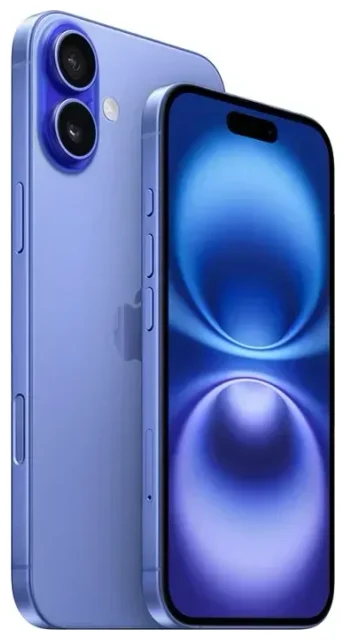
Does the Apple iPhone 16 Plus support eSIM?
Apple iPhone 16 Plus eSIM compatibility
Yes, the Apple iPhone 16 Plus supports eSIM. Every variant of the device—regardless of where you buy it—includes eSIM functionality. Apple has built eSIM support into the iPhone lineup since the iPhone XS, and the iPhone 16 Plus continues that standard.
One important regional difference: models sold in the United States do not include a physical nano-SIM card tray. US models rely entirely on eSIM for cellular connectivity. Models sold outside the US retain a physical SIM tray, so you can use either a traditional SIM card or an eSIM—or both at once.
Dual SIM on the Apple iPhone 16 Plus
The Apple iPhone 16 Plus supports dual SIM in two configurations. On international models with a physical SIM tray, you can run one nano-SIM and one eSIM simultaneously. On US models without a physical tray, you can activate two eSIM profiles at the same time. The device can store up to eight eSIM profiles in total, though only two can be active for calls, texts, and data at any moment. This dual-SIM capability is useful for separating work and personal numbers, or keeping a home line active while using a travel eSIM abroad.
How to set up an eSIM on the Apple iPhone 16 Plus
Install an eSIM profile in Settings
Setting up an eSIM on the Apple iPhone 16 Plus takes about 60 seconds. You'll need a QR code from your carrier or eSIM provider, and a Wi-Fi or cellular data connection to download the profile. Make sure your device is running the latest version of iOS for the smoothest experience.
- Open Settings and tap Cellular (or Mobile Data in some regions).
- Tap Add eSIM.
- Choose Use QR Code, then position your camera so the QR code fits inside the frame. The profile downloads automatically.
- If your provider supports eSIM Quick Transfer or carrier activation, you may see those options instead—follow the on-screen prompts.
- Once the profile installs, tap Continue and label the new line (for example, "Travel" or "Work").
- Choose which line you want as your default for cellular data, and confirm your settings for calls and messages.
After setup, you'll see both SIM labels in Settings > Cellular, and you can toggle which line carries data or turn lines on and off as needed.
Activate an eSIM without a QR code
Some carriers let you activate an eSIM without scanning a QR code. If your provider supports it, you can enter activation details manually by tapping Enter Details Manually during setup. You'll need the SM-DP+ address and activation code supplied by your carrier. This method works exactly the same way as QR-code activation—the profile downloads, installs, and appears in your Cellular settings.
Using a travel eSIM on the Apple iPhone 16 Plus
A travel eSIM is one of the easiest ways to stay connected when you leave home. Instead of hunting for a local SIM card at the airport or paying high roaming fees to your home carrier, you install a data-only eSIM before you board your flight. Once you land, the eSIM connects to a local network automatically, and you have affordable mobile data without swapping physical cards.
Install your travel eSIM while you still have Wi-Fi at home or at the airport. Head to Settings > Cellular > Add eSIM, scan the QR code from your travel-eSIM provider, and label the new line. Leave your home SIM active so you can still receive calls and text messages for two-factor authentication. When you arrive at your destination, open Settings > Cellular, tap your travel eSIM line, and turn on This Line to enable it. Then set the travel eSIM as your default data line under Cellular Data. Your Apple iPhone 16 Plus will use the travel eSIM for internet while keeping your home number available for voice and SMS.
You can browse eSIM plans that cover single countries or entire regions, with data packages ranging from a few gigabytes for a short trip to larger bundles for extended stays.
Tips & troubleshooting
Turn on data roaming for your eSIM line
If your travel eSIM won't connect to a network, check that data roaming is enabled for that specific line. Go to Settings > Cellular, tap the eSIM line you want to use, then toggle Data Roaming on. This setting is required for travel eSIMs because the profile connects to a partner network in the country you're visiting. Turning on data roaming for an eSIM will not trigger surprise charges—you've already paid for the data bundle when you bought the eSIM plan.
Keep your home SIM active for calls and two-factor codes
You don't need to remove or disable your home SIM when you activate a travel eSIM. Set your home line as the default for voice calls and messages in Settings > Cellular > Default Voice Line, and choose the travel eSIM as your data line. That way, banking apps and services can still send verification codes to your home number, and you can make or receive calls without using your data allowance.
What to do if the QR code won't scan
If your camera won't recognize the QR code, make sure the code is displayed clearly on another screen or printed without glare. If scanning still fails, tap Enter Details Manually and type in the SM-DP+ address and activation code your provider gave you. Restart your Apple iPhone 16 Plus if the eSIM setup process freezes or doesn't respond. If you continue to have trouble, you can eSIM setup help from your provider or check another device's eSIM compatibility if you're managing multiple phones.
How many eSIMs can you store on the Apple iPhone 16 Plus?
The Apple iPhone 16 Plus can store up to eight eSIM profiles at once, but only two can be active simultaneously. You can switch between stored profiles in Settings > Cellular without needing to scan a new QR code each time. This is helpful if you travel frequently to the same destinations and want to keep country-specific eSIMs installed and ready to enable.









