 WhatsApp +44 7367 063273
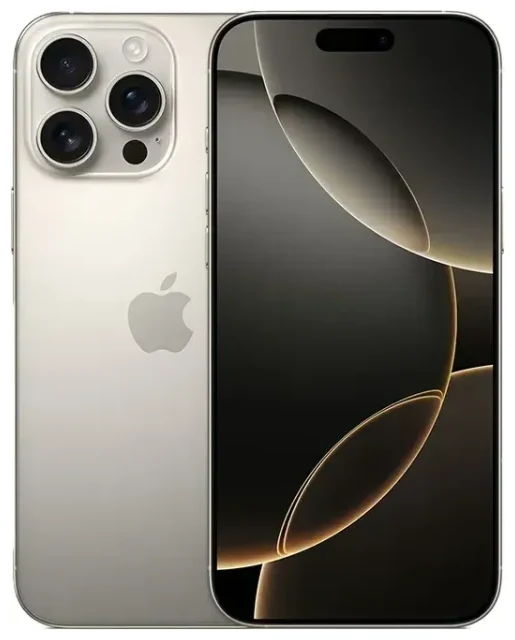
Does the Apple iPhone 16 Pro support eSIM?
Apple iPhone 16 Pro eSIM compatibility
Yes, the Apple iPhone 16 Pro supports eSIM. All models worldwide include eSIM capability, but the configuration depends on where your device was purchased.
US models of the Apple iPhone 16 Pro are eSIM-only and do not include a physical nano-SIM tray. You can store up to eight eSIM profiles and use two active lines simultaneously—either two eSIMs at once, or in some configurations, dual eSIM for calls and data.
International models (sold in Europe, Asia, Middle East, and most other regions) feature dual SIM support with one nano-SIM slot plus eSIM. You can use a physical SIM and one eSIM at the same time, or run dual eSIMs if you prefer not to use the physical slot. These models also store up to eight eSIM profiles.
eSIM vs physical SIM on the iPhone 16 Pro
The Apple iPhone 16 Pro gives you flexibility. If you have an international model, you can choose between a physical nano-SIM or eSIM for your primary line, then add a second eSIM for travel or a work number. US buyers work exclusively with eSIM, which eliminates the SIM tray entirely and makes the device more resistant to dust and moisture.
How to set up an eSIM on the Apple iPhone 16 Pro
Activate an eSIM in Settings
Setting up an eSIM on your Apple iPhone 16 Pro takes about 60 seconds once you have your QR code or activation details from your carrier or eSIM provider. Make sure you're connected to Wi-Fi before you begin.
- Open Settings and tap Cellular (or Mobile Data in some regions).
- Tap Add eSIM or Add Cellular Plan.
- Choose Use QR Code and point your camera at the QR code provided by your carrier or travel eSIM provider. Alternatively, tap Enter Details Manually if you received an activation code.
- Wait while your iPhone 16 Pro downloads and installs the eSIM profile—this usually completes in under a minute.
- Once installed, label the line (for example, "Travel," "Work," or the country name) so you can identify it easily.
- Choose which line to use for cellular data, and which for calls and messages, in the Cellular settings.
Set up dual SIM or multiple eSIM profiles
If you already have one eSIM or physical SIM active, repeat the steps above to add a second eSIM. The Apple iPhone 16 Pro lets you switch between stored profiles without re-scanning: go to Settings > Cellular, tap the eSIM you want to activate, and toggle it on. You can keep up to eight eSIM profiles stored and swap between them as needed—useful if you travel frequently to the same destinations.
Using a travel eSIM on the Apple iPhone 16 Pro
Stay connected abroad without roaming fees
A travel eSIM is the simplest way to get mobile data when you're overseas. Instead of paying international roaming charges on your home plan or hunting for a local SIM card at the airport, you install a travel eSIM before you leave. Once you land, the eSIM connects to a local network and you have data immediately—no swapping physical cards, no unlocking a SIM tray with a paperclip.
Because the Apple iPhone 16 Pro supports dual SIM, your home line stays active for calls and text messages (including two-factor authentication codes) while the travel eSIM handles data. You control which line is used for what in the Cellular settings, so you won't accidentally rack up roaming fees on your primary plan.
Install your travel eSIM before departure
Most travel eSIM plans activate only when you reach your destination country and the phone registers on the local network, so you can install the profile days or weeks in advance. This means no last-minute stress in the airport, and you're online the moment you switch off airplane mode. Browse eSIM plans for your destination and install the QR code while you're still at home on Wi-Fi.
Tips & troubleshooting
Turn on data roaming for your eSIM line
Many people forget this step and wonder why their travel eSIM isn't working. On the Apple iPhone 16 Pro, each line has its own data roaming toggle. Go to Settings > Cellular, tap the eSIM you want to use for data, then scroll down and switch Data Roaming on. Your home SIM's roaming can stay off to avoid unexpected charges.
Keep your home SIM active for calls and two-factor codes
Set your travel eSIM as the default line for Cellular Data, but leave your home line enabled for Voice & Data or Calls. That way, you receive SMS verification codes and phone calls on your usual number while using the eSIM's local data. You configure this during eSIM setup or anytime in Settings > Cellular.
Fix an eSIM that won't activate
If the QR code won't scan, check that your camera lens is clean and the code is displayed at full brightness. You can also tap Enter Details Manually and type the activation code your provider sent by email. If the eSIM installs but won't connect, restart your iPhone 16 Pro, confirm that data roaming is on for that line, and check that the plan is valid and covers the country you're in. For persistent issues, eSIM setup help can walk you through advanced troubleshooting.
Check compatibility for other devices
If you're managing multiple phones or tablets in your household, you can quickly check another device's eSIM compatibility to see which support eSIM and how many profiles each can store. Not all Android phones or older iPhones offer eSIM, so it's worth confirming before you buy a travel plan.









