 WhatsApp +44 7367 063273
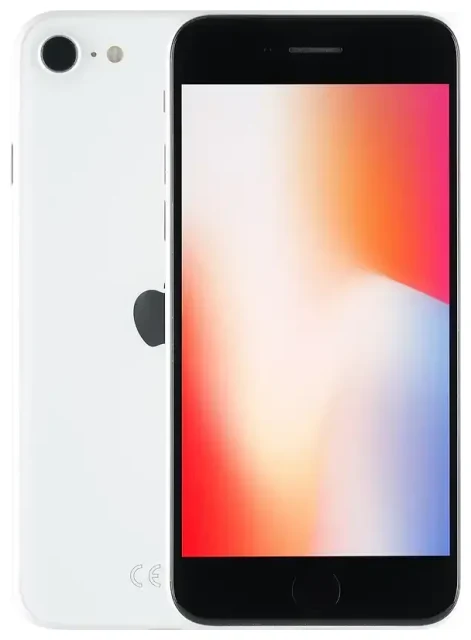
Does the Apple iPhone SE 2020 support eSIM?
Yes, the Apple iPhone SE 2020 supports eSIM technology in all models sold worldwide. Every variant—regardless of storage capacity or region—includes eSIM functionality built into the device.
Apple iPhone SE 2020 eSIM compatibility
Your Apple iPhone SE 2020 can run dual SIM, combining one physical nano-SIM card with one active eSIM profile. This means you can maintain two separate phone numbers on the same device—useful for separating work and personal lines, or keeping your home number active while using a local data plan abroad.
The device does not support dual eSIM operation. You're limited to one physical SIM and one eSIM active simultaneously, though you can store multiple eSIM profiles on the device and switch between them in Settings as needed.
eSIM vs physical SIM on the Apple iPhone SE 2020
The physical SIM slot accepts a standard nano-SIM card. The eSIM is embedded directly in the hardware and can be programmed remotely—no physical card required. Both deliver identical call, text, and data functionality; the difference is purely in how you acquire and activate service.
How to set up an eSIM on the Apple iPhone SE 2020
Setting up an eSIM on your Apple iPhone SE 2020 takes about 60 seconds once you have your QR code or activation details from your carrier or travel eSIM provider. Make sure you're connected to Wi-Fi before you begin, and confirm your device is running iOS 12.1 or later (all units shipped with at least iOS 13.4).
Apple iPhone SE 2020 eSIM setup steps
- Open Settings and tap Cellular (or Mobile Data in some regions).
- Tap Add Cellular Plan.
- Use your camera to scan the QR code provided by your carrier or eSIM provider. If you don't have a QR code, tap Enter Details Manually and input the SM-DP+ address and activation code.
- Wait while the eSIM profile downloads and installs—usually 10–30 seconds.
- Once installed, label your plan (e.g., "Travel," "Work," or "Personal") so you can identify it easily.
- Choose which line you want to use for cellular data, and optionally set a default line for voice calls and iMessage.
Dual SIM configuration
After installation, you'll see both your physical SIM and eSIM listed under Settings > Cellular. You can toggle each line on or off independently, reassign which one carries data, and set per-contact defaults for outgoing calls. This flexibility makes the Apple iPhone SE 2020 an excellent dual SIM solution despite its compact size and budget-friendly positioning.
Using a travel eSIM on the Apple iPhone SE 2020
Travel eSIMs offer a straightforward way to get mobile data abroad without incurring roaming charges from your home carrier. Instead of hunting for a local SIM card at the airport or dealing with unexpected roaming bills, you install a regional or country-specific eSIM before you leave.
How to use eSIM abroad on your device
Purchase and install your travel eSIM while you're still at home and connected to Wi-Fi. Once you land, your Apple iPhone SE 2020 will connect to a local network automatically. Your physical SIM remains in place, so you can still receive calls and texts (including two-factor authentication codes) on your home number—just keep that line set to your home carrier and switch cellular data to the travel eSIM.
This dual SIM setup means you're reachable on your regular number while browsing, navigating, and sharing photos using affordable local data rates. When you're ready to plan your next trip, browse eSIM plans by destination and data allowance.
Install your travel eSIM before departure
Most travel eSIM providers let you complete activation days or even weeks in advance. The profile sits dormant on your Apple iPhone SE 2020 until you arrive in the coverage area and manually enable it in Settings. This approach eliminates last-minute connectivity stress and ensures you have data the moment you switch off airplane mode.
Tips & troubleshooting
Most eSIM activations on the Apple iPhone SE 2020 complete without issue, but a few settings and common pitfalls can trip you up if you're new to eSIM technology.
Turn on data roaming for the eSIM line
Travel eSIMs require data roaming to be enabled, even though you're not technically roaming in the traditional sense—you're using a local network via the eSIM profile. Go to Settings > Cellular, tap your eSIM plan, and toggle Data Roaming on. Your home SIM can stay off roaming to avoid surprise charges.
Keep your home SIM active for calls and texts
Leave your physical SIM installed and turned on so you can receive calls, SMS, and two-factor authentication codes on your regular number. In Settings > Cellular, set your home line as the default for voice and messages, and assign the travel eSIM for cellular data only.
What to do if the QR code won't scan
Dim lighting, screen glare, or a low-contrast printout can prevent your camera from reading the QR code. Try increasing screen brightness if scanning from another device, or manually enter the activation details—tap Enter Details Manually during setup and type the SM-DP+ address and confirmation code provided by your eSIM issuer.
If your eSIM still won't activate, confirm your device isn't carrier-locked. A locked Apple iPhone SE 2020 may reject eSIM profiles from providers other than the original carrier. Contact your carrier to request an unlock, or visit eSIM setup help for step-by-step assistance.
Check eSIM compatibility for other devices
If you own multiple phones or tablets, each device has its own eSIM capabilities and setup process. You can check another device's eSIM compatibility to confirm support before purchasing a plan.









