 WhatsApp +44 7367 063273
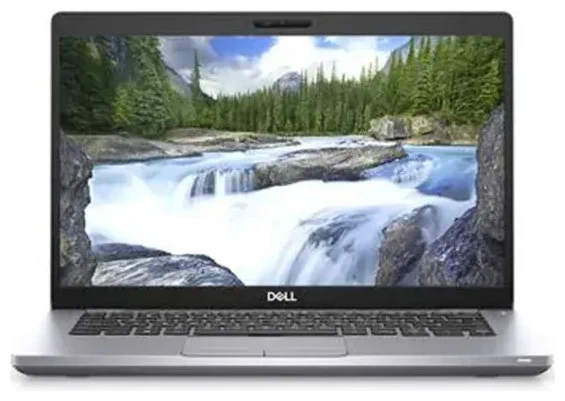
Does the Dell Latitude 5410 support eSIM?
The Dell Latitude 5410 supports eSIM, but only in specific configurations. This business laptop was available with an optional WWAN (Wireless Wide Area Network) mobile broadband module that includes eSIM capability. If your Latitude 5410 was configured with a Qualcomm Snapdragon X20 LTE modem or similar WWAN card at the time of purchase, it supports eSIM. The base Wi-Fi-only model does not include cellular connectivity of any kind.
Dell Latitude 5410 eSIM compatibility
To confirm whether your specific unit supports eSIM, check your original order configuration or look in Windows Settings under Network & Internet > Cellular. If you see cellular options, your device has WWAN and supports eSIM. The Latitude 5410 with WWAN supports a single eSIM profile at a time—there is no physical nano-SIM slot alongside the eSIM, so you cannot run dual SIM configurations on this laptop. You'll use either the embedded SIM or no cellular connection at all.
Not all Latitude 5410 units left the factory with WWAN. If yours is Wi-Fi-only, the WWAN module cannot be added after purchase in most cases, as it requires specific antennas and certification. If you're unsure about your configuration, check Dell's support page for your service tag or consult your original purchase documentation.
How to set up an eSIM on the Dell Latitude 5410
If your Dell Latitude 5410 includes the WWAN module, activating an eSIM is straightforward. You'll receive a QR code from your eSIM provider, and Windows 10 or Windows 11 will handle the installation. The process typically takes about sixty seconds once you have the QR code ready.
Set up an eSIM in Settings
- Open Settings and navigate to Network & Internet, then select Cellular.
- Click Add a cellular plan or Use a QR code (wording varies by Windows version).
- When prompted, use your laptop's webcam or an external camera to scan the QR code provided by your eSIM carrier, or enter the activation code manually if you don't have a camera available.
- Windows will download and install the eSIM profile. Wait for confirmation that the profile is active.
- Label the connection with a recognizable name like "Travel Data" or the carrier name so you can identify it later.
- Toggle the cellular connection on, and your Latitude 5410 will connect to the mobile network.
You can manage your eSIM profile in the same Cellular settings menu. If you need to switch carriers or remove a profile, return to this menu and select the appropriate option.
Activate the eSIM before traveling
Install your travel eSIM while you still have reliable Wi-Fi, ideally before you leave home. Some eSIM profiles activate immediately upon installation, while others activate when they first detect the destination country's network. Check your provider's instructions to understand when your plan becomes active and starts consuming data allowance.
Using a travel eSIM on the Dell Latitude 5410
A travel eSIM turns your Dell Latitude 5410 into a fully connected device wherever you go, without hunting for Wi-Fi hotspots or paying hotel internet fees. You'll avoid international roaming charges from your home carrier and enjoy local data rates instead. Install the eSIM before your flight, and your laptop will connect as soon as you land.
Stay online without roaming bills
Travel eSIMs are designed for short-term international data. You purchase a data plan for your destination country or region, install the eSIM profile on your laptop, and use mobile data just as you would at home. This is especially useful for business travelers who need reliable connectivity for video calls, cloud applications, and email away from the office. You can browse eSIM plans for over 200 countries and regions, comparing data allowances and coverage to find the right fit for your trip.
Because the Latitude 5410 supports only one eSIM at a time, you'll replace the profile if you switch carriers or destinations. Most eSIM providers let you delete and reinstall profiles as needed, though activation policies vary—read the terms before you buy.
Tips and troubleshooting
Even with proper WWAN hardware, you may encounter occasional setup hiccups. Here's how to keep your Dell Latitude 5410 eSIM connection running smoothly and what to do when something goes wrong.
Enable data roaming for international use
If your eSIM profile is installed but won't connect abroad, check that data roaming is turned on. Go to Settings > Network & Internet > Cellular, select your eSIM line, and toggle Roaming options to allow data roaming. Many travel eSIM plans require roaming to be enabled because the profile is registered in one country but used in another.
Fix an eSIM that won't activate
If the QR code won't scan, verify that your webcam is working and that you're holding the code steady in good lighting. Alternatively, most eSIM providers include a manual activation code—a long string of letters and numbers—that you can type directly into the activation field. If the profile installs but shows no signal, restart your laptop and confirm that airplane mode is off. You can also remove and reinstall the eSIM profile if the initial installation appears incomplete.
If you need help diagnosing connection issues or want to check another device's eSIM compatibility, those resources are available. For additional setup guidance, visit our eSIM setup help page.
Keep your primary connection for calls and authentication
Because the Latitude 5410 is a laptop, it doesn't support voice calls or SMS through the eSIM. You'll still rely on your smartphone for two-factor authentication codes and phone calls. Use the laptop eSIM exclusively for data—web browsing, application sync, and cloud services—and keep your phone handy for everything else.








