 WhatsApp +44 7367 063273
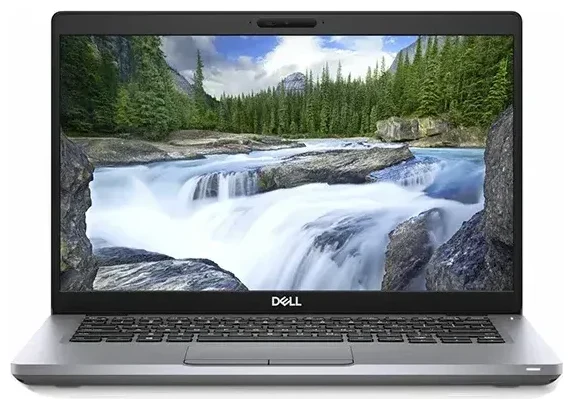
Does the Dell Latitude 5411 support eSIM?
Dell Latitude 5411 eSIM compatibility
The Dell Latitude 5411 can support eSIM, but only if you have a model configured with a WWAN (Wireless Wide Area Network) mobile broadband module. Base Wi-Fi-only configurations do not include cellular connectivity of any kind. Dell offered the Latitude 5411 with optional WWAN cards—specifically models with Intel XMM 7360 LTE-Advanced or Qualcomm Snapdragon X20 LTE modems—and some of these modules support eSIM provisioning alongside a physical nano-SIM slot.
Because WWAN was an optional upgrade at purchase, not all Dell Latitude 5411 units have this capability. If you're unsure whether your laptop includes a WWAN module, check Device Manager in Windows under "Network adapters" for an LTE or mobile broadband entry, or review your original order specification. You can also locate the nano-SIM tray on the side or rear of the chassis; its presence confirms WWAN hardware.
Dual SIM capability
WWAN-equipped Dell Latitude 5411 laptops typically offer dual-SIM functionality: one physical nano-SIM slot and one eSIM profile slot. This means you can maintain a primary carrier on the physical SIM and add a secondary data plan via eSIM, or switch entirely to eSIM if your carrier supports it. You cannot run two eSIM profiles simultaneously on this hardware generation; it's physical SIM plus eSIM, or eSIM alone.
Important: If your Dell Latitude 5411 was purchased as a Wi-Fi-only configuration, you cannot add eSIM capability after the fact without installing a compatible WWAN module—a task that requires hardware expertise and may not be cost-effective. If you're uncertain about your specific model's capabilities, consult Dell's official spec sheet or support documentation to confirm before attempting eSIM setup.
How to set up an eSIM on the Dell Latitude 5411
Set up an eSIM in Settings
If your Dell Latitude 5411 includes a WWAN module with eSIM support, activation is straightforward through Windows settings. You'll need an eSIM QR code or activation details from your carrier or eSIM provider. The entire process takes about 60 seconds once you have the QR code ready.
- Open Settings in Windows (press Win + I).
- Navigate to Network & Internet, then select Cellular from the left sidebar.
- Click Manage eSIM profiles or Use a SIM from a cellular provider.
- Select Add a new eSIM and choose Use a QR code.
- Hold your eSIM QR code in front of your laptop's webcam, or manually enter the activation code (SM-DP+ address and activation code) if scanning isn't convenient.
- Windows will download and install the eSIM profile. This typically completes in under a minute if you have an active internet connection via Wi-Fi or Ethernet.
- Once installed, label the eSIM profile with a recognizable name (e.g., "Travel Data" or "Work SIM") to distinguish it if you're also using a physical SIM.
- Toggle the eSIM profile On to activate cellular connectivity.
Switching between SIM profiles
You can switch between your physical SIM and eSIM—or disable one entirely—by returning to Settings > Network & Internet > Cellular and selecting the active profile. This flexibility is useful if you want to preserve battery life by turning off cellular when Wi-Fi is available, or if you're managing separate personal and work data plans.
Using a travel eSIM on the Dell Latitude 5411
A travel eSIM is an efficient way to stay connected abroad on your Dell Latitude 5411 without paying roaming fees or hunting for a local SIM card. You purchase a data-only eSIM plan for your destination, install the profile before you leave, and activate it when you land. This approach eliminates the need to swap physical SIM cards and gives you instant internet access for email, video calls, and productivity tools while traveling.
Install your travel eSIM while you still have reliable Wi-Fi at home or in your office. Once the profile is loaded, it remains dormant until you enable it in your destination country. Most travel eSIM plans activate automatically when your laptop detects the local network, so you can start working the moment you arrive. You'll find a wide range of regional and global data plans when you browse eSIM plans tailored for business and leisure travelers.
Keep your primary connection active
If you have a physical SIM from your home carrier in the Dell Latitude 5411, you can leave it in place while using the travel eSIM for data. This setup lets you receive important calls or SMS messages (if your carrier and plan support voice on a laptop WWAN module) while routing all internet traffic through the cost-effective local eSIM. Remember to toggle off data roaming for your home SIM to avoid accidental charges.
Tips & troubleshooting
Turn on data roaming for the eSIM line
When you enable your travel eSIM abroad, make sure data roaming is switched on for that specific profile. Go to Settings > Network & Internet > Cellular, select your eSIM, and confirm that Roaming is toggled on. Without this setting enabled, the eSIM won't connect to local networks even if the profile is active.
What to do if the QR code won't scan
If Windows can't read your eSIM QR code using the webcam—common in low-light conditions or with lower-resolution cameras—choose the manual entry option instead. Your eSIM provider will supply an SM-DP+ address and an activation code; copy and paste these carefully into the Windows eSIM setup screen. Double-check for typos, as a single incorrect character will prevent activation.
If your eSIM profile downloads but won't connect, restart your laptop and verify that the WWAN radio is enabled (some laptops have a physical wireless switch or a function-key toggle). You can also check another device's eSIM compatibility if you're troubleshooting across multiple gadgets, or visit eSIM setup help for step-by-step guidance.
Keep the home SIM for calls and two-factor authentication
If your home carrier provides voice and SMS service through the physical nano-SIM, leave it active even when using a travel eSIM for data. This ensures you can still receive verification codes and security alerts tied to your primary phone number. Just disable data roaming on the home SIM to avoid surprise charges while the eSIM handles all internet traffic.








