 WhatsApp +44 7367 063273
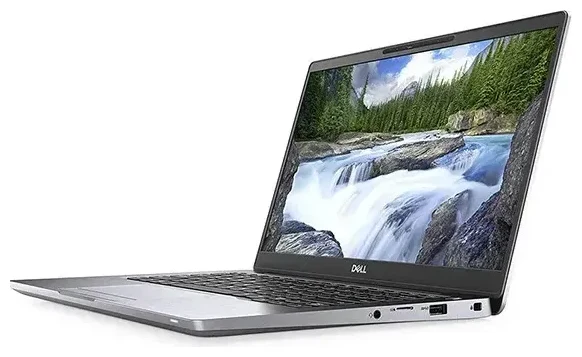
Does the Dell Latitude 7310 support eSIM?
The Dell Latitude 7310 supports eSIM, but only in specific configurations. If your Latitude 7310 was ordered with a WWAN (wireless wide area network) module—typically listed as "mobile broadband" or "4G LTE" in the spec sheet—it includes eSIM capability. The base Wi-Fi-only models do not have eSIM support.
Dell Latitude 7310 eSIM compatibility
Dell offered the Latitude 7310 with optional Qualcomm Snapdragon X20 LTE-A or Intel XMM 7360 LTE-Advanced modems. Both support eSIM embedded in the motherboard. When you configure the laptop at purchase, you'll see an option for "WWAN" or "Mobile Broadband"—this is the configuration you need for eSIM functionality. If you bought the laptop second-hand or aren't sure which version you have, check Device Manager in Windows: expand "Network adapters" and look for an entry containing "Mobile Broadband," "WWAN," or "LTE." If you see one, you likely have eSIM support.
The Dell Latitude 7310 does not have a physical nano-SIM slot. It relies exclusively on eSIM for cellular connectivity when WWAN is present. You cannot use dual SIM (eSIM + physical) because there is no tray. However, Windows does support multiple eSIM profiles stored on the device, and you can switch between them in Settings as needed.
Confirm your configuration
If you're uncertain whether your specific Dell Latitude 7310 unit includes WWAN with eSIM, check the service tag on the bottom of the laptop and look up the original configuration on Dell's support site, or review your purchase invoice. Never assume a Latitude 7310 has eSIM without confirming the WWAN option was included—only those SKUs support it.
How to set up an eSIM on the Dell Latitude 7310
If your Dell Latitude 7310 includes WWAN, setting up an eSIM for the first time takes about 60 seconds. You'll receive a QR code from your carrier or eSIM provider (like Esima), and Windows will handle the installation automatically.
Set up an eSIM in Windows Settings
- Open Settings and navigate to Network & Internet, then select Cellular.
- Click Add a cellular plan or Use a QR code (the wording varies by Windows version).
- Scan the QR code provided by your eSIM carrier using your phone's camera, or enter the activation code manually if you're installing remotely.
- Windows will download and install the eSIM profile. This typically completes in under a minute.
- Once installed, label the profile with a recognizable name—e.g., "Travel Data" or the country you're visiting—so you can identify it later.
- Toggle Data roaming on for the eSIM line if you're using it abroad, and choose this profile as your active cellular connection.
Switch between eSIM profiles
If you install multiple eSIM profiles over time (for example, different travel destinations or a work plan and a personal plan), you can switch between them in Settings > Network & Internet > Cellular. Select the profile you want to use, then click Use this SIM. Only one eSIM profile can be active at a time on the Dell Latitude 7310.
Using a travel eSIM on the Dell Latitude 7310
A travel eSIM is the easiest way to get mobile data abroad on your Dell Latitude 7310 without paying roaming fees on your home carrier. You purchase a data plan for your destination, receive a QR code by email, and install the eSIM profile before you board your flight. When you land, the laptop connects to a local network automatically—no hunting for SIM vendors at the airport, no swapping physical cards.
Install before you fly
Install your travel eSIM while you still have reliable Wi-Fi at home or in the airport lounge. The installation requires an internet connection to download the profile. Once installed, the eSIM sits dormant until you reach your destination and turn on the cellular radio. You can browse eSIM plans for the countries you're visiting and complete the entire setup in minutes.
Because the Dell Latitude 7310 has no physical SIM slot, you won't need to remove or store any cards. The eSIM profile lives in the device's memory, and you can delete it or keep it installed for your next trip to the same region.
Tips & troubleshooting
Most Dell Latitude 7310 eSIM setups work flawlessly, but a few common issues can delay activation. Here's how to avoid them and fix problems when they arise.
Turn on data roaming for the eSIM line
Even though you're using a local eSIM, Windows still treats it as a roaming connection if the profile was issued by a carrier in a different country. Go to Settings > Network & Internet > Cellular, select your eSIM profile, click Advanced options, and toggle Data roaming to On. Without this, your laptop won't connect to the network abroad.
Fix an eSIM that won't activate
If the eSIM profile installs but shows "No signal" or "Searching," restart the laptop and give it a minute to register on the local network. If that doesn't work, confirm you're in an area with coverage for the carrier your eSIM uses (your eSIM provider's website will list supported networks). You can also try manually selecting a network: in Cellular settings, click Properties for your eSIM, then Network selection, and choose a different operator from the list. If the QR code won't scan or you receive an error during installation, double-check that the code hasn't already been activated on another device—most eSIM QR codes are single-use.
Check device compatibility before you buy
If you're shopping for a laptop with eSIM support, confirm that WWAN is included in the configuration before you complete the purchase. Many business laptops like the Latitude 7310 offer it as an optional add-on, and you cannot upgrade a Wi-Fi-only model to eSIM after the fact—the modem is soldered to the motherboard. You can check another device's eSIM compatibility on our site if you're comparing models.
Best laptop with eSIM for travel
The Dell Latitude 7310 with WWAN is a solid choice for business travelers who need always-on connectivity. Other laptops with built-in eSIM include the ThinkPad X1 Carbon (WWAN configurations), HP Elite Dragonfly, and Microsoft Surface Pro models with LTE. Chromebooks with LTE, such as certain HP and Acer models, also support eSIM, though availability varies by region and configuration.








