 WhatsApp +44 7367 063273
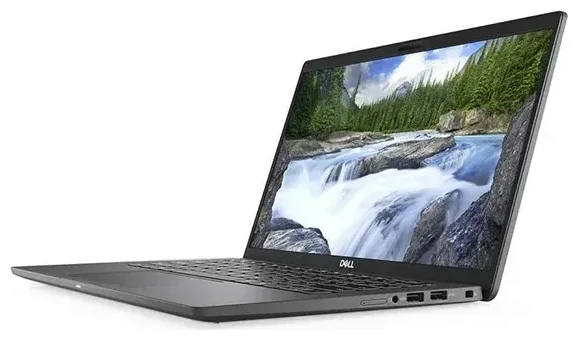
Does the Dell Latitude 7410 support eSIM?
The Dell Latitude 7410 supports eSIM only in specific configurations equipped with WWAN (wireless wide area network) modules. Not all Latitude 7410 units include cellular connectivity—many are Wi-Fi-only models that lack any SIM support, physical or embedded.
Dell Latitude 7410 eSIM compatibility
If your Latitude 7410 was configured with a WWAN card at purchase, it may include eSIM functionality alongside a traditional nano-SIM slot. Dell offered several WWAN options for the 7410, including Qualcomm and Intel modules that support both eSIM and physical SIM. However, because WWAN was an optional upgrade, you must verify your specific unit's configuration. Check your original order specification or look in Windows Settings under Network & Internet → Cellular to confirm whether your laptop has cellular capability.
The Dell Latitude 7410 does not support dual eSIM profiles simultaneously. If your WWAN module includes eSIM, you can use either the eSIM or the physical nano-SIM slot at any given time, but not both concurrently. This limitation is common in business laptops with cellular connectivity.
Verify your model before purchasing an eSIM
If you're unsure whether your Latitude 7410 has WWAN with eSIM, open Device Manager in Windows and expand the "Network adapters" section. Look for entries mentioning WWAN, mobile broadband, or specific modem chipsets like Qualcomm or Intel XMM. If you see only Wi-Fi adapters, your unit does not have cellular capability. You can also check Dell's support page using your service tag for the exact configuration that shipped with your device. Never assume eSIM support without confirming your specific hardware configuration.
How to set up an eSIM on the Dell Latitude 7410
If your Latitude 7410 has a WWAN module with eSIM support, activating a travel or data eSIM takes about sixty seconds. You'll need the QR code or activation details from your eSIM provider, a stable Wi-Fi connection for the initial setup, and Windows 10 or Windows 11.
Set up an eSIM in Windows Settings
- Connect to Wi-Fi and open Settings from the Start menu.
- Navigate to Network & Internet, then select Cellular in the left sidebar.
- Click Manage eSIM profiles or Add a cellular plan.
- Choose Use a QR code and scan the QR code provided by your eSIM carrier using your phone's camera, or select Enter activation code manually if your provider supplied an SM-DP+ address and activation code.
- Windows will download and install the eSIM profile. This typically completes within sixty seconds.
- Once installed, you'll see the new profile listed. Give it a recognizable name like "Travel Data" or "Work SIM" to distinguish it from any other profiles.
- Toggle the profile to Active and ensure Data roaming is turned on if you're using the eSIM internationally.
Dell Latitude 7410 eSIM activation tips
Your Latitude 7410 can store multiple eSIM profiles, but only one can be active at a time (alongside the physical SIM slot if you choose to use it). If you travel frequently, you can keep several regional eSIM profiles installed and switch between them in the Cellular settings without re-scanning QR codes each trip.
Using a travel eSIM on the Dell Latitude 7410
A travel eSIM transforms your Latitude 7410 into a connected workstation anywhere in the world without hunting for Wi-Fi or paying roaming fees on your home carrier. Because the laptop already has WWAN capability, adding a regional or multi-country data eSIM gives you immediate internet access for email, VPN, cloud apps, and video calls as soon as you land.
Install your travel eSIM before departure
Purchase and install your travel eSIM while you're still home and connected to reliable Wi-Fi. Most eSIM plans activate only when you arrive in the destination country and the laptop connects to the local network, so installing early won't waste your data allowance. You can browse eSIM plans by region or country, then scan the QR code in Windows Settings and leave the profile inactive until you travel. Once you land, simply toggle the eSIM active and enable data roaming.
Travel eSIMs are especially practical for business users who need secure, predictable connectivity without relying on hotel or airport Wi-Fi. Your Latitude 7410 becomes a mobile office with dedicated data, letting you join video meetings, access corporate VPNs, and sync files in real time. This flexibility is one reason WWAN-equipped business laptops remain popular despite widespread Wi-Fi availability.
Tips and troubleshooting
Even though the Dell Latitude 7410 eSIM setup is straightforward, a few common issues can interrupt activation or connectivity. Most are fixable in minutes with the right settings adjustments.
Turn on data roaming for your eSIM line
By default, Windows may disable data roaming to prevent unexpected charges. If your travel eSIM won't connect, open Settings → Network & Internet → Cellular, select your eSIM profile, and ensure Data roaming is toggled on. This is required for nearly all international eSIM plans, even if you're using a local carrier's network.
Fix an eSIM that won't activate
If the QR code won't scan or the eSIM fails to download, first verify that your laptop is connected to Wi-Fi—eSIM profiles download over the internet and require a stable connection. Restart your Latitude 7410 and try again. If the problem persists, manually enter the SM-DP+ address and activation code instead of scanning. You can find these details in your eSIM provider's confirmation email. For persistent issues, eSIM setup help can guide you through carrier-specific quirks.
Keep your primary SIM for calls and two-factor authentication
If you're using a physical SIM in the nano-SIM slot for your primary mobile number, Windows lets you choose which line handles data. Set your travel eSIM as the data line and keep the physical SIM active for incoming SMS verification codes or calls forwarded from your phone. This configuration ensures you stay reachable while avoiding roaming data charges on your primary carrier.
Check compatibility for other devices
If you're managing multiple devices for your team or family, you can check another device's eSIM compatibility to ensure everyone has the right hardware before purchasing travel plans. Not all laptops, tablets, or phones support eSIM, and compatibility varies widely even within the same product line.








