 WhatsApp +44 7367 063273
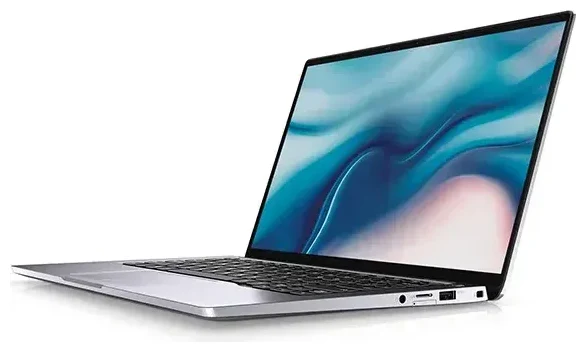
Does the Dell Latitude 9410 support eSIM?
Dell Latitude 9410 eSIM compatibility
The Dell Latitude 9410 supports eSIM, but only in specific configurations. The 2-in-1 model offered an optional mobile broadband module with LTE connectivity, and certain variants of this module included eSIM capability alongside a physical nano-SIM slot. Not all Latitude 9410 units shipped with cellular connectivity—many were Wi-Fi-only configurations.
If your Latitude 9410 includes the Qualcomm Snapdragon X20 LTE modem or the Intel XMM 7360 LTE-Advanced modem, you likely have eSIM support. The device supports dual SIM functionality: one eSIM profile and one physical nano-SIM simultaneously, letting you separate work and personal lines or use a local data plan while traveling.
Verify your configuration
To confirm whether your specific Dell Latitude 9410 has eSIM, check your original purchase configuration or look in Windows Settings under Network & Internet > Cellular. If you see cellular options and your device has no physical SIM installed but shows mobile connectivity, you have eSIM. If you're unsure about your exact model variant, consult your original Dell spec sheet or contact Dell support—the presence of cellular hardware varies significantly between configurations, and guessing can lead to confusion when ordering eSIM plans.
How to set up an eSIM on the Dell Latitude 9410
Set up an eSIM in Settings
If your Dell Latitude 9410 includes cellular hardware with eSIM support, setup takes about sixty seconds. You'll receive a QR code from your mobile carrier or eSIM provider. Make sure you have a stable Wi-Fi connection before starting—the laptop needs internet access to download your eSIM profile.
- Open Settings and navigate to Network & Internet, then select Cellular.
- Click Add a cellular plan or Use a QR code.
- Hold your phone or printed QR code in front of your laptop's webcam, or manually enter the activation code if provided.
- Windows will download and install the eSIM profile—this usually takes 30–60 seconds.
- Once installed, label your plan (e.g., "Travel Data" or "Work SIM") to distinguish it if you're using both eSIM and physical SIM.
- Enable the cellular connection and set your preferred data SIM if you have multiple profiles active.
Activate and test connectivity
After installation, your Latitude 9410 should connect to the mobile network within a minute or two. You'll see signal bars in the system tray. Check that data is flowing by opening a browser with Wi-Fi turned off. If the connection doesn't appear, restart the laptop and confirm the eSIM profile shows as active in the Cellular settings panel.
Using a travel eSIM on the Dell Latitude 9410
A travel eSIM transforms your Dell Latitude 9410 into a truly mobile workstation when you're abroad. Instead of hunting for hotel Wi-Fi or paying steep roaming fees, you can install a regional or country-specific data plan before your flight and have connectivity the moment you land. The laptop's built-in cellular radio connects you in airports, cafés, trains, and meetings without tethering to your phone or carrying a portable hotspot.
Install before you travel
Purchase and install your travel eSIM while you're still at home on Wi-Fi—most eSIM plans activate when they first detect the destination network, so installing early won't waste data. Browse eSIM plans for your destination and complete setup on the Latitude 9410 a day or two before departure. When you arrive, the laptop will automatically register on the local network and you'll have data immediately.
Keep your home physical SIM installed if you use one for work calls or authentication texts. The dual-SIM capability means you can receive calls and messages on your primary number while routing data through the cheaper travel eSIM. Just remember to select the travel eSIM as your active data connection in Windows Cellular settings to avoid roaming charges.
Tips and troubleshooting
Turn on data roaming for the eSIM line
Travel eSIMs require data roaming to be enabled on the laptop, even though you're using a local plan. In Windows Settings under Cellular, locate your travel eSIM and toggle Roaming options to On. This is normal—the eSIM is technically "roaming" even when connecting to its home network. Without this setting enabled, the laptop won't connect to mobile data abroad.
Fix an eSIM that won't activate
If the QR code won't scan through your webcam, request a manual activation code from your provider and enter it by hand in the Cellular settings. Poor lighting or a low-resolution webcam can cause scan failures. If the eSIM installs but won't connect, verify that the cellular radio is enabled in Windows (some laptops have a physical wireless switch or function-key combination that disables all radios). Restart the laptop after installation if the profile appears in settings but shows no signal.
For persistent issues, eSIM setup help can walk you through carrier-specific troubleshooting. You can also check another device's eSIM compatibility if you're considering a backup phone or tablet with eSIM for your trip.
Keep your home SIM for calls and authentication
If you use a physical SIM for work or personal calls, leave it installed and active while traveling. Set the travel eSIM as your data line, but keep the physical SIM enabled for voice and SMS. This setup ensures you receive two-factor authentication codes and important calls without incurring data roaming fees on your primary carrier. The Latitude 9410 handles both connections simultaneously without manual switching.








