 WhatsApp +44 7367 063273
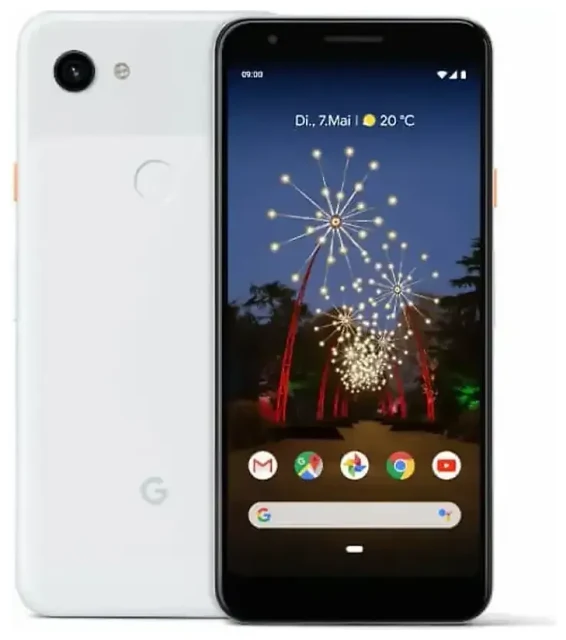
Does the Google Pixel 3a XL support eSIM?
Yes, the Google Pixel 3a XL supports eSIM. Google enabled eSIM functionality on all Pixel 3a XL models sold worldwide, making it one of the earlier mid-range phones to offer the feature.
Google Pixel 3a XL eSIM compatibility
Every Google Pixel 3a XL—regardless of where you purchased it—includes eSIM support out of the box. There are no regional variants or special editions to worry about. If you own a Pixel 3a XL, you have eSIM capability.
Dual SIM: eSIM plus physical SIM
The Pixel 3a XL runs dual SIM by combining one eSIM with one physical nano-SIM card in the SIM tray. You cannot use two eSIMs simultaneously on this device—Google reserved dual eSIM capability for later models like the Pixel 4a and beyond. When both SIMs are active, you can choose which line handles mobile data, calls, and texts independently.
How to set up an eSIM on the Google Pixel 3a XL
Setting up an eSIM on your Pixel 3a XL takes about 60 seconds once you have your QR code from your carrier or eSIM provider. Make sure you have a stable Wi-Fi connection before you begin.
Step-by-step eSIM activation
- Open Settings on your Pixel 3a XL.
- Tap Network & internet.
- Select Mobile network, then tap the + icon or Add carrier.
- Choose Download a SIM instead? at the bottom of the screen.
- Tap Next, then scan the QR code provided by your carrier or eSIM provider.
- Wait while your Pixel 3a XL downloads and installs the eSIM profile—this usually takes 30 to 60 seconds.
- Once installed, give your eSIM a label (like "Travel" or "Work") to distinguish it from your physical SIM.
- Choose which SIM you want to use for mobile data, calls, and SMS in the settings that appear.
Manual activation codes
If your QR code won't scan or you received an activation code instead, tap Need help? during step 5 above, then select Enter it manually. You'll type in the SM-DP+ address and activation code your provider sent you.
Using a travel eSIM on the Google Pixel 3a XL
A travel eSIM lets you stay connected abroad without paying international roaming fees on your home carrier. Instead of hunting for a local SIM card when you land, you install a data-only eSIM before you leave and activate it when you arrive.
Install your travel eSIM before departure
Download and install your travel eSIM profile while you're still at home on Wi-Fi. The eSIM sits dormant on your Pixel 3a XL until you turn it on at your destination. You can keep your physical SIM active for calls and text messages—just set the travel eSIM as your data line in Settings > Network & internet > Mobile network. You'll browse eSIM plans by country or region, purchase data for your trip, and receive a QR code by email within minutes.
Why eSIM works well for travel
Your Pixel 3a XL's dual SIM capability means you stay reachable on your home number for calls and two-factor authentication codes while routing data through the local eSIM. No SIM swapping, no lost tiny cards, no hunting for a mobile shop at the airport. You control everything from the settings menu.
Tips and troubleshooting
Most Pixel 3a XL eSIM setups complete smoothly, but a few common issues trip people up—especially first-time eSIM users.
Turn on data roaming for your eSIM line
This catches many users: you must enable data roaming for your eSIM line even though you're using a local data plan, not roaming on your home carrier. Go to Settings > Network & internet > Mobile network, tap your eSIM name, and toggle Roaming on. Without this, your eSIM won't connect to mobile data.
Keep your home SIM active for calls and texts
If you're traveling, leave your physical home SIM in the tray and set it as your preferred line for calls and SMS. Set the travel eSIM as your data line. That way, you receive verification codes and calls on your regular number while browsing, mapping, and messaging over the local eSIM data connection.
Fix an eSIM that won't activate
If your QR code won't scan, try these steps: increase screen brightness on the device displaying the QR code, clean your Pixel 3a XL camera lens, or manually enter the activation code instead. If the eSIM downloads but won't connect, restart your phone, confirm data roaming is on, and check that you've selected the correct SIM for mobile data. Still stuck? You can get eSIM setup help or contact your eSIM provider—most issues stem from incorrect settings rather than device problems.
Check compatibility for other devices
If you're researching eSIM support across multiple phones or tablets in your household, you can check another device's eSIM compatibility to confirm before purchasing a plan. The Pixel 3a (non-XL) also supports eSIM with identical functionality. Older devices like the original Pixel and Pixel 2 do not support eSIM, while newer models from the Pixel 4 onward support dual eSIM.








