 WhatsApp +44 7367 063273
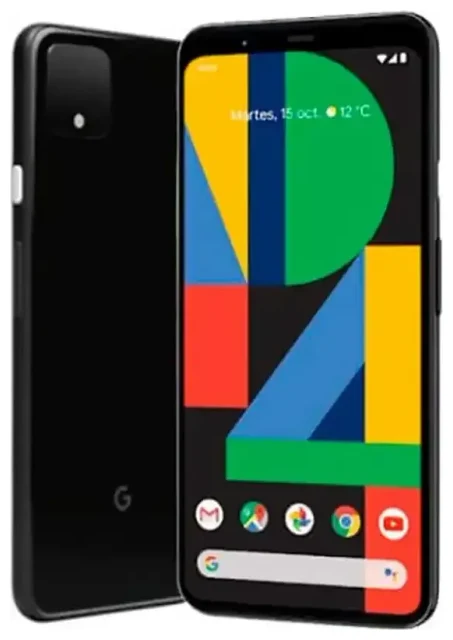
Does the Google Pixel 4 support eSIM?
Yes, the Google Pixel 4 supports eSIM. Google included eSIM functionality in all Pixel 4 models sold worldwide, including US variants (Verizon, AT&T, T-Mobile, unlocked) and international versions. This applies to both the standard Pixel 4 and the Pixel 4 XL.
Google Pixel 4 eSIM compatibility
Your Pixel 4 can use one physical nano-SIM and one eSIM simultaneously for dual SIM functionality. This means you can keep your home carrier on the physical SIM slot while activating a travel eSIM for data abroad, or run two separate phone numbers on the same device. The phone does not support dual eSIM—you're limited to one active eSIM profile at a time alongside the physical SIM.
All regional variants of the Pixel 4 ship with eSIM hardware enabled, though carrier support varies. Most major carriers in North America, Europe, and Asia now provision eSIM, but you should verify your home carrier supports eSIM activation if you plan to move your primary line to eSIM.
How to set up an eSIM on the Google Pixel 4
Setting up an eSIM on your Pixel 4 takes about a minute once you have your QR code or activation details from your carrier or eSIM provider. The process installs the eSIM profile directly to your phone without needing a physical card.
Set up an eSIM in Settings
- Open Settings on your Pixel 4.
- Tap Network & internet.
- Tap Mobile network, then select the + icon or Add carrier.
- Choose Download a SIM instead? at the bottom of the screen.
- Scan the QR code provided by your carrier or eSIM provider using your camera, or tap Need help? to enter activation details manually if you have an activation code.
- Wait 30–60 seconds while the eSIM profile downloads and installs.
- Label the line (e.g., "Travel" or "Work") to distinguish it from your physical SIM.
- Choose which SIM to use for calls, texts, and mobile data in the Mobile network settings.
Your Pixel 4 will now show both SIM lines in the status bar. You can switch your default data line anytime in Settings without reinstalling the eSIM.
Google Pixel 4 eSIM activation
If your eSIM doesn't activate immediately, restart your phone and check that mobile data is enabled for the correct SIM line. Some carriers require you to activate the eSIM while connected to Wi-Fi. If you're moving from a physical SIM to eSIM with the same carrier, you may need to contact them first to generate an eSIM QR code tied to your account.
Using a travel eSIM on the Google Pixel 4
A travel eSIM is the easiest way to get mobile data abroad without paying roaming fees or hunting for a local SIM card shop. You buy a data plan online, install the eSIM profile on your Pixel 4 before you fly, and activate it when you land. Your phone number on the physical SIM stays active for calls and texts.
Install before you fly
Purchase your travel eSIM plan and install the profile while you're still at home on Wi-Fi. The eSIM sits dormant until you turn on data roaming for that line at your destination. This means no scrambling at the airport—just toggle the travel eSIM on in Settings and you're connected.
You can browse eSIM plans for your destination and have the QR code delivered instantly by email. Regional plans cover multiple countries if you're visiting several places on one trip, and data-only plans are typically cheaper than full voice/SMS packages since you'll keep your home SIM for calls.
The Pixel 4 makes switching between SIMs easy: pull down the quick settings panel and long-press the mobile data icon to choose which line handles data. Keep your home SIM active for incoming calls and two-factor authentication codes, and route all data through the travel eSIM to avoid surprise charges.
Tips & troubleshooting
Turn on data roaming for the eSIM line
Even though you're using a local travel eSIM, your Pixel 4 still requires data roaming to be enabled for that specific SIM line. Go to Settings > Network & internet > Mobile network, select your eSIM, and toggle Roaming on. This won't trigger roaming fees because the eSIM is a local plan in that country.
Keep your home physical SIM active but turn off data roaming for that line to prevent accidental roaming charges. You'll still receive calls and SMS on your home number while the eSIM handles data.
Fix an eSIM that won't activate
If your QR code won't scan, check that your camera lens is clean and you have good lighting. You can also enter the activation code manually by tapping Need help? during setup and typing the SM-DP+ address and activation code your provider sent. Restart your Pixel 4 after installation if the eSIM appears installed but shows no signal.
Some users on Reddit report Pixel 4 eSIM issues after major Android updates. If your eSIM stops working after an update, toggle Airplane mode on and off, or remove and reinstall the eSIM profile. Your QR code remains valid for reinstallation unless your provider explicitly states it's single-use.
If you're switching from an iPhone and searching "Pixel 4 esim iphone," note that eSIM profiles are not transferable between devices. You'll need a new QR code from your carrier or eSIM provider for your Pixel 4, even if you had an eSIM on your previous iPhone.
For persistent problems, check another device's eSIM compatibility or consult your carrier. The Pixel 3 also supports eSIM with the same dual SIM setup, so troubleshooting steps are similar across Pixel generations.








