 WhatsApp +44 7367 063273
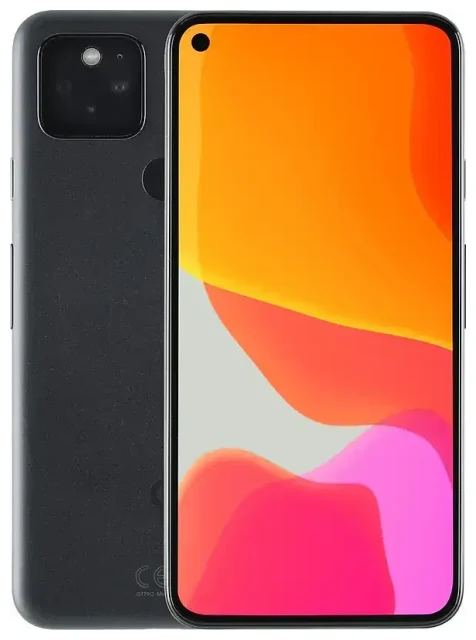
Does the Google Pixel 5 support eSIM?
Yes, the Google Pixel 5 supports eSIM. Every Google Pixel 5 model sold worldwide includes eSIM functionality, regardless of where you bought it or which carrier you use. This applies to both unlocked units and carrier-branded versions.
Google Pixel 5 eSIM compatibility and dual SIM
The Pixel 5 offers dual SIM capability: you can use one physical nano-SIM in the SIM tray and one eSIM profile at the same time. You cannot run two eSIM profiles simultaneously on this device—it's limited to one active eSIM plus one physical SIM. This dual SIM setup lets you keep your home number active while adding a second line for work, travel, or local data.
Google introduced eSIM support starting with the Pixel 3, and the Pixel 5 continues this feature. The Pixel 4, Pixel 4a, and Pixel 5a also support eSIM with the same dual SIM configuration. The hardware is built into every unit, so you don't need a special model or firmware update to use it.
How to set up an eSIM on the Google Pixel 5
Setting up your Google Pixel 5 eSIM takes about 60 seconds once you have your QR code from your carrier or eSIM provider. Make sure you're connected to Wi-Fi before you start, because the device needs to download and activate the eSIM profile.
Step-by-step eSIM activation on Pixel 5
- Open Settings on your Pixel 5.
- Tap Network & internet.
- Tap the + icon next to "Mobile network" or select Add more if you see that option.
- Choose Download a SIM instead? at the bottom of the screen.
- Tap Next, then scan the QR code provided by your carrier or eSIM provider using your camera.
- Wait while the profile downloads—this usually takes 10–30 seconds.
- Tap Done when activation completes.
- Label your lines (for example, "Personal" and "Travel") so you can easily identify which SIM you're using for calls, texts, and data.
If your provider gave you manual activation details instead of a QR code, tap Enter it manually in step 5 and type in the SM-DP+ address and activation code. The rest of the process is identical.
Managing multiple SIM profiles
After setup, you'll see both your physical SIM and eSIM listed under Network & internet in Settings. You can choose which line handles mobile data, calls, and SMS by tapping each SIM and adjusting its settings. Only one line can use mobile data at a time unless you enable automatic switching for calls.
Using a travel eSIM on the Google Pixel 5
A travel eSIM gives you local data rates when you land abroad, without paying international roaming fees to your home carrier. Because the Pixel 5 supports dual SIM, you can keep your home physical SIM active for calls and two-factor authentication texts while the eSIM handles all your data.
Install your travel eSIM before departure
You can install an eSIM profile before you fly—most plans activate automatically when your phone detects the destination network, or you can choose a specific start date. Browse the options and browse eSIM plans that cover your destination. Download the profile while you're still at home on Wi-Fi, then simply toggle on data roaming for that eSIM line when you arrive. Your Pixel 5 will connect to the local network immediately.
This setup is especially useful if you travel frequently or visit multiple countries, because you can install several eSIM profiles and switch between them without carrying physical SIM cards or hunting for a local shop at the airport.
Tips & troubleshooting
Most Google Pixel 5 eSIM activations work on the first try, but a few settings and common issues are worth knowing about.
Turn on data roaming for your eSIM line
Even though your eSIM is a "local" plan, your Pixel 5 treats it as a second line, and data roaming must be enabled for it to connect abroad. Go to Settings > Network & internet, tap your eSIM line, then toggle Roaming on. This won't trigger roaming charges from your home carrier because you're using a separate data plan.
Keep your home physical SIM active if you need to receive calls or SMS verification codes. Just turn off data roaming for that line so it doesn't rack up charges. Set your eSIM as the preferred line for mobile data in the SIM settings.
What to do if the QR code won't scan
If your camera won't focus or recognize the QR code, increase your screen brightness (if you're scanning from another device) or print the code on paper. You can also choose Enter it manually during setup and type the SM-DP+ address and activation code by hand. Make sure you're running the latest Android update—older firmware occasionally caused scanning issues that Google patched.
If the eSIM profile downloads but won't activate, restart your Pixel 5 and check that airplane mode is off. Some carriers require you to complete activation on their website or app before the eSIM works. If problems persist, eSIM setup help and your provider's support team can confirm the QR code is valid and your account is provisioned correctly.
You can check another device's eSIM compatibility if you're considering upgrading or adding a second phone to your setup. The Pixel 5 remains a solid choice for dual SIM use, but newer models like the Pixel 6 and later support dual eSIM (two eSIM profiles active at once with no physical SIM), which some travelers prefer.








