 WhatsApp +44 7367 063273
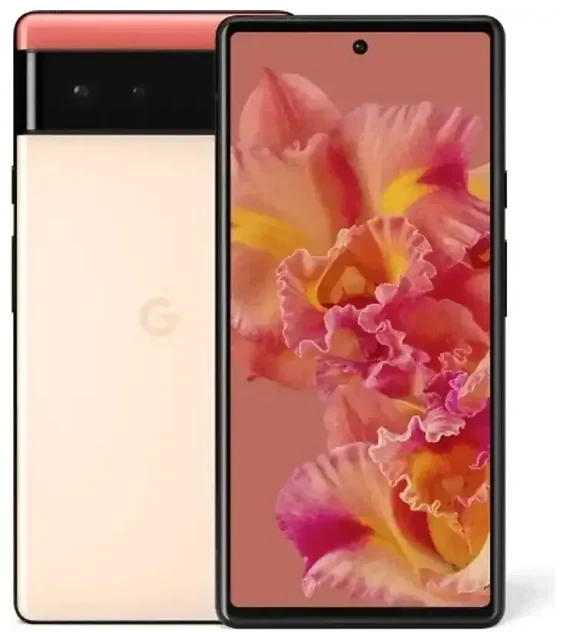
Does the Google Pixel 6 support eSIM?
Yes, the Google Pixel 6 supports eSIM. Every Google Pixel 6 model—regardless of where you bought it—includes eSIM functionality built into the device. This applies to all regional variants sold globally, including those purchased unlocked or through carriers.
Google Pixel 6 eSIM compatibility
The Google Pixel 6 supports dual SIM operation, meaning you can use one physical nano-SIM card and one eSIM simultaneously. This lets you maintain two separate phone numbers or data plans on a single device—useful if you want to keep your home number active while adding a local or travel data plan.
The device does not support dual eSIM configurations; you're limited to one eSIM profile active at a time alongside the physical SIM. If you need to switch between eSIM profiles, you can store multiple eSIM profiles on the device and toggle between them in Settings, though only one can be active alongside your physical SIM.
How to set up an eSIM on the Google Pixel 6
Setting up an eSIM on your Google Pixel 6 typically takes about 60 seconds once you have your QR code from your carrier or eSIM provider. You'll need a stable Wi-Fi or cellular connection to complete the activation.
Google Pixel 6 eSIM activation steps
- Open Settings on your Google Pixel 6.
- Tap Network & internet.
- Tap the + icon next to "SIMs" or select Add more.
- Choose Download a SIM instead? at the bottom of the screen.
- Tap Next, then scan the QR code provided by your eSIM provider using your camera.
- Wait for the eSIM profile to download and activate—this usually takes 30–60 seconds.
- Once installed, tap the eSIM profile to label it (e.g., "Travel Data" or "Work") so you can identify it easily.
- Choose which SIM to use for mobile data, calls, and SMS by tapping each option and selecting your preferred line.
Set up an eSIM in Settings
If your provider offers manual entry instead of a QR code, select Need help? during step 5 above, then choose Enter it manually. You'll need the SM-DP+ address and activation code from your provider. This method works identically to QR scanning but requires typing the activation details yourself.
After activation, your Google Pixel 6 will display both SIM lines in the status bar. You can manage which line handles data, calls, and messages at any time through Settings > Network & internet > SIMs.
Using a travel eSIM on the Google Pixel 6
A travel eSIM is the simplest way to get mobile data abroad on your Google Pixel 6 without paying international roaming fees from your home carrier. You can install a travel eSIM before your flight and activate it the moment you land, giving you instant access to local data rates without hunting for a SIM card shop or swapping physical SIMs.
Install your travel eSIM before departure
Download and install your travel eSIM while you're still at home—you can store the profile on your device and activate it when you arrive at your destination. This means you'll have data access immediately after landing to call a ride, check maps, or message contacts. Your home SIM stays in the physical slot, so you'll still receive calls and texts on your regular number.
To find data plans for your destination, browse eSIM plans that cover the countries you're visiting. Regional eSIMs cover multiple countries in Europe, Asia, or other areas, while single-country plans typically offer better rates if you're staying in one place.
Most travelers set their eSIM as the default for mobile data and keep their home SIM active for calls and SMS. This way you avoid roaming data charges but remain reachable on your regular number.
Tips & troubleshooting
Turn on data roaming for your eSIM line
After installing a travel eSIM, you must enable data roaming for that specific line. Go to Settings > Network & internet, tap your eSIM profile, and toggle Roaming on. This isn't "roaming" in the expensive sense—it just allows your eSIM to connect to networks abroad. Your home SIM can keep roaming off to avoid accidental charges.
Make sure your eSIM is set as the default data line: in Settings > Network & internet > SIMs, tap Mobile data and select your travel eSIM. You can switch back to your home SIM anytime.
Keep your home SIM for calls and two-factor authentication
Leave your physical home SIM installed while using a travel eSIM for data. You'll continue to receive calls, SMS, and two-factor authentication codes on your home number without extra charges (most carriers don't charge to receive calls or texts while roaming). Set your home SIM for calls and SMS, and your travel eSIM for data only.
Fix an eSIM that won't activate
If the QR code won't scan, check that your camera lens is clean and that you have adequate lighting. If scanning still fails, tap Need help? and choose Enter it manually to type the activation code instead.
If the eSIM downloads but won't connect to a network, restart your Google Pixel 6. Verify that the eSIM profile is turned on (Settings > Network & internet > SIMs—toggle the switch next to your eSIM). Make sure data roaming is enabled for that line, and confirm you're in an area with network coverage for your eSIM's supported carriers.
If you're still having issues, you can check another device's eSIM compatibility or contact your eSIM provider for activation support—most QR codes are single-use, so don't delete the profile before confirming it won't work.








