 WhatsApp +44 7367 063273
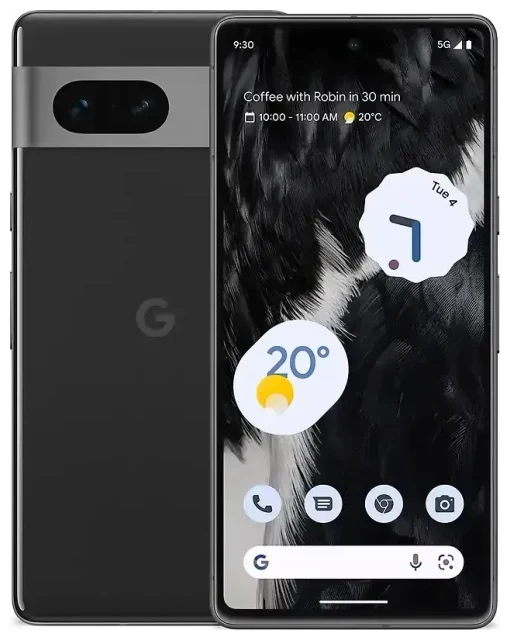
Does the Google Pixel 7 support eSIM?
Yes, the Google Pixel 7 supports eSIM. Every Google Pixel 7 model sold globally includes eSIM functionality, regardless of region or carrier.
Google Pixel 7 eSIM compatibility
Your Pixel 7 can run dual SIM: one physical nano-SIM in the tray plus one active eSIM at the same time. This dual SIM capability lets you keep your home number while adding a second line for work, travel, or local data. The device can store multiple eSIM profiles in memory, though only one eSIM can be active alongside the physical SIM at any given time.
All variants—whether you bought the phone unlocked from Google, through a carrier like Verizon or T-Mobile, or internationally—include the same eSIM hardware. You won't find a separate "eSIM edition" or physical dual-SIM tray variant like some manufacturers offer.
Dual SIM with eSIM and physical SIM
The Pixel 7 dual SIM setup works smoothly: insert your primary carrier's physical SIM, then add an eSIM for a second number or data plan. You can choose which line handles calls, texts, and mobile data in Settings, and switch between them as needed. This flexibility makes it easy to separate personal and business calls or add affordable data when you're abroad.
How to set up an eSIM on the Google Pixel 7
Setting up an eSIM on your Pixel 7 takes about sixty seconds once you have your QR code or activation details from your carrier or travel eSIM provider.
Google Pixel 7 eSIM setup steps
- Open Settings on your Pixel 7.
- Tap Network & internet.
- Tap the + icon next to "SIMs" or select Add more if you already have a SIM active.
- Choose Download a SIM instead? (or Add a network on some Android versions).
- Tap Next, then scan the QR code provided by your eSIM provider using your phone's camera.
- Confirm the carrier details and tap Download.
- Wait while the eSIM profile installs—this usually takes 10–30 seconds.
- Label your new line (e.g., "Travel," "Work," "US Data") so you can tell your SIMs apart.
- Choose which SIM to use for mobile data, calls, and texts in the next screen, or configure this later in Settings.
Activate eSIM on Google Pixel 7 without a QR code
If your provider sends activation details via email or app instead of a QR code, tap Need help? during step 5 above, then select Enter it manually. You'll type in the SM-DP+ address and activation code. Some carriers and travel eSIM apps let you install profiles directly inside their app, which handles the technical entry for you.
Using a travel eSIM on the Google Pixel 7
A travel eSIM is the simplest way to get mobile data abroad without paying roaming fees. Instead of hunting for a local SIM card at the airport or facing surprise charges from your home carrier, you install a prepaid data plan on your Pixel 7 before you fly.
How travel eSIMs work on the Pixel 7
Buy a data plan for your destination, receive a QR code by email, and follow the setup steps above to install it. Your home physical SIM stays in the tray for calls and texts, while the travel eSIM handles data. You can browse eSIM plans for 200+ countries and regions, compare data allowances, and install the profile in minutes.
Install your travel eSIM while you're still connected to Wi-Fi at home or at the airport—don't wait until you land. The profile will sit dormant until you enable it and turn on data roaming for that line. Once you arrive, toggle the travel eSIM as your data line in Settings, and you're connected.
This setup works perfectly for the Pixel 7 dual SIM design: keep your home number reachable for calls and two-factor authentication texts, while routing all internet traffic through the affordable travel data plan. No SIM swapping, no tiny ejector tools, no risk of losing the physical card.
Tips & troubleshooting
Turn on data roaming for your eSIM line
Your Pixel 7 won't connect to mobile data on the eSIM unless data roaming is enabled for that line. Go to Settings > Network & internet > SIMs, tap your eSIM, and toggle Roaming on. This is safe—you're using a prepaid plan with a fixed data allowance, not your home carrier's pay-per-MB roaming.
Keep data roaming off for your home physical SIM to avoid accidental charges. Your Pixel 7 lets you control roaming independently for each line.
What to do if the QR code won't scan
If your camera won't focus or recognize the QR code, increase screen brightness if you're scanning from another device, or print the code on paper. Alternatively, tap Need help? and enter the activation details manually. Make sure you're connected to Wi-Fi during installation—some eSIM downloads require an internet connection.
If the eSIM profile downloads but won't activate, restart your Pixel 7 and check that your device isn't carrier-locked. Unlocked Pixel 7 phones work with any eSIM provider; locked devices may restrict which carriers you can use. You can check another device's eSIM compatibility if you're troubleshooting a different phone, or visit eSIM setup help for further assistance.
Managing multiple eSIM profiles
The Pixel 7 can store several eSIM profiles at once, but only one eSIM stays active alongside your physical SIM. To switch between stored eSIMs, go to Settings > Network & internet > SIMs, toggle off the current eSIM, and enable the one you want to use. This is useful if you travel frequently and keep regional data plans installed for quick activation.








