 WhatsApp +44 7367 063273
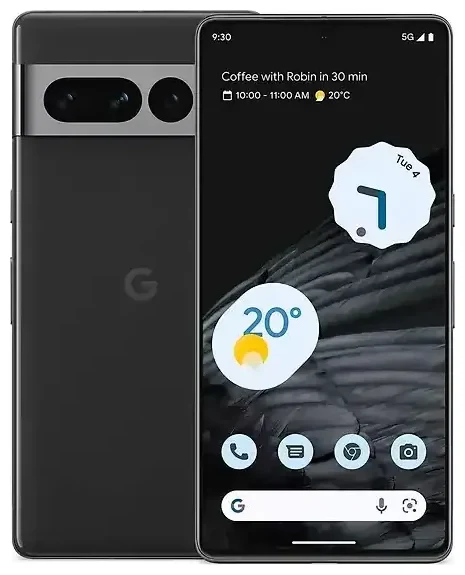
Does the Google Pixel 7 Pro support eSIM?
Yes, the Google Pixel 7 Pro supports eSIM. Every Google Pixel 7 Pro model sold worldwide includes eSIM capability, regardless of where you purchased it or which carrier you use.
Google Pixel 7 Pro eSIM compatibility
The Google Pixel 7 Pro offers flexible dual SIM functionality. You can run one physical nano-SIM and one eSIM simultaneously, letting you maintain two separate phone numbers or data plans on a single device. This setup is particularly useful if you want to keep your home number active while adding a local data plan when traveling.
The device also supports multiple eSIM profiles stored in memory—you can install several eSIM plans and switch between them in Settings, though only one eSIM can be active at a time alongside the physical SIM. If you remove the physical SIM card, you cannot run two eSIMs simultaneously on the Pixel 7 Pro; dual eSIM operation is not supported on this model. That limitation differs from some newer Pixel models, so if you need dual active eSIMs, check another device's eSIM compatibility before purchasing.
How to set up an eSIM on the Google Pixel 7 Pro
Setting up an eSIM on your Google Pixel 7 Pro takes about sixty seconds once you have your QR code from your carrier or eSIM provider. The process happens entirely in the Settings app and requires a Wi-Fi or mobile data connection to download the eSIM profile.
Pixel 7 eSIM setup steps
- Open Settings and tap Network & internet.
- Tap the + icon next to SIMs or select Add more.
- Choose Download a SIM instead? when prompted.
- Tap Next, then scan the QR code provided by your eSIM carrier using your camera.
- Wait while the profile downloads—this typically takes 30–60 seconds.
- Once installed, give the eSIM a recognizable label like "Travel Data" or "Work Line" to distinguish it from your primary SIM.
- Choose which SIM to use for mobile data, calls, and SMS in the SIM settings menu.
If your provider gives you a manual activation code instead of a QR code, select Need help? or Enter it manually during step 4 and type in the SM-DP+ address and activation code. The rest of the process remains the same.
Set up an eSIM in Settings
After activation, head back to Settings > Network & internet > SIMs to configure which line handles data, calls, and texts. You can set your primary SIM for voice calls and your eSIM for data, or vice versa. This control is especially helpful for managing a travel eSIM alongside your regular carrier—keep your home number available for two-factor authentication texts while routing all data through the cheaper local eSIM plan.
Using a travel eSIM on the Google Pixel 7 Pro
A travel eSIM turns your Google Pixel 7 Pro into a local device in over 190 countries without swapping physical SIM cards or paying your home carrier's roaming fees. You purchase a data plan for your destination, install the eSIM profile before you board your flight, and activate it when you land. Your phone connects to local networks immediately, giving you maps, translation apps, and ride-sharing services the moment you step off the plane.
Google Pixel 7 Pro Dual SIM for travel
Keep your physical SIM installed so you can receive calls and text messages on your regular number—important for banking alerts and verification codes. Set the travel eSIM as your data line in Settings, and your Pixel 7 Pro will route all internet traffic through the local plan while keeping your home number reachable. You avoid surprise roaming bills and stay connected without carrying multiple devices.
Install your travel eSIM while you still have Wi-Fi at home or at the airport. The activation usually happens automatically when your phone detects the destination network, but having the profile already loaded means you're not hunting for Wi-Fi in an unfamiliar airport terminal. You can browse eSIM plans by country and install the QR code days or weeks before departure—most plans don't start until you connect to the destination network.
Tips & troubleshooting
Most Google Pixel 7 Pro eSIM installations work on the first try, but a few settings and common issues can trip you up if you're new to eSIM technology.
Turn on data roaming for the eSIM line
Even though your travel eSIM is a local plan in the country you're visiting, your Pixel 7 Pro still treats it as a secondary line. Go to Settings > Network & internet > SIMs, tap your eSIM, and enable Roaming. This sounds counterintuitive, but the "roaming" toggle simply allows that SIM to connect to networks. Without it enabled, your eSIM won't transmit data, and you'll wonder why you have no connection despite a successful installation.
Confirm that mobile data is assigned to the correct SIM. In the same SIM settings menu, check that Mobile data points to your travel eSIM, not your home SIM. If data is still routing through your primary carrier, you'll rack up roaming charges instead of using the local plan you paid for.
Fix an eSIM that won't activate
If the QR code won't scan, make sure your camera lens is clean and you have adequate lighting. Hold the phone steady about six inches from the screen or printout. If scanning still fails, choose the manual entry option and type the activation details carefully—one wrong character will prevent the profile from downloading.
When an eSIM profile downloads but won't connect, restart your Pixel 7 Pro. A reboot forces the device to re-register with the network and often resolves activation glitches. If you still see no signal, confirm with your eSIM provider that the plan is active and covers the country you're in—some regional plans exclude certain territories.
For persistent issues, delete the problematic eSIM profile in Settings > Network & internet > SIMs, tap the eSIM, and choose Erase SIM. Then reinstall it using the original QR code. If the same code won't work a second time, contact your provider; some eSIM QR codes are single-use and you'll need a fresh one. You can also find additional eSIM setup help for device-agnostic troubleshooting steps.








