 WhatsApp +44 7367 063273
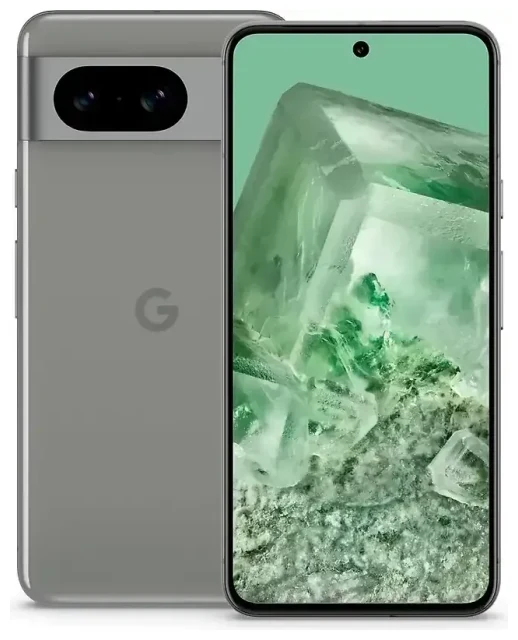
Does the Google Pixel 8 support eSIM?
Google Pixel 8 eSIM compatibility
Yes, the Google Pixel 8 supports eSIM. All Google Pixel 8 models sold globally include eSIM functionality, regardless of where you purchased the device. This applies to units bought directly from Google, carriers, and retail stores worldwide.
Dual SIM capabilities
The Google Pixel 8 offers flexible dual SIM options. You can use one physical nano-SIM card plus one active eSIM simultaneously, or run two eSIMs at the same time if you prefer an entirely digital setup. The device can store multiple eSIM profiles (typically up to four), but only one eSIM can be active alongside your physical SIM at any given time. This makes the Pixel 8 ideal for separating work and personal lines or keeping a home number active while using a travel data plan abroad.
How to set up an eSIM on the Google Pixel 8
Google Pixel 8 eSIM setup steps
Setting up an eSIM on your Google Pixel 8 typically takes about 60 seconds. You'll need a QR code from your carrier or eSIM provider, a stable Wi-Fi or mobile data connection, and your device unlocked and ready.
- Open Settings on your Pixel 8.
- Tap Network & internet.
- Select SIMs (or Mobile network on some Android versions).
- Tap the + icon or Add mobile plan.
- Choose Download a SIM instead? if prompted.
- Scan the QR code provided by your carrier or eSIM service using your camera.
- Confirm the plan details and tap Download.
- Wait 30–60 seconds for activation to complete.
- Label your new line with a name like "Travel" or "Work" to identify it easily.
- Set your preferences for calls, texts, and data usage for each SIM.
Activate eSIM on Google Pixel without a QR code
If your carrier supports it, you can activate an eSIM on your Google Pixel 8 by entering activation details manually. In the SIMs menu, select Enter it manually instead of scanning, then input the SM-DP+ address and activation code your provider gave you. Some carriers also offer direct app-based activation—check if your provider has a dedicated app that handles eSIM provisioning automatically.
Using a travel eSIM on the Google Pixel 8
Stay connected abroad without roaming charges
A travel eSIM on your Google Pixel 8 gives you local data rates in over 200 countries without the roaming fees your home carrier would charge. You install the eSIM profile before you depart, then simply turn it on when you land. Your physical SIM stays in place for receiving calls and texts (including two-factor authentication codes), while the travel eSIM handles all your data—maps, messaging apps, ride-sharing, and browsing.
Purchase a regional or country-specific plan, receive the QR code by email, and follow the setup steps above to install it on your Pixel 8. You can browse eSIM plans covering destinations worldwide, compare data allowances, and buy the one that matches your trip length. Install it while you're still connected to Wi-Fi at home; the eSIM will activate automatically when you arrive and connect to a local network.
Managing multiple eSIMs for different trips
The Google Pixel 8 stores several eSIM profiles at once, so you can keep eSIMs from Japan, Europe, and other regions loaded on your device and switch between them in Settings without reinstalling. When you return from a trip, turn off the travel eSIM and re-enable your primary line. This flexibility means you can reuse stored eSIMs if you revisit a country and your plan hasn't expired, saving time on your next journey.
Tips & troubleshooting
Enable data roaming for your eSIM line
After installing a travel eSIM on your Pixel 8, you must turn on data roaming for that specific line. Go to Settings > Network & internet > SIMs, select your eSIM, and toggle Roaming on. This is not the same as enabling roaming on your home carrier—it allows the travel eSIM to connect to foreign networks, which is the entire point of the service. Keep roaming off for your primary physical SIM to avoid surprise charges from your home carrier.
Fix an eSIM that won't activate
If the QR code won't scan, check that your camera lens is clean and the lighting is adequate. You can also screenshot the QR code, open your photo gallery, and scan it from the image. If activation stalls, restart your Pixel 8 and try again—network handshakes occasionally time out. Confirm you have an active internet connection (Wi-Fi or mobile data) during setup; eSIM downloads require connectivity. If you continue to see errors, the QR code may have already been used or expired—contact your eSIM provider for a fresh code or eSIM setup help.
Keep your home SIM active for calls and verification codes
Set your physical SIM as the default line for voice calls and SMS in Settings > Network & internet > SIMs > Calls preference and SMS preference. Route mobile data through your travel eSIM by selecting it under Mobile data. This configuration lets you receive two-factor authentication texts and phone calls on your regular number while your data traffic flows over the cheaper local eSIM. You can check another device's eSIM compatibility if you're planning to switch phones or wondering about other models in the Pixel lineup.








