 WhatsApp +44 7367 063273
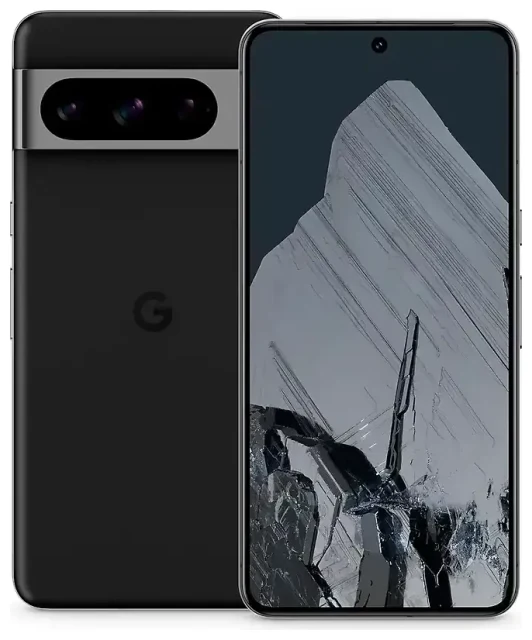
Does the Google Pixel 8 Pro support eSIM?
Google Pixel 8 Pro eSIM compatibility
Yes, the Google Pixel 8 Pro supports eSIM. Every model sold worldwide includes eSIM capability, regardless of where you purchase the device. This applies to unlocked units and carrier-locked versions from T-Mobile, Verizon, AT&T, and other networks.
The Google Pixel 8 Pro offers flexible dual SIM functionality. You can use one physical nano-SIM card plus one active eSIM simultaneously, or run dual eSIM profiles if you prefer not to use the physical slot. The device stores multiple eSIM profiles—typically eight or more—but only one eSIM can be active alongside the physical SIM at any time. This dual SIM setup lets you maintain separate numbers for work and personal use, or keep your home line active while adding a travel eSIM for international data.
Regional availability and carrier support
Because Google manufactures the Pixel 8 Pro with universal eSIM support, you won't encounter regional variants that lack the feature. Carrier compatibility varies by network—most major carriers in North America, Europe, Asia, and Australia support eSIM activation on the Pixel 8 Pro, but you should confirm with your specific carrier before purchasing an eSIM plan.
How to set up an eSIM on the Google Pixel 8 Pro
Google Pixel 8 Pro eSIM setup steps
Setting up an eSIM on your Google Pixel 8 Pro takes about a minute once you have your QR code or activation details from your carrier or eSIM provider. The process happens entirely in Settings, and you'll see your new line available immediately after installation.
- Open Settings on your Google Pixel 8 Pro and tap Network & internet.
- Tap the + icon next to SIMs or select Add more if you see that option.
- Choose Download a SIM instead? to begin eSIM installation.
- Scan the QR code provided by your carrier or eSIM provider using your camera, or tap Need help? to enter activation details manually.
- Wait 30–60 seconds while the eSIM profile downloads and installs.
- Label your new line with a recognizable name like "Travel" or "Work" to distinguish it from your primary SIM.
- Choose which line to use for mobile data, calls, and text messages in the SIM settings menu.
Switching between SIM lines
After setup, you can toggle between your physical SIM and eSIM for data usage in Settings > Network & internet > SIMs. Tap your preferred line and select Use SIM to make it your active data connection. Both lines remain available for calls and texts unless you disable one completely.
Using a travel eSIM on the Google Pixel 8 Pro
Stay connected abroad without roaming fees
A travel eSIM transforms how you use data internationally on your Google Pixel 8 Pro. Instead of paying roaming charges from your home carrier or hunting for a local SIM shop after landing, you install a travel eSIM before departure and activate it when you arrive. The eSIM provides local data rates in your destination country, while your primary SIM stays active for calls and texts to your regular number.
Install your travel eSIM while you still have Wi-Fi at home or at the airport. Purchase a data plan that covers your destination—you can browse eSIM plans for 200+ countries and regions—then follow the setup steps above to add the eSIM profile to your Pixel 8 Pro. Keep the eSIM disabled until you land, then switch it on and select it as your data line in Settings. Your home number remains reachable for two-factor authentication codes and important calls.
Managing multiple eSIM profiles
The Google Pixel 8 Pro stores several eSIM profiles simultaneously, which proves useful if you travel frequently to the same regions. You can install eSIMs for multiple countries in advance, then activate the appropriate one when you cross borders. Only one eSIM works at a time alongside your physical SIM, but switching between stored profiles takes seconds in the SIM settings menu.
Tips & troubleshooting
Enable data roaming for your eSIM line
Even with a local travel eSIM installed, you must enable data roaming for that specific line. Go to Settings > Network & internet > SIMs, select your eSIM, and toggle Roaming on. This sounds counterintuitive—you're using a local eSIM to avoid roaming fees—but Android treats any non-physical-SIM data as "roaming" by default. The eSIM itself provides local rates, so enabling this setting won't trigger expensive charges.
Keep your primary SIM active for calls and texts
Leave your home SIM enabled even when using a travel eSIM for data. Set the eSIM as your data line in Settings > Network & internet > Internet, but keep your primary number active for voice and SMS. This configuration lets you receive two-factor authentication codes and calls to your regular number while the eSIM handles data traffic at local rates.
Fix an eSIM that won't activate
If your QR code won't scan, ensure you have adequate lighting and hold the phone steady. Alternatively, tap Enter activation code manually and type the SM-DP+ address and activation code provided by your eSIM vendor. If the profile downloads but won't connect to a network, restart your Google Pixel 8 Pro and confirm the eSIM line is enabled and set as your preferred data SIM. You can also check another device's eSIM compatibility if you're troubleshooting across multiple phones, or visit eSIM setup help for additional guidance.
Some users on forums like Reddit report occasional activation delays with certain carriers. If your Pixel 8 Pro eSIM shows "Activating…" for more than five minutes, toggle airplane mode on and off, or delete the profile and reinstall it using the original QR code. Carrier-specific issues—such as T-Mobile eSIM activation quirks mentioned in Pixel 8 Pro eSIM discussions—usually resolve with a network settings reset or a call to carrier support.








