 WhatsApp +44 7367 063273
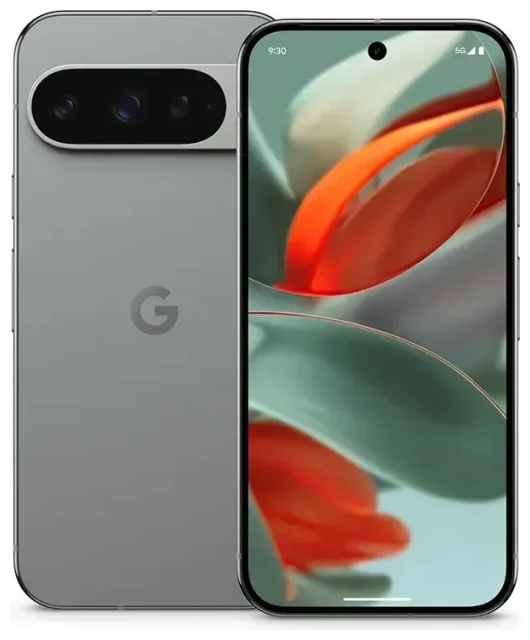
Does the Google Pixel 9 support eSIM?
Yes. The Google Pixel 9 supports eSIM across all models and regions worldwide. Google ships every Pixel 9 with both a nano-SIM tray and eSIM capability built in, so you can activate a digital carrier profile without needing a physical card.
Google Pixel 9 eSIM compatibility
Every Google Pixel 9—whether you buy it unlocked, from a carrier, or in any country—has eSIM support. There are no Wi-Fi-only or region-specific variants that lack this feature. The phone includes a single nano-SIM slot on the left edge and can store multiple eSIM profiles in its embedded chip.
Dual SIM on the Google Pixel 9
The Pixel 9 runs dual SIM in two configurations. You can use one physical nano-SIM and one active eSIM at the same time, or remove the physical card entirely and run two eSIMs simultaneously. Only two lines—physical or eSIM—can be active at once, but you can store additional eSIM profiles and switch between them in Settings without reinstalling. This makes the Pixel 9 ideal for travelers who want a local data eSIM abroad while keeping their home number for calls and texts.
How to set up an eSIM on the Google Pixel 9
Setting up an eSIM on your Pixel 9 takes about sixty seconds. Your eSIM provider will send a QR code by email after purchase. Make sure you have a stable Wi-Fi or mobile-data connection before you start—the phone needs internet access to download the carrier profile.
Google Pixel 9 eSIM activation steps
- Open Settings and tap Network & internet.
- Tap the + icon next to SIMs (or Add more if you see that option).
- Select Download a SIM instead? to add an eSIM profile.
- Tap Next, then point your camera at the QR code your provider sent.
- The Pixel 9 will scan the code and begin downloading the eSIM profile—this usually takes ten to thirty seconds.
- Once the download completes, tap Done. You'll see the new line listed under SIMs.
- Give the line a label—like "Travel" or "Work"—and choose whether to use it for mobile data, calls, or both.
- Toggle Use SIM to on if it isn't already, then exit Settings. Your eSIM is now active.
Scan the QR code or enter details manually
If the QR code won't scan—because of glare, a cracked screen protector, or a low-quality print—tap Need help? during setup and select Enter it manually. Your provider's email will include an SM-DP+ address and activation code you can type in by hand. The result is identical to scanning the QR.
Using a travel eSIM on the Google Pixel 9
A travel eSIM lets you get mobile data in another country without paying your home carrier's roaming fees. You install the eSIM before you fly, land, turn it on, and you're online—no hunting for a SIM-card kiosk at the airport, no passport photocopies, no language barriers.
Install your travel eSIM before departure
Download and activate the travel eSIM while you're still at home on Wi-Fi. The profile sits dormant until you reach your destination and flip the toggle to on. Once you land, open Settings, tap your travel eSIM, enable Mobile data, and turn on Roaming for that line. Your Pixel 9 will connect to a local network within seconds. Keep your home SIM active for calls and two-factor-authentication texts—the Pixel 9's dual-SIM setup lets both lines run at the same time, so you won't miss anything important while abroad. When you're ready to buy data for your next trip, browse eSIM plans by destination and install in minutes.
Tips & troubleshooting
Most Google Pixel 9 eSIM activations go smoothly, but a few common issues trip people up. Here's how to fix them and get the most out of dual SIM.
Turn on data roaming for your eSIM line
If your travel eSIM won't connect after you land, the culprit is usually data roaming. Go to Settings > Network & internet, tap your eSIM line, and toggle Roaming to on. Unlike traditional roaming on your home carrier—which triggers steep fees—a prepaid travel eSIM requires roaming to be enabled because you're connecting to a partner network. You won't be billed extra; the data you paid for is already loaded on the eSIM.
Keep your home SIM active for calls and texts
Set your home SIM as the default for calls and SMS, and your travel eSIM for mobile data. Open Settings > Network & internet > SIMs, scroll to Mobile data, and select your travel eSIM. Then tap Calls and SMS and pick your home line. This way you'll use cheap local data for maps and messaging apps, but still receive verification codes and phone calls on your regular number.
Fix an eSIM that won't activate
If the Pixel 9 says "Can't download SIM" or the activation hangs, restart the phone and try again—a clean boot often clears temporary glitches. Make sure your device is connected to Wi-Fi or has an active data connection through another SIM. If the QR code repeatedly fails to scan, enter the SM-DP+ address and activation code manually as described earlier. Still stuck? Check whether your eSIM provider's portal shows the profile as "assigned" or "activated"—some carriers require you to confirm purchase or complete an extra step online before the QR code works. You can also get eSIM setup help if you're traveling soon and need immediate assistance. For general questions about which devices work with eSIM technology, check another device's eSIM compatibility before you buy a new phone or tablet.
Managing multiple eSIM profiles
The Pixel 9 can store more than two eSIM profiles—Google doesn't publish an exact limit, but users on Reddit report storing eight or more without issue. Only two SIMs (eSIM or physical) can be active simultaneously, but you can switch between stored profiles in seconds. Go to Settings > Network & internet > SIMs, toggle off the eSIM you're not using, then toggle on the one you want. This is handy if you travel frequently to the same countries and want to keep regional eSIMs ready to go rather than reinstalling each time.








