 WhatsApp +44 7367 063273
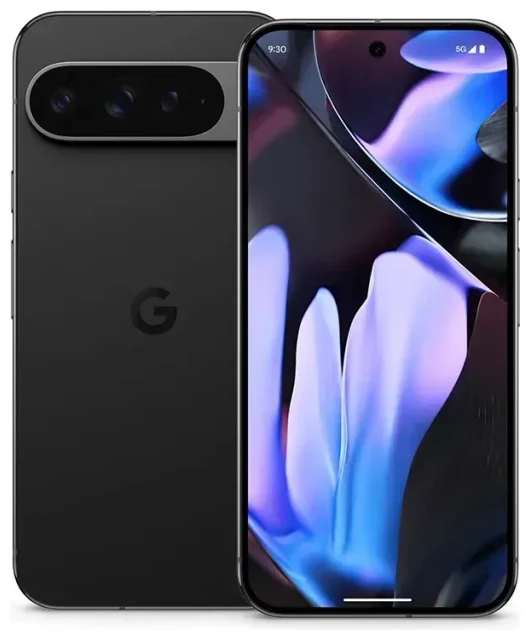
Does the Google Pixel 9 Pro XL support eSIM?
Yes, the Google Pixel 9 Pro XL supports eSIM. Every variant sold globally—whether unlocked or carrier-locked—includes eSIM capability built into the device. You can use the Google Pixel 9 Pro XL eSIM feature alongside the physical nano-SIM slot for flexible connectivity.
Google Pixel 9 Pro XL eSIM compatibility and dual SIM options
The Google Pixel 9 Pro XL offers true dual-SIM functionality. You have three configuration options: one physical nano-SIM plus one eSIM, or two eSIMs running simultaneously without needing the physical SIM slot at all. This makes the Pixel 9 Pro XL especially practical if you want to separate work and personal numbers, or keep your home line active while using a travel eSIM abroad.
The device can store multiple eSIM profiles—typically up to four or five depending on carrier provisioning—but only two lines (physical or eSIM) can be active at once. Both lines support 5G when your carrier and plan allow it.
How to set up an eSIM on the Google Pixel 9 Pro XL
Activating an eSIM on your Google Pixel 9 Pro XL takes about sixty seconds once you have your QR code or activation details from your carrier or eSIM provider. The process happens entirely in the Settings app, and you'll need a Wi-Fi or mobile-data connection to complete the download.
Set up an eSIM in Settings
- Open Settings and tap Network & internet.
- Tap the + icon next to SIMs, then select Download a SIM instead?
- Choose Next, then scan the QR code provided by your carrier or eSIM provider. Hold your Pixel steady so the camera captures the code clearly.
- If you don't have a QR code, tap Need help? and select Enter it manually to type the activation code (SM-DP+ address and confirmation code).
- Wait while the eSIM profile downloads—this usually takes fifteen to thirty seconds.
- Once installed, give the line a label like "Travel" or "Work" so you can identify it quickly in Settings.
- Choose which line you want to use by default for mobile data, calls, and SMS. You can change these preferences anytime in Network & internet > SIMs.
Your new eSIM line will appear in the SIMs menu alongside any physical SIM. You can toggle each line on or off, assign specific contacts to a particular number, and control which SIM handles data when both are active.
Using a travel eSIM on the Google Pixel 9 Pro XL
A travel eSIM is the simplest way to get mobile data abroad without paying international roaming fees on your home plan. You install the eSIM before you leave, then activate it when you land. Your Pixel 9 Pro XL switches to the local data network immediately, while your home SIM stays active for calls and text messages.
Install your travel eSIM before departure
Purchase a travel eSIM for your destination and install it while you still have Wi-Fi or home data. The profile sits dormant on your device until you turn it on. When you arrive, open Settings, enable the travel eSIM line, and set it as your default for mobile data. Your home number remains reachable for two-factor authentication codes and calls, but you'll use the local eSIM for maps, messaging apps, and web browsing. Browse eSIM plans by country or region to find prepaid data that matches your trip length.
Because the Pixel 9 Pro XL can hold multiple eSIM profiles, you can install eSIMs for several countries in advance if you're visiting more than one destination. Just switch the active data line in Settings when you cross the border.
Tips and troubleshooting
Most Google Pixel 9 Pro XL eSIM activations go smoothly, but a few settings and habits will help you avoid common issues—especially if this is your first time juggling two SIM profiles or travelling with an eSIM.
Turn on data roaming for the eSIM line
Even though your travel eSIM is "local" to the country you're visiting, Android still classifies it as roaming because it's not your phone's original home carrier. Go to Settings > Network & internet > SIMs, tap your travel eSIM, and toggle Roaming on. Without this, your Pixel 9 Pro XL won't connect to mobile data on the new line.
Keep your home SIM enabled if you want to receive calls and SMS, but turn off roaming for that line to prevent accidental roaming charges. Use your home number only for incoming messages and two-factor authentication, and let the travel eSIM handle all data.
Fix an eSIM that won't activate
If the QR code won't scan, check that your screen brightness is high enough and that there's no glare on the printed or displayed code. You can also take a screenshot of the QR code on another device and scan it from your photo gallery—just tap the gallery icon in the camera viewfinder. If scanning repeatedly fails, use the manual entry option and double-check every character of the activation code for typos.
When an eSIM profile downloads but won't connect, restart your Pixel 9 Pro XL and confirm that the line is enabled and set as the active data SIM. If you're still stuck, eSIM setup help can walk you through carrier-specific activation steps. You can also check another device's eSIM compatibility if you're troubleshooting for a different phone or tablet.
Carrier-locked Pixel 9 Pro XL models may restrict third-party eSIMs until the device is unlocked. Check with your carrier if you bought the phone on contract or through an instalment plan.








