 WhatsApp +44 7367 063273
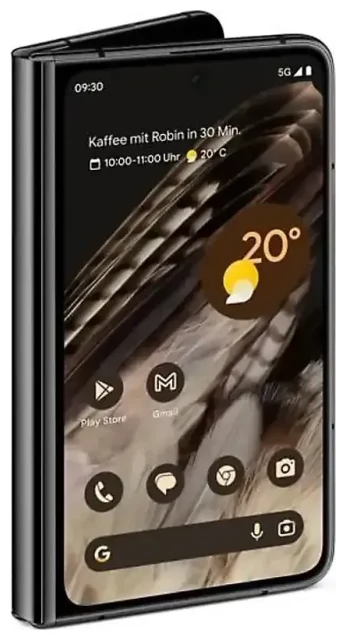
Does the Google Pixel Fold support eSIM?
Yes, the Google Pixel Fold supports eSIM. All models of the Pixel Fold include eSIM functionality, regardless of where you purchased the device or which carrier you use.
Google Pixel Fold eSIM compatibility
Every Google Pixel Fold variant works with eSIM technology. Google designed this foldable phone with a single nano-SIM slot and eSIM support built into the hardware. You can use either a physical SIM card alone, an eSIM alone, or both simultaneously for dual SIM functionality.
Dual SIM capability on the Pixel Fold
The Google Pixel Fold supports dual SIM in two configurations. You can pair one physical nano-SIM with one eSIM, which is the most common setup for travelers who want to keep their home number active while using a local data plan. The device also supports multiple eSIM profiles stored in memory—though only one eSIM can be active at a time alongside your physical SIM. This flexibility makes the Pixel Fold well-suited for frequent international travelers and people who manage separate work and personal lines.
How to set up an eSIM on the Google Pixel Fold
Setting up an eSIM on your Google Pixel Fold takes about sixty seconds. You'll receive a QR code from your eSIM provider—either via email or in your account dashboard—and scan it through your phone's settings.
Step-by-step eSIM activation
- Open Settings on your Google Pixel Fold.
- Tap Network & internet.
- Select SIMs (or Mobile network on some Android versions).
- Tap the + icon or Add mobile plan.
- Choose Download a SIM instead? if prompted, then tap Next.
- When the camera opens, scan the QR code your eSIM provider sent you.
- Tap Download to confirm and wait while the eSIM profile installs.
- Once installed, label the eSIM line with a recognizable name like "Travel Data" or "Work."
- Choose which SIM to use for mobile data, calls, and SMS in the SIM settings.
Managing your eSIM profiles
After activation, both your physical SIM and eSIM appear in the SIMs menu. You can toggle each line on or off, assign one for data and another for calls, or switch your default data SIM whenever needed. The Pixel Fold stores multiple eSIM profiles, so you can install several travel eSIMs in advance and activate the one you need when you land.
Using a travel eSIM on the Google Pixel Fold
A travel eSIM is the easiest way to get mobile data abroad without paying roaming fees from your home carrier. Instead of hunting for a SIM card vendor at the airport or dealing with carrier stores in a foreign language, you install an eSIM before your flight and have data the moment you touch down.
Why travelers choose eSIMs for the Pixel Fold
Travel eSIMs deliver prepaid data plans for specific countries or regions. You pay once, install the profile on your Google Pixel Fold, and turn it on when you arrive. Your home SIM stays in the phone—active for calls and text messages—while the travel eSIM handles data. This dual SIM setup means friends and family can still reach you on your regular number, and you receive two-factor authentication codes without switching SIMs. Browse eSIM plans to compare coverage and data allowances for your destination.
Install your travel eSIM before departure
Download and install your travel eSIM while you're still at home on Wi-Fi. The profile sits dormant on your Pixel Fold until you enable it and toggle on data roaming. Once you land, turn on the eSIM line in your settings, enable data roaming for that line only, and you'll connect to a local network within seconds. No need to find a store, no fumbling with a SIM ejector tool in a taxi.
Tips & troubleshooting
Most eSIM activations on the Google Pixel Fold work smoothly, but a few settings adjustments can save you trouble abroad.
Enable data roaming for your eSIM line
Your Pixel Fold treats the travel eSIM as a roaming connection, even though it's a local plan in the country you're visiting. Go to Settings > Network & internet > SIMs, select your travel eSIM, and turn on Roaming. Leave roaming off for your home SIM unless you want to incur charges from your home carrier. Set the travel eSIM as your default for mobile data so apps and browser traffic route through the local network.
Keep your home SIM active for calls and texts
In the SIMs menu, assign your home physical SIM for Calls and SMS, and assign the travel eSIM for Mobile data. This way, two-factor authentication messages and phone calls come through on your usual number, while data-hungry apps like maps and messaging use the travel eSIM's local connection. You avoid roaming fees and stay reachable.
What to do if the QR code won't scan
If your Pixel Fold camera won't read the QR code—sometimes due to glare or low contrast on a screen—look for a manual entry option. Many eSIM providers include an activation code (often labeled SM-DP+ address and activation code) in the same email or account page. In the SIM setup flow, tap Enter it manually instead of scanning, then paste the details. The installation proceeds the same way. If you're still stuck, check eSIM setup help or contact your eSIM provider's support team.
Verify compatibility for less common scenarios
While all Google Pixel Fold models support eSIM, carrier-specific firmware or software locks can occasionally interfere. If you bought your Pixel Fold directly from a carrier and it's still locked to that network, you may need to unlock it before installing an eSIM from another provider. Unlocking policies vary, so contact your carrier if you encounter an error during eSIM download. You can also check another device's eSIM compatibility if you're researching backup phones or planning an upgrade.








