 WhatsApp +44 7367 063273
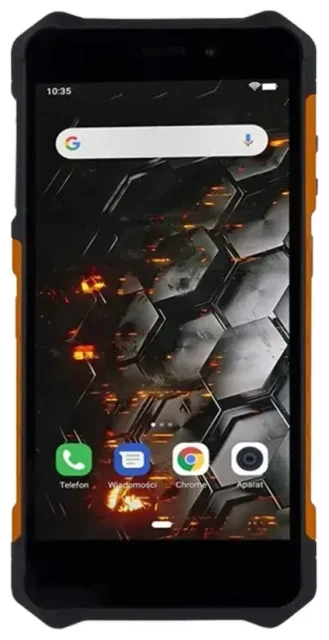
Does the HAMMER Blade 3 support eSIM?
HAMMER Blade 3 eSIM compatibility
No, the HAMMER Blade 3 does not support eSIM technology. This rugged Android smartphone relies exclusively on physical nano-SIM cards for cellular connectivity. HAMMER designed the Blade 3 as a durable, budget-friendly device focused on toughness and basic smartphone features, and eSIM capability was not included in its specification.
The HAMMER Blade 3 does offer dual physical SIM card slots, allowing you to use two nano-SIM cards simultaneously. This dual-SIM setup lets you maintain two phone numbers—useful if you want to separate work and personal lines, or use a local SIM while traveling without removing your home SIM. Both slots accept standard nano-SIM cards, and you can configure which SIM handles data, calls, and messages through the Android settings.
Physical SIM options on the HAMMER Blade 3
Because the HAMMER Blade 3 lacks eSIM support across all models and regions, you'll need to rely on traditional SIM cards for any carrier service. If you're researching whether your phone can use an eSIM, the Blade 3 is not compatible—you'll need to check another device's eSIM compatibility if you're considering a phone upgrade specifically for eSIM features.
Your options without eSIM on the HAMMER Blade 3
Using physical SIM cards for connectivity
While the HAMMER Blade 3 doesn't support eSIM, you still have straightforward options to stay connected. The dual nano-SIM tray gives you flexibility, and setting up service is simple:
- Power off your HAMMER Blade 3 completely before handling the SIM tray.
- Locate the SIM tray on the side of the device and use the included ejector tool (or a paperclip) to gently pop it out.
- Place your nano-SIM card(s) in the tray, ensuring the gold contacts face down and the notched corner aligns correctly.
- Reinsert the tray firmly until it clicks into place, then power on the device.
- Navigate to Settings > Network & Internet > SIM cards to configure which SIM handles mobile data, calls, and SMS.
- If using a new carrier, enter any APN settings provided by your network operator in Settings > Network & Internet > Mobile network > Advanced > Access Point Names.
Consider an eSIM-capable rugged phone
If you specifically need eSIM functionality in a durable device, you'll need to explore other models. Some rugged phones from manufacturers like CAT, Samsung's XCover series, or certain Nokia models do include eSIM support. Research the specifications carefully before purchasing, as eSIM capability varies widely among rugged devices and is often limited to higher-end models.
Staying connected abroad with the HAMMER Blade 3
Travel SIM cards for international data
When traveling internationally with your HAMMER Blade 3, you can avoid expensive roaming charges by using a physical travel SIM card. Purchase a local nano-SIM at your destination airport or from mobile shops, then install it in one of your dual-SIM slots. This gives you local data rates without removing your home SIM—you can keep your primary number active for receiving calls and texts while the travel SIM handles data.
Before you depart, confirm your HAMMER Blade 3 is unlocked and can accept SIM cards from any carrier. Contact your current mobile provider if you're unsure about unlock status. You should also write down important contacts and account details, since you may temporarily lose data access during SIM swaps.
Why travelers prefer eSIM-capable devices
Many travelers now choose devices with eSIM support because they can install a data plan digitally before departure—no need to find a SIM vendor, no tiny cards to swap or lose, and you can browse eSIM plans and activate service instantly upon landing. While the HAMMER Blade 3 doesn't offer this convenience, its dual physical SIM slots still provide flexibility for managing two numbers simultaneously during your trip.
Tips & troubleshooting
Dual-SIM configuration on the HAMMER Blade 3
To get the best experience from your dual-SIM setup, designate one SIM for mobile data and configure the other for calls only. This prevents accidentally using expensive roaming data on your home SIM when abroad. Go to Settings > Network & Internet > SIM cards and tap "Mobile data" to select which SIM provides your internet connection. You can switch this anytime without physically swapping cards.
Enable mobile data and data roaming for whichever SIM you want to use for internet access. If you've inserted a travel SIM but can't get online, verify that data roaming is turned on specifically for that SIM slot—Android treats each SIM independently for roaming settings.
Common physical SIM issues
If your HAMMER Blade 3 doesn't detect a SIM card, remove the tray and confirm the nano-SIM is seated properly with contacts facing down. Dust or debris in the tray can prevent good contact, so wipe both the SIM and tray gently with a dry cloth. Make sure you're using a nano-SIM, not a larger micro-SIM or mini-SIM size, and that any SIM adapter (if you cut down a larger card) sits flush.
For activation problems with a new SIM, wait 2–5 minutes after insertion—some carriers need time to register the device on their network. Restart your phone if service doesn't appear. If you still see "No service," contact your carrier to confirm the SIM is activated and your account is in good standing. You can find additional eSIM setup help and general connectivity troubleshooting resources on our support page, though remember the HAMMER Blade 3 requires physical SIMs only.








