 WhatsApp +44 7367 063273
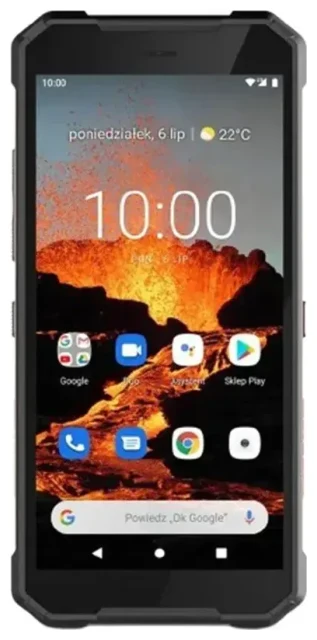
Does the HAMMER Explorer Pro support eSIM?
No, the HAMMER Explorer Pro does not support eSIM technology. This rugged smartphone from HAMMER Mobile relies exclusively on traditional physical SIM cards for cellular connectivity. You cannot install or activate an eSIM profile on this device, regardless of the region or variant you own.
HAMMER Explorer Pro eSIM compatibility
The HAMMER Explorer Pro is designed as a durable, budget-friendly rugged phone with physical dual-SIM capability. It features two nano-SIM card slots, allowing you to use two physical SIM cards simultaneously — useful for separating work and personal numbers or using a local SIM while traveling. However, neither slot supports eSIM functionality. The device does not include the embedded SIM hardware or software required for eSIM activation.
If you searched for "does the HAMMER Explorer Pro have eSIM" hoping to use digital SIM profiles, you'll need to work with physical SIM cards instead or consider an eSIM-capable device for future purchases. You can check another device's eSIM compatibility if you're exploring alternatives.
Your options without eSIM on the HAMMER Explorer Pro
Since the HAMMER Explorer Pro doesn't support eSIM, you'll use traditional nano-SIM cards for all your connectivity needs. Here's how to get connected with physical SIMs on this rugged device:
Setting up physical SIM cards
- Power off your HAMMER Explorer Pro completely before handling SIM cards.
- Locate the SIM tray on the side of the device and use the included SIM ejector tool or a small paperclip to open it.
- Insert your nano-SIM card(s) into the appropriate slots — the tray accommodates two physical SIMs.
- Reinsert the tray carefully, ensuring it's flush with the device body to maintain water resistance.
- Power on the phone and wait for it to detect the SIM card(s).
- Navigate to Settings > Network & Internet > SIM cards to label each SIM and set preferences for calls, texts, and mobile data.
- If prompted, enter your SIM PIN and configure APN settings provided by your carrier.
Consider eSIM-capable alternatives
If eSIM functionality is important for your workflow or travel habits, you may want to explore modern smartphones that support this technology. Many mid-range and flagship devices from manufacturers like Samsung, Google, and Apple now include eSIM alongside physical SIM slots. This dual-SIM setup (one eSIM plus one physical SIM) offers flexibility that the HAMMER Explorer Pro cannot provide.
Staying connected abroad with the HAMMER Explorer Pro
Traveling internationally with the HAMMER Explorer Pro means you'll need to plan your connectivity around physical SIM cards. While you won't have access to the convenience of instantly downloading travel eSIM plans, you still have reliable options.
Physical travel SIM cards
Purchase a local nano-SIM card when you arrive at your destination, or order a prepaid international SIM card before departure. The HAMMER Explorer Pro's dual-SIM capability lets you keep your home SIM in one slot for incoming calls and two-factor authentication codes while using a local SIM in the second slot for affordable data. This setup avoids expensive roaming charges from your home carrier.
Before you travel, confirm your HAMMER Explorer Pro is unlocked — contact your carrier if you're unsure. An unlocked device accepts SIM cards from any compatible network worldwide.
Why travelers prefer eSIM
Many travelers now choose eSIM-capable devices because they can browse eSIM plans and install them instantly without hunting for a physical SIM card shop abroad. You download the profile before departure and activate it when you land. If you frequently travel internationally, this limitation of the HAMMER Explorer Pro may influence your next device purchase.
Tips & troubleshooting
Dual-SIM management on the HAMMER Explorer Pro
When using two physical SIMs, you'll need to designate which one handles mobile data. Go to Settings > Network & Internet > SIM cards and select your preferred data SIM. You can still receive calls and texts on both lines, but only one provides internet connectivity at a time unless you manually switch.
Enable data roaming in Settings > Network & Internet > Mobile network > Roaming when traveling with a local SIM card. Keep your home SIM active if you need to receive verification codes or calls, but disable data roaming on that line to prevent unwanted charges.
Common physical SIM issues
If your HAMMER Explorer Pro doesn't detect a SIM card, power off the device and reseat the SIM, ensuring it's properly aligned in the tray. Dirt or moisture in the tray can prevent contact — clean it gently with a dry cloth. Check with your carrier that the SIM is activated and that your account is in good standing.
For persistent network problems, verify your APN settings match your carrier's requirements. You can usually find these on your carrier's support website. If you need additional guidance beyond physical SIM setup, eSIM setup help resources can point you toward compatible devices and digital connectivity options for the future.








