 WhatsApp +44 7367 063273
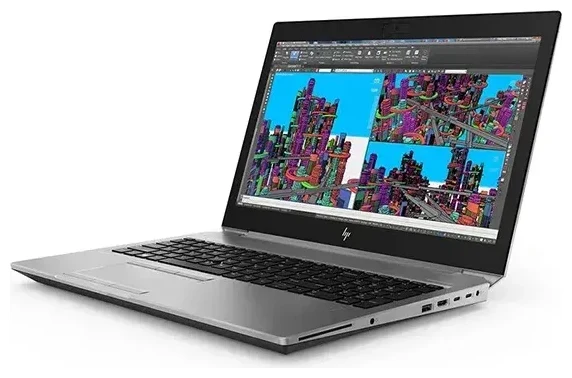
Does the HP Zbook G5 support eSIM?
HP Zbook G5 eSIM compatibility
The HP Zbook G5 supports eSIM, but only in specific configurations. If your Zbook G5 includes an optional WWAN (wireless wide-area network) module—typically the Intel XMM 7360 LTE-Advanced or Qualcomm Snapdragon X7 LTE modem—it can use eSIM for cellular data. Base Wi-Fi-only models do not support eSIM.
HP offered the Zbook G5 family (including the Zbook 15 G5 and Zbook 17 G5) with WWAN as a build-to-order option, so not every unit sold includes cellular capability. Check your device specifications: open Device Manager in Windows, expand Network adapters, and look for an LTE or WWAN modem listed. If you see one, your laptop likely supports eSIM.
Dual SIM and physical nano-SIM slot
WWAN-equipped Zbook G5 models include a nano-SIM card tray (usually accessible on the side or under the battery) and an embedded eSIM. You can use a physical SIM or an eSIM, but typically not both at the same time—most HP WWAN modules support one active profile at a time. You can switch between SIM profiles in Windows settings, making it easy to swap between your home carrier and a travel eSIM as needed.
How to set up an eSIM on the HP Zbook G5
Activate your eSIM in Windows Settings
If your Zbook G5 includes WWAN, setting up an eSIM takes about 60 seconds. You'll receive a QR code from your eSIM provider—have it ready on your phone or printed on paper.
- Open Settings and go to Network & Internet.
- Select Cellular in the left menu. (If you don't see Cellular, your laptop does not have a WWAN module installed.)
- Click Manage eSIM profiles or Use a SIM card from a mobile operator.
- Choose Add a profile, then Use a QR code.
- Scan the QR code using your laptop's webcam, or enter the activation code manually if provided.
- Windows will download and install the eSIM profile. Wait for the connection to complete.
- Label the profile (for example, "Travel eSIM" or the carrier name) so you can identify it later.
- Toggle the eSIM profile to On to enable mobile data.
Set up an eSIM in Settings
Once installed, your eSIM appears in the Cellular settings pane. You can switch between your physical SIM and eSIM, delete old profiles, or add new ones as you travel. The WWAN antenna in the Zbook G5 is designed for use in multiple regions, so an eSIM purchased for Europe, Asia, or North America should work as long as the frequency bands match your destination.
Using a travel eSIM on the HP Zbook G5
Stay connected abroad without roaming fees
A travel eSIM lets you connect to local mobile networks in over 200 countries without paying your home carrier's roaming rates. Instead of hunting for airport SIM kiosks or relying on hotel Wi-Fi, you install the eSIM before you leave and activate it when you land. Data appears instantly, and you can work, check email, or join video calls from anywhere with LTE coverage.
Because the Zbook G5 is a mobile workstation, a travel eSIM is especially useful if you move between job sites, attend conferences, or work remotely while traveling. Install the profile at home while you have Wi-Fi, then toggle it on at your destination. You can browse eSIM plans by region and data allowance to find one that fits your trip length and usage.
Install your eSIM before you fly
Most travel eSIM providers email the QR code immediately after purchase. Add the profile to your Zbook G5 while you're still at home—Windows will download it, but the eSIM won't start using data until you enable it in Cellular settings. When you arrive abroad, turn on the eSIM profile, confirm that data roaming is enabled, and you're online.
Tips & troubleshooting
Turn on data roaming for the eSIM line
Even though you're using a local eSIM, Windows treats it as a roaming connection. Open Settings → Network & Internet → Cellular, select your eSIM profile, and toggle Roaming options to On. Without this, your laptop won't connect to mobile networks. This setting is safe—your eSIM provider controls the data cap and billing, not your home carrier.
Keep your home SIM for calls and two-factor codes
If you also use a phone, leave your primary SIM in your phone so you can receive SMS verification codes and voice calls. The Zbook G5 is a data-only device—WWAN modules in laptops don't support voice or SMS, only mobile broadband. Use the laptop eSIM purely for internet access and your phone SIM for everything else.
Fix an eSIM that won't activate
If the QR code won't scan, check that your webcam has permission in Windows privacy settings. Alternatively, choose Enter activation code manually and type the string your provider sent (usually labeled SM-DP+ address and activation code). If the eSIM installs but won't connect, restart your laptop, confirm airplane mode is off, and verify the eSIM profile is toggled on in Cellular settings. You can check another device's eSIM compatibility if you need a backup plan, or reach out for eSIM setup help if Windows doesn't recognize the WWAN module at all.
Confirm your WWAN module is enabled in BIOS
Some enterprise IT departments disable WWAN in the HP BIOS to prevent unauthorized cellular use. Restart the Zbook G5, press F10 (or Esc then F10) to enter BIOS setup, navigate to Advanced → Device Configurations, and ensure WWAN is set to Enabled. Save and exit. Windows should then detect the modem and show the Cellular settings menu.








