 WhatsApp +44 7367 063273
Does the Lenovo Flex 5G support eSIM?
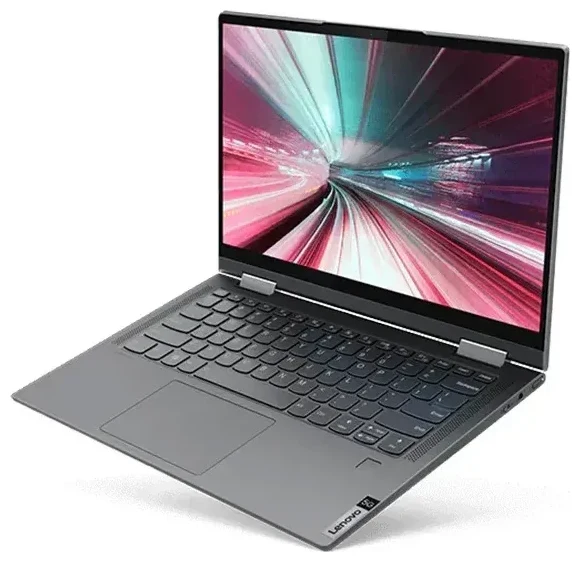
Yes, the Lenovo Flex 5G supports eSIM. This 2-in-1 Windows laptop—officially named the Lenovo Flex 5G—includes an embedded SIM alongside a nano-SIM slot, giving you flexibility for mobile data connectivity. Powered by the Qualcomm Snapdragon 8cx Gen 2 5G compute platform, all models of the Flex 5G ship with both a physical nano-SIM tray and eSIM capability built in.
Lenovo Flex 5G eSIM compatibility
The Flex 5G was designed as an always-connected PC, so both the eSIM and physical SIM slot work across all units sold globally. You can use the eSIM for a data plan while keeping the nano-SIM slot free, or run dual SIM by activating both at once—ideal if you want a home data plan on the physical SIM and a travel eSIM when you're abroad. The device supports 5G (sub-6 GHz) and 4G LTE on both SIM slots, so you get fast mobile data no matter which option you choose.
Dual-SIM options on the Lenovo Flex 5G
You can run one eSIM profile and one physical nano-SIM simultaneously. The Flex 5G does not support multiple active eSIM profiles at the same time—you install and store several eSIM profiles, but only one eSIM can be active alongside the physical SIM. Switch between stored profiles in Windows settings whenever you need a different data plan.
How to set up an eSIM on the Lenovo Flex 5G
Setting up an eSIM on the Lenovo Flex 5G takes about a minute once you have your QR code from your carrier or travel-eSIM provider. Windows 11 handles the installation through the Cellular settings panel. Make sure you have a stable Wi-Fi connection before you begin, because the laptop needs internet access to download the eSIM profile.
Step-by-step eSIM installation
- Open Settings and navigate to Network & internet, then select Cellular.
- Click Use this eSIM profile or Add a new cellular plan (the exact wording varies by Windows build).
- Choose Use a QR code when prompted.
- Hold your eSIM QR code up to the laptop's webcam, or manually enter the activation code if scanning doesn't work.
- Wait 30–60 seconds while Windows downloads and installs the profile.
- Label the new data plan with a recognizable name—such as "Travel Data"—so you can identify it later.
- Toggle the eSIM line on and set it as your preferred data connection if you want to use it right away.
Managing multiple profiles
After installation, your eSIM profile appears in the Cellular settings. You can disable it, delete it, or switch to a different stored profile anytime. If you install a second eSIM for a future trip, you'll need to turn off the first profile before activating the new one—only one eSIM can be active at a time on the Flex 5G.
Using a travel eSIM on the Lenovo Flex 5G
Travel eSIMs let you get mobile data abroad without paying roaming fees on your home plan. Because the Flex 5G is an always-connected laptop, a travel eSIM turns it into a portable Wi-Fi-free workstation—you can work from a café, train, or park bench with your own 5G connection. Install your travel eSIM before you leave home so the profile is ready the moment you land.
Why a travel eSIM makes sense for the Flex 5G
Traditional roaming on a laptop data plan can be expensive, and hunting for public Wi-Fi wastes time and poses security risks. A travel eSIM gives you prepaid data at local rates in over 200 destinations. You control how much data you buy, and there's no bill shock when you return. Browse and compare browse eSIM plans by country or region, pick the data bundle that fits your trip, and receive the QR code by email—usually within minutes.
Set up before departure
Install the travel eSIM profile while you're still at home on Wi-Fi. The profile will sit dormant until you arrive in your destination country and toggle it on. Keep your physical SIM active if you need to receive calls or texts on a phone number, or disable it entirely if the Flex 5G is your only connected device and you won't use voice services.
Tips and troubleshooting
Most eSIM setups on the Lenovo Flex 5G go smoothly, but a few settings and common issues are worth knowing about before you travel or switch carriers.
Turn on data roaming for your eSIM line
Even though an eSIM is a local or regional data plan, Windows still classifies it as "roaming" if the profile isn't your default. Go to Settings > Network & internet > Cellular, select your eSIM line, and toggle Roaming options to On. Without this, the Flex 5G won't connect to mobile networks when you're abroad.
Keep your home SIM active for calls and two-factor authentication
If you use the physical nano-SIM slot for your primary phone number, leave it enabled so you can receive SMS codes and calls. Set the eSIM as your data line and the physical SIM for voice and texts. This way, you get cheap travel data and still stay reachable on your regular number.
What to do if the QR code won't scan
The Flex 5G's webcam can struggle with small or low-contrast QR codes. If scanning fails, look for a manual activation code—also called an SM-DP+ address—on your eSIM provider's email or account portal. In the Cellular settings, choose Enter activation code manually and paste the string. The profile will install the same way. If you still run into trouble, eSIM setup help can walk you through device-specific steps.
Check your carrier's eSIM compatibility
Not every mobile network operator supports eSIM on laptops—some restrict eSIM profiles to phones and tablets. Before you order a data plan, confirm that your carrier or travel-eSIM provider lists Windows PCs or "laptops" in their compatible-device list. If you're shopping for a new plan, you can check another device's eSIM compatibility to compare options across phones, tablets, and laptops.








