 WhatsApp +44 7367 063273
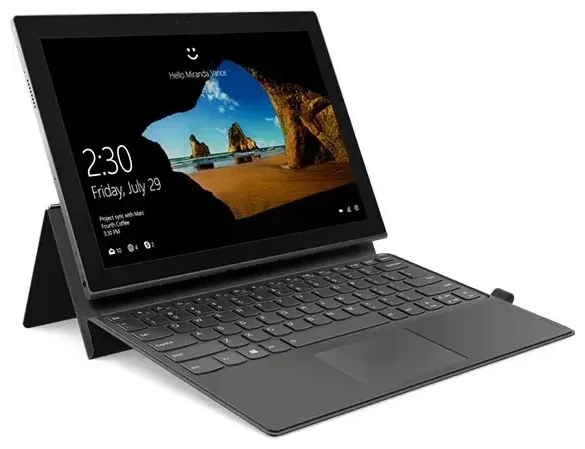
Does the Lenovo Miix 630 support eSIM?
Lenovo Miix 630 eSIM compatibility
Yes, the Lenovo Miix 630 supports eSIM—but only the LTE-equipped models. This Windows 10 Always Connected PC was one of the first Snapdragon-powered devices to ship with embedded SIM technology, giving you cellular connectivity without a physical SIM card slot.
The Miix 630 uses a Qualcomm Snapdragon 835 processor with an integrated X16 LTE modem. All LTE versions of this device include eSIM capability built into the motherboard. Wi-Fi-only variants do not exist for this model; Lenovo designed the Miix 630 specifically as an always-connected device, so if you own one, it has eSIM support.
Dual SIM and network flexibility
The Lenovo Miix 630 operates with eSIM-only connectivity—there is no physical nano-SIM slot. You can store multiple eSIM profiles on the device and switch between them in Windows settings, but you cannot use two profiles simultaneously for dual-SIM operation. This means you'll need to choose which carrier profile is active at any given time.
The device supports LTE bands commonly used in North America, Europe, and parts of Asia. Before purchasing a travel eSIM plan, verify that your destination's network bands align with the Miix 630's supported frequencies to ensure reliable data coverage.
How to set up an eSIM on the Lenovo Miix 630
Installing your eSIM profile in Windows 10
Setting up an eSIM on the Lenovo Miix 630 takes about 60 seconds once you have your QR code or activation details from your carrier. The process happens entirely through Windows 10 settings:
- Connect to Wi-Fi so you can download the eSIM profile during setup.
- Open the Settings app and navigate to Network & Internet.
- Select Cellular from the left sidebar.
- Click Manage eSIM profiles or Add a cellular plan.
- When prompted, scan the QR code provided by your carrier using your Miix 630's camera, or enter the activation code manually if scanning isn't possible.
- Wait for Windows to download and install the profile—this typically takes 30–60 seconds.
- Label your new connection with a recognizable name like "Travel Data" or the carrier name so you can identify it easily.
- Set the new eSIM as your active cellular connection if you want to use it immediately.
Managing multiple eSIM profiles
You can store several eSIM profiles on your Miix 630 and switch between them as needed. Return to Settings > Network & Internet > Cellular > Manage eSIM profiles to view all installed profiles, activate a different one, or delete profiles you no longer need. Only one profile can be active at a time on this device.
Using a travel eSIM on the Lenovo Miix 630
Travel eSIMs give you local data rates in over 200 countries without the roaming fees your home carrier would charge. You stay connected for navigation, video calls, and work as soon as you land—no need to hunt for a SIM vendor at the airport or deal with language barriers.
Install your travel eSIM before you leave home. Download the profile while you're still on Wi-Fi, then activate it when your plane touches down. Your Miix 630 will connect to a local network automatically, and you'll have data immediately. You can keep your home carrier profile stored on the device for reference, but since the Miix 630 doesn't support dual-SIM operation, you'll switch entirely to the travel eSIM while abroad.
Choose a plan that matches your trip length and data needs. Browse eSIM plans for your destination and compare coverage, validity periods, and data allowances. Many travel eSIMs offer regional plans covering multiple countries—useful if you're visiting several places in Europe or Southeast Asia on one trip.
Tips & troubleshooting
Enable data roaming for your eSIM
Even though you're using a local eSIM, Windows may still require data roaming to be enabled for the profile to work. Go to Settings > Network & Internet > Cellular, select your active eSIM profile, and toggle Data roaming to On. This isn't "roaming" in the expensive sense—you're connecting to the carrier whose eSIM you installed.
If your Miix 630 won't connect after activating the eSIM, restart the device. Windows sometimes needs a fresh boot to recognize the new cellular profile and establish a network connection.
QR code scanning issues
If the built-in camera has trouble scanning your QR code, try adjusting the lighting or distance. QR codes on phone screens can sometimes cause glare—printing the code or viewing it on a matte display often works better. If scanning continues to fail, look for the manual activation code (a long string of letters and numbers) that accompanies your QR code. Enter this code directly in the Windows setup dialog instead of scanning.
Checking compatibility before you buy
Most modern travel eSIM providers publish the networks they use in each country. Cross-reference these with the Miix 630's supported LTE bands (available in Lenovo's technical specifications) to confirm you'll have coverage. If you're unsure whether another device supports eSIM, you can check another device's eSIM compatibility before purchasing a plan.
Some users search for "Miix 630 esim review" or "Miix 630 esim price" when evaluating this device. Reviews generally praise the convenience of always-on connectivity, though battery life varies based on signal strength and usage. Plan costs depend entirely on your destination and data requirements, so compare providers for the best fit. If you run into activation problems, eSIM setup help can guide you through carrier-specific quirks or Windows configuration issues.








