 WhatsApp +44 7367 063273
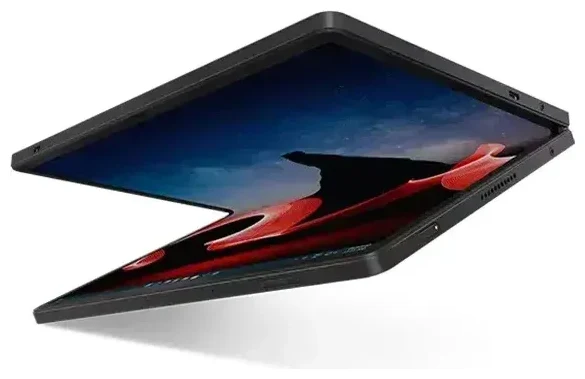
Does the Lenovo Thinkpad X1 Fold support eSIM?
The answer depends on which generation and configuration you own. The Lenovo Thinkpad X1 Fold Gen 2 with 5G connectivity supports eSIM. The original Lenovo x1 fold gen 1, released in 2020, shipped only with Wi-Fi—no cellular modem and no eSIM capability.
Lenovo Thinkpad X1 Fold eSIM compatibility by model
If you purchased a Thinkpad X1 Fold Gen 2 with the optional 5G WWAN module (typically a Qualcomm Snapdragon X55 or similar), your device includes an embedded eSIM alongside a nano-SIM slot. This gives you dual-SIM flexibility: you can use a physical nano-SIM and an eSIM profile simultaneously, or run two eSIM profiles if your carrier and Windows configuration permit.
The Wi-Fi–only variants of both Gen 1 and Gen 2 have no cellular radio and therefore no eSIM. Check your original order specification or look in Settings > Network & Internet > Cellular on Windows—if the Cellular section is missing entirely, your unit does not support eSIM or any mobile data.
Confirming your configuration
Lenovo's spec sheets list "WWAN" or "5G" as an optional upgrade. If you're unsure which variant you have, open Device Manager and look under Network adapters for a WWAN or LTE modem entry. You can also check another device's eSIM compatibility if you're comparing tablets or phones in your household.
How to set up an eSIM on the Lenovo Thinkpad X1 Fold
If you confirmed your Thinkpad X1 Fold includes 5G and eSIM support, activating a travel or carrier eSIM profile takes about sixty seconds. You'll receive a QR code from your eSIM provider; Windows scans it and downloads the profile over Wi-Fi or Ethernet.
Set up an eSIM in Settings
- Connect to Wi-Fi or plug in an Ethernet adapter so Windows can reach the carrier's activation server.
- Open Settings > Network & Internet > Cellular.
- Click Use eSIM or Add a cellular plan (the exact label varies by Windows build).
- Select Use a QR code and hold the printed or on-screen QR code in front of your device's webcam, or manually enter the activation code if the camera won't focus.
- Windows downloads the profile and may prompt you to restart. Once back online, your new eSIM appears under Cellular plans.
- Label the line—for example, "Travel Data" or "Work SIM"—so you can toggle it on and off easily.
Lenovo esim activation checklist
Make sure your device firmware and Windows are up to date; outdated modem drivers can block profile downloads. If the profile won't install, reboot and try again—cellular stacks sometimes need a fresh start.
Using a travel eSIM on the Lenovo Thinkpad X1 Fold
A travel eSIM turns your foldable laptop into a portable hotspot with local data rates and no roaming fees. Instead of hunting for airport SIM kiosks or paying your home carrier's international rates, you buy a regional or country-specific data plan online, install the eSIM before you leave, and activate it the moment you land.
Why install before you fly
Download the eSIM profile while you still have reliable Wi-Fi at home. The activation server needs an internet connection to push the profile to your device; airport Wi-Fi can be slow or require a login that's difficult to complete without existing connectivity. Once installed, the profile sits dormant until you enable it in Settings and switch on data roaming for that line.
Browse data plans by region and duration—browse eSIM plans to compare coverage and data allowances for your destination.
Tips & troubleshooting
Turn on data roaming for the eSIM line
Windows defaults to blocking roaming to protect you from surprise bills. Open Settings > Network & Internet > Cellular, select your travel eSIM, click Advanced options, and toggle Data roaming on. Your Thinkpad will now connect to local networks abroad.
Keep your home SIM active for calls and two-factor authentication
If you also have a physical nano-SIM installed for your regular carrier, leave it enabled but turn off data roaming for that line. You'll still receive SMS codes and voice calls (subject to your carrier's roaming voice rates), while all internet traffic flows through the cheaper travel eSIM.
Fix an eSIM that won't activate
If the QR code won't scan, try these steps: increase screen brightness if you're scanning from a second device, ensure the QR code isn't cropped or distorted, or manually type the activation code shown below the QR. If Windows says "Can't add cellular plan," check that your WWAN modem driver is current in Device Manager, reboot, and attempt the download again. For persistent issues, reach out for eSIM setup help or contact your eSIM provider to regenerate the QR code.
Which Lenovo laptops support eSIM?
Beyond the Thinkpad X1 Fold Gen 2, many Lenovo ThinkPad models with WWAN options—such as the X1 Carbon, X1 Yoga, and T-series with 5G—include eSIM alongside a nano-SIM slot. Always verify the exact SKU, because Lenovo sells Wi-Fi–only and cellular variants of the same model name.








