 WhatsApp +44 7367 063273
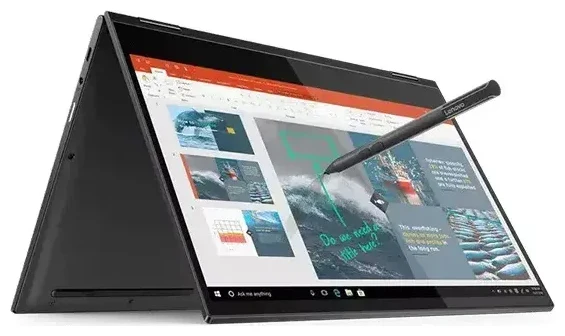
Does the Lenovo Yoga C630 support eSIM?
Yes, the Lenovo Yoga C630 supports eSIM, but only on models equipped with LTE cellular connectivity. The Lenovo Yoga C630 WOS (Windows on Snapdragon) was released as an Always Connected PC with a Qualcomm Snapdragon 850 processor and integrated LTE modem. If you purchased the Wi-Fi+Cellular variant, your device includes eSIM functionality built into the Windows operating system. Wi-Fi-only models do not have cellular hardware and cannot use eSIM.
Lenovo Yoga C630 eSIM compatibility by model
The cellular-equipped Yoga C630 was sold primarily in North America and select international markets. Check your device specifications in Settings > System > About to confirm you have an LTE model. Look for a SIM card slot on the device edge—if present, you have the cellular variant. The Lenovo Yoga C630 does not support dual physical SIM cards, but it does offer eSIM plus physical nano-SIM functionality, allowing you to switch between two carriers or use one for data and another for backup connectivity.
eSIM and physical SIM options
Your Lenovo Yoga C630 can run one active connection at a time: either the eSIM or the physical nano-SIM card. You can install multiple eSIM profiles on the device and switch between them in Windows settings, making it convenient for frequent travelers who need local data in different countries. The physical SIM slot accepts a standard nano-SIM card if you prefer traditional carrier service.
How to set up an eSIM on the Lenovo Yoga C630
Setting up an eSIM on your Lenovo Yoga C630 takes about a minute once you have your QR code from your carrier or travel eSIM provider. Windows 10 and Windows 11 handle eSIM activation through the cellular settings interface. Make sure you're connected to Wi-Fi before you begin, as the device needs internet access to download and activate the eSIM profile.
Step-by-step eSIM installation
- Open Settings and navigate to Network & Internet, then select Cellular.
- Click "Use a QR code from my mobile operator" or "Add a cellular plan" depending on your Windows version.
- Position your eSIM QR code in front of your device's camera, or manually enter the activation code if the QR scan doesn't work.
- Windows will download the eSIM profile—this usually takes 30 to 60 seconds and requires an active internet connection.
- Once installed, give your eSIM profile a descriptive label like "Travel Data" or "Local Carrier" so you can identify it easily.
- Toggle the cellular connection on and verify you see signal bars in the system tray.
Managing multiple eSIM profiles
After installation, you can switch between eSIM profiles in Settings > Network & Internet > Cellular. Only one profile can be active at a time on the Lenovo Yoga C630, but you can store several and activate whichever you need. This flexibility is particularly useful if you travel regularly and maintain eSIMs for different regions.
Using a travel eSIM on the Lenovo Yoga C630
A travel eSIM lets you get local data rates in over 200 countries without swapping physical SIM cards or paying international roaming fees from your home carrier. You install the eSIM profile before you depart, and it activates automatically when you land and turn on cellular data. Your Lenovo Yoga C630 becomes a true mobile workstation, giving you internet access in airports, hotels, cafes, and anywhere else you need to work on the go.
Why install before you fly
Set up your travel eSIM while you still have reliable Wi-Fi at home or in your office. The installation process requires an internet connection to download the profile, and airport Wi-Fi can be slow or require authentication that's difficult to complete on a laptop. With the profile already installed, you simply enable cellular data when you arrive at your destination. You can browse eSIM plans for your destination country and purchase directly from your laptop or phone.
The Lenovo Yoga C630's Always Connected PC capabilities shine when paired with a travel eSIM. You get genuine mobile broadband on a full Windows laptop, allowing you to work from anywhere without hunting for Wi-Fi networks or creating a mobile hotspot from your phone. Battery life remains strong because the Snapdragon processor was designed for efficient cellular connectivity.
Tips and troubleshooting
Most eSIM activations on the Lenovo Yoga C630 complete without issues, but a few common situations can cause confusion. Understanding how cellular settings work on Windows laptops helps you stay connected and resolve problems quickly.
Enable data roaming for international eSIMs
Travel eSIM plans require data roaming to be turned on, even though you're using a local data provider. Go to Settings > Network & Internet > Cellular > Data roaming options and select "Roaming on all networks" or "Roaming on partner networks." Without this setting enabled, your eSIM won't connect even though the profile is installed correctly. This confuses many users who associate roaming with expensive fees, but with a travel eSIM you've already paid for the data allocation.
What to do when the QR code won't scan
If Windows can't read your eSIM QR code, select the manual entry option and type the activation code (SM-DP+ address and activation code) provided by your carrier. Make sure you enter the code exactly as shown, including hyphens and dollar signs. You can also try displaying the QR code on a different device screen with higher brightness, or print it out and scan the paper copy. If you continue to have trouble, eSIM setup help can walk you through alternative activation methods.
Keep your primary line for calls and texts
If you have a physical nano-SIM card from your home carrier in the Lenovo Yoga C630, you can swap between it and your travel eSIM depending on what you need. Use the travel eSIM for data while abroad, and switch to your physical SIM if you need to receive verification codes or texts from your bank. The device can only use one connection at a time, but switching takes just seconds in Settings. You can also check another device's eSIM compatibility if you're considering a newer laptop or tablet with more advanced dual-connectivity features.
Verify carrier lock status
Some cellular-equipped Lenovo Yoga C630 units sold through carriers may have been locked to that network initially. If your device was carrier-locked and you've completed your contract, contact the original carrier to request an unlock. Once unlocked, the device will accept eSIM profiles and physical SIM cards from any compatible carrier worldwide.








