 WhatsApp +44 7367 063273
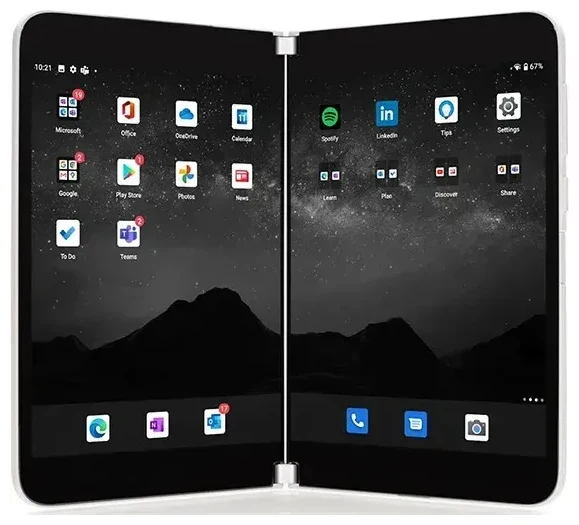
Does the Microsoft Surface Duo 2 support eSIM?
Yes, the Microsoft Surface Duo 2 supports eSIM. All US models—both the unlocked version and the AT&T variant—include eSIM functionality alongside a physical nano-SIM slot.
Microsoft Surface Duo 2 eSIM compatibility
Your Surface Duo 2 runs Android 11 (upgradeable to Android 12L) and offers dual SIM capability: one physical nano-SIM tray plus one eSIM profile. You can use both simultaneously, which means you can keep your primary number on the physical SIM while adding a secondary line via eSIM—perfect for separating work and personal calls, or adding a local data plan when you travel.
The dual-screen device was released exclusively in the United States in October 2021, and Microsoft confirmed eSIM support across all configurations. Unlike some devices that restrict eSIM to certain regions or carriers, the Surface Duo 2 eSIM works with any compatible carrier worldwide, provided the device is unlocked.
Dual SIM on the Surface Duo 2
The Microsoft Surface Duo 2 does not support dual eSIM—you're limited to one eSIM profile active at a time, plus the physical SIM. If you need to switch between multiple eSIM profiles (for example, different travel plans), you'll need to disable one before activating another in Settings.
How to set up an eSIM on the Microsoft Surface Duo 2
Setting up an eSIM on your Microsoft Surface Duo 2 takes about sixty seconds once you have your QR code from your carrier or eSIM provider. Make sure you're connected to Wi-Fi before you start.
Microsoft Surface Duo 2 eSIM setup steps
- Open Settings and tap Network & internet.
- Tap the + icon next to Mobile network (or tap SIMs, then Add mobile plan).
- Choose Download a SIM instead? at the bottom of the screen.
- Tap Next, then hold your device steady to scan the eSIM QR code provided by your carrier.
- Wait while Android downloads and installs the eSIM profile—this usually takes 30–60 seconds.
- Once installed, give your eSIM a label (like "Travel" or "Work") so you can identify it easily.
- Choose which SIM to use for mobile data, calls, and SMS in Network & internet > SIMs.
If your provider sent an activation code instead of a QR code, tap Enter it manually in step 4 and paste the code. The Surface Duo 2 will fetch the profile automatically.
Managing two SIMs on the Surface Duo 2
After activation, both your physical SIM and eSIM will appear in Settings under SIMs. You can toggle each one on or off, set a default for data, and choose which line to use for outgoing calls. Android will badge incoming calls and messages with the line name, so you always know which number someone is reaching you on.
Using a travel eSIM on the Microsoft Surface Duo 2
A travel eSIM is the simplest way to get mobile data abroad without paying roaming fees. Instead of hunting for a local SIM card at the airport or dealing with your home carrier's expensive international add-ons, you install an eSIM plan before you leave and land with data already working.
Why install a travel eSIM before you fly
Download and activate your travel eSIM while you're still at home on Wi-Fi. The profile will sit dormant on your Surface Duo 2 until it detects the destination network. When you arrive, toggle on data roaming for the eSIM line (see the troubleshooting section below), and you'll connect within seconds. Your home SIM stays in the tray for calls and text verification codes—you just turn off data roaming on that line to avoid surprise charges.
You can browse eSIM plans for more than 190 countries and regions, with coverage from a few days to a month. Buy only the data you need, install the QR code in Settings, and you're ready to navigate, message, and post as soon as you touch down.
Surface Duo 2 eSIM for Android flexibility
Because the Surface Duo 2 runs standard Android, managing multiple eSIM profiles is straightforward. You can store several inactive profiles and switch between them by toggling lines on and off in Network & internet > SIMs—useful if you travel frequently to the same destinations and want to reuse a plan with a long validity period.
Tips & troubleshooting
Most eSIM activations on the Microsoft Surface Duo 2 go smoothly, but a few settings and common issues trip people up.
Turn on data roaming for the eSIM line
Android disables data roaming by default on new SIM profiles. After installing a travel eSIM, go to Settings > Network & internet > SIMs, tap your eSIM, and toggle Roaming on. Without this, the eSIM won't connect to the local network even though the profile is active. At the same time, turn off roaming on your home physical SIM to prevent accidental charges.
Keep your home SIM active for calls and two-factor codes
Leave your physical SIM enabled (just disable its data) so you can still receive calls and SMS authentication codes on your home number. Set the eSIM as your default for mobile data in SIMs > Preferred SIM for mobile data, and calls will still route through your primary line unless you choose otherwise for each dial.
What to do if the QR code won't scan
If the camera struggles to focus or recognize the QR code, tap Enter it manually and type (or paste) the activation code your provider included. Make sure your screen brightness is high enough if you're scanning from another device. You can also save the QR code as an image and view it full-screen, then scan from a printed copy or second monitor.
If the eSIM profile downloads but shows "Not activated," restart your Surface Duo 2 and check that you have a stable Wi-Fi or mobile-data connection. Some carriers require an additional verification step in their app or website. For persistent issues, eSIM setup help can walk you through carrier-specific quirks.
Check eSIM compatibility for other devices
Planning to upgrade or switch devices? Not every phone or tablet supports eSIM, and some restrict it to certain models or regions. You can check another device's eSIM compatibility before you buy to confirm it will work with your preferred carriers and travel plans.








