 WhatsApp +44 7367 063273
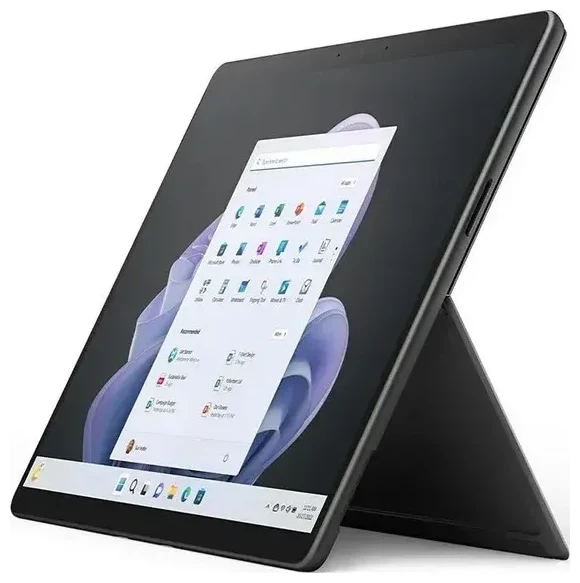
Does the Microsoft Surface Pro 9 support eSIM?
Yes, but only on specific models. The Microsoft Surface Pro 9 supports eSIM if you have the 5G cellular variant (model number 2038). This includes configurations like the Microsoft Surface Pro 9 i7 16GB 512GB and the Microsoft Surface Pro 9 i7 16GB 256GB when sold with 5G capability. The standard Wi-Fi-only models do not support eSIM or any cellular connectivity.
Microsoft Surface Pro 9 eSIM compatibility by model
The 5G cellular model features an integrated eSIM and a nano-SIM tray, giving you dual-SIM capability. You can use a physical nano-SIM and one eSIM simultaneously, or rely solely on the eSIM. This makes it flexible for travelers who want to add a local data plan without swapping out their primary SIM card.
Before purchasing or attempting eSIM setup, confirm your Surface Pro 9 is the 5G model. Check the box, your purchase receipt, or go to Settings > System > About and look for "Model 2038" and cellular/5G references in the Microsoft Surface Pro 9 2038 specs. If you see only Wi-Fi specs, your device does not support eSIM.
eSIM vs physical SIM on the Surface Pro 9
The Surface Pro 9 cellular model includes both a nano-SIM slot and an eSIM. You can use the physical slot for your primary carrier and reserve the eSIM for a travel plan, or activate your main carrier on the eSIM if they support it. Either way, you gain flexibility to switch carriers or add data plans without needing a physical card every time.
How to set up an eSIM on the Microsoft Surface Pro 9
Setting up an eSIM on the Microsoft Surface Pro 9 is straightforward and takes about a minute. You'll need a QR code from your eSIM provider (delivered by email or in your account dashboard) and an active internet connection—Wi-Fi is fine for the initial download.
Set up an eSIM in Windows Settings
- Connect to Wi-Fi so Windows can download the eSIM profile.
- Open Settings, then go to Network & internet > Cellular.
- Click Add an eSIM profile or Use a QR code from my mobile operator.
- Scan the QR code provided by your eSIM carrier using your Surface's built-in camera, or enter the activation code manually if a QR isn't available.
- Windows will download and install the profile. This usually takes 30–60 seconds.
- Once installed, label the line (for example, "Travel" or "Work") so you can identify it easily if you have multiple profiles.
- Toggle Data roaming on for the new eSIM line if you're traveling internationally.
Activate and manage your eSIM
After installation, the eSIM appears under Cellular in Settings. You can switch between your physical SIM and eSIM for data, enable or disable each line, and remove the eSIM profile when you no longer need it. Keep in mind that most eSIMs are single-use—if you delete one, you'll typically need a new QR code to reinstall it.
Using a travel eSIM on the Microsoft Surface Pro 9
A travel eSIM is the easiest way to get mobile data abroad on your Surface Pro 9 without paying roaming fees or hunting for a local SIM card shop. You buy a data plan online, receive a QR code by email, and install the profile before you fly. Once you land, the eSIM connects automatically to a local network.
Install before you travel
Set up your travel eSIM while you're still at home and connected to Wi-Fi. This ensures the profile is ready to activate as soon as your plane touches down. You can browse eSIM plans for your destination, compare data allowances, and install the QR code in seconds. Most plans activate either when you arrive in the country or on a date you choose.
Keep your home SIM active in the physical slot so you can still receive calls and text messages for two-factor authentication. Use the eSIM exclusively for data—turn off data roaming on your home SIM to avoid surprise charges—and you'll stay connected affordably across dozens of countries.
Tips & troubleshooting
Most eSIM activations on the Microsoft Surface Pro 9 work smoothly, but a few common issues can trip you up. Here's how to fix them and get the best experience.
Turn on data roaming for your eSIM line
Windows treats the eSIM as a separate cellular line. Even if you've installed the profile, you must enable Data roaming under Settings > Network & internet > Cellular > [eSIM line]. Without this toggle on, the eSIM won't connect to foreign networks. At the same time, disable data roaming on your home SIM to prevent accidental charges.
What to do if the QR code won't scan
If the built-in camera can't read the QR code, try displaying it on another device's screen at full brightness or printing it on paper. Alternatively, choose Enter activation code manually in the Cellular settings and type the long string provided by your carrier. Make sure your Surface Pro 9 is connected to Wi-Fi during setup—the profile must download from the carrier's server.
Keep your home SIM for calls and 2FA
Leave your primary SIM in the physical slot and set it to handle voice calls and SMS. This way, you'll receive two-factor authentication codes and phone calls on your usual number while the eSIM provides data. You can manage which line handles data in Cellular settings, and switch at any time if your needs change.
If you run into persistent activation problems or need step-by-step help, you can get eSIM setup help or check another device's eSIM compatibility if you're considering a different tablet or laptop.








