 WhatsApp +44 7367 063273
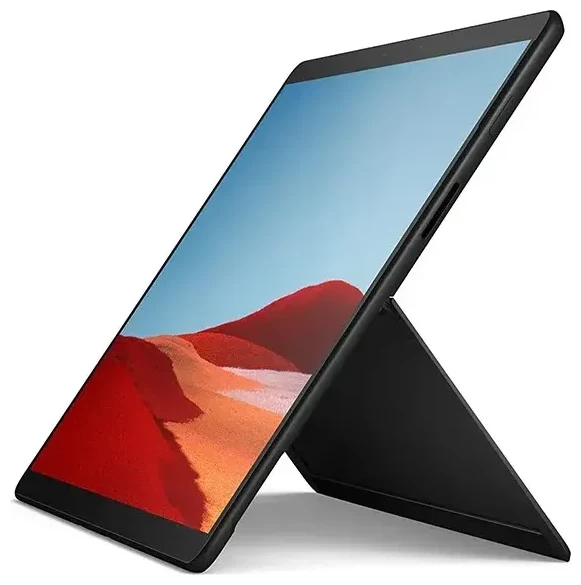
Does the Microsoft Surface Pro X support eSIM?
Microsoft Surface Pro X eSIM compatibility
Yes, the Microsoft Surface Pro X supports eSIM, but only if you have the LTE Advanced Pro model. The Wi-Fi-only configuration does not include cellular connectivity of any kind. Microsoft equipped the LTE variant with both a physical nano-SIM slot and embedded eSIM support, giving you flexible connectivity options for work and travel.
The Surface Pro X was available in two primary SKUs: Wi-Fi only and Wi-Fi + LTE Advanced Pro. Only the latter supports eSIM. Check your device specifications in Settings > System > About to confirm whether your Surface Pro X includes LTE capability. If you see "Qualcomm Snapdragon 8cx" or "Microsoft SQ1/SQ2" processor listings alongside LTE information, you have the cellular model.
Dual SIM capability on Surface Pro X
The Microsoft Surface Pro X LTE model offers dual SIM functionality: you can use one physical nano-SIM and one eSIM profile simultaneously, or switch between multiple eSIM profiles and the physical SIM as needed. This makes it convenient for separating work and personal data plans, or adding a local travel eSIM while keeping your primary SIM active for calls and messages on your phone.
How to set up an eSIM on the Microsoft Surface Pro X
Set up an eSIM in Windows Settings
Setting up an eSIM on your Microsoft Surface Pro X takes about sixty seconds once you have your QR code from your carrier or eSIM provider. Windows 11 and Windows 10 both support eSIM activation through the Cellular settings menu.
- Open Settings and navigate to Network & Internet, then select Cellular.
- Click Manage eSIM profiles or Use eSIM if this is your first profile.
- Select Add profile and choose Use a QR code.
- Position the QR code in front of your Surface Pro X's camera, or manually enter the activation code if scanning isn't available.
- Wait while Windows downloads and installs your eSIM profile—this typically completes within 30–60 seconds.
- Label your new line with a recognizable name like "Travel Data" or "Work" to distinguish it from other profiles.
- Choose which line to use for cellular data in the Cellular settings menu.
Switching between eSIM profiles
You can store multiple eSIM profiles on your Surface Pro X and switch between them without re-downloading. Return to Settings > Network & Internet > Cellular > Manage eSIM profiles to enable or disable specific profiles. Only one eSIM can be active at a time alongside the physical SIM slot.
Using a travel eSIM on the Microsoft Surface Pro X
A travel eSIM transforms your Surface Pro X into a truly mobile workstation abroad. Instead of hunting for Wi-Fi hotspots or paying steep international roaming fees, you can browse eSIM plans for your destination and install a local data plan directly on your tablet before you fly. The eSIM activates when you land, giving you immediate internet access for email, video calls, and cloud file sync.
Install your travel eSIM before departure
Download and install your travel eSIM profile while you're still at home and connected to Wi-Fi. The profile sits dormant on your Surface Pro X until you arrive in the coverage country and turn on data roaming for that eSIM line. This prevents any last-minute connectivity scrambles at the airport or confusion about whether the profile installed correctly.
Keep your home SIM active if you have a phone that shares the same account—you'll still receive calls and text messages for two-factor authentication, while your Surface Pro X uses the travel eSIM for data. This dual-device strategy gives you reliable connectivity without juggling SIM cards or relying on uncertain public Wi-Fi networks.
Tips & troubleshooting
Enable data roaming for your eSIM line
Your Microsoft Surface Pro X won't connect to mobile data on an eSIM unless data roaming is enabled for that specific line. Go to Settings > Network & Internet > Cellular, select your eSIM profile, and toggle Data roaming to On. Travel eSIMs require this setting because they connect to partner networks in the countries you visit, which Windows treats as roaming even though you won't incur roaming charges.
Fix an eSIM that won't activate
If your QR code won't scan, try entering the activation code manually—look for the alphanumeric string printed below the QR code or in your provider's email. Make sure your Surface Pro X has a stable internet connection during installation; the device downloads the eSIM profile from your carrier's server. Restart your tablet if the profile appears installed but won't connect, then check that the correct line is selected for cellular data in your network settings.
Some users on Surface Pro X eSIM Reddit threads report needing to update Windows to the latest version before eSIM activation works reliably. Check Settings > Update & Security > Windows Update to confirm you're running current software. If you continue to have trouble, eSIM setup help can guide you through provider-specific activation steps or alternative installation methods.
Check compatibility for other devices
If you own multiple devices or are researching which laptop or tablet to buy, you can check another device's eSIM compatibility to compare options. The Surface Pro X was one of Microsoft's first consumer devices with integrated eSIM, but newer Surface models and many Windows laptops now include eSIM support as cellular connectivity becomes standard for mobile professionals.








