 WhatsApp +44 7367 063273
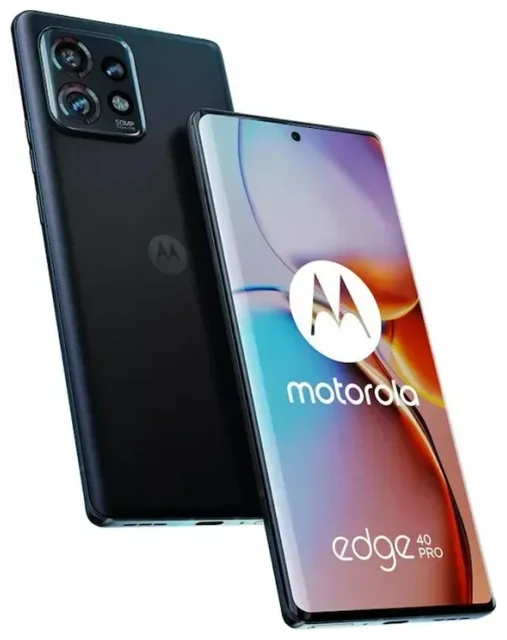
Does the Motorola Edge 40 Pro support eSIM?
Yes, the Motorola Edge 40 Pro supports eSIM. This flagship device includes built-in eSIM functionality across all global models, making it compatible with digital carrier profiles and travel data plans.
Motorola Edge 40 Pro eSIM compatibility
The Motorola Edge 40 Pro offers dual-SIM capability through one physical nano-SIM slot and one eSIM. You can use both simultaneously, letting you keep your primary number active on the physical SIM while adding a second line—like a local data plan when traveling—on the eSIM. The device does not support dual eSIM; you're limited to one eSIM profile active at a time alongside the physical card.
All regional variants of the Edge 40 Pro include eSIM support, whether purchased in Europe, Asia, or other markets where the device is sold. The model number XT2301-4 confirms this capability across the board.
How to set up an eSIM on the Motorola Edge 40 Pro
Setting up an eSIM on your Motorola Edge 40 Pro takes about 60 seconds once you have your QR code from your carrier or eSIM provider. Make sure you're connected to Wi-Fi before you begin, as the device needs to download your eSIM profile.
Set up an eSIM in Settings
- Open Settings and tap Network & internet.
- Tap the + icon next to SIMs or select Add more.
- Choose Download a SIM instead? to begin eSIM installation.
- When prompted, tap Next and scan the QR code provided by your carrier or eSIM provider.
- Wait while the profile downloads—this usually takes 30–60 seconds.
- Once installed, label your eSIM line (e.g., "Travel" or "Work") to distinguish it from your physical SIM.
- Choose which SIM to use for mobile data, calls, and SMS in the SIMs menu.
If your provider sends an activation code instead of a QR code, select Enter it manually in step 4 and type in the SM-DP+ address and activation code they provide.
Managing dual SIM on the Edge 40 Pro
After activation, you'll see both SIM cards listed under Network & internet > SIMs. You can set a default line for data and another for calls, or switch between them as needed. This flexibility makes the Motorola Edge 40 Pro eSIM feature especially useful for separating personal and business lines or adding temporary travel data without swapping physical cards.
Using a travel eSIM on the Motorola Edge 40 Pro
Travel eSIMs give you mobile data abroad without the roaming charges your home carrier might impose. Instead of hunting for a local SIM card at the airport or paying high daily roaming fees, you install a data-only eSIM before you leave and land with connectivity already active.
Install before you fly
Purchase and install your travel eSIM while you're still at home and connected to Wi-Fi. The profile will sit dormant on your Edge 40 Pro until you arrive at your destination and turn on data roaming for that line. You can keep your primary SIM active for incoming calls and text messages (including two-factor authentication codes), while the travel eSIM handles all your data—maps, rideshares, messaging apps, and email.
When you're ready to choose a plan, browse eSIM plans that cover your destination. Regional plans work well if you're visiting multiple countries; single-country eSIMs often offer better rates for longer stays in one place.
Tips & troubleshooting
Most Motorola Edge 40 Pro eSIM activations work smoothly, but a few settings tweaks can save you trouble, especially when traveling.
Turn on data roaming for the eSIM line
Data roaming must be enabled for your eSIM to work abroad. Go to Settings > Network & internet > SIMs, select your eSIM, and toggle Roaming on. Don't worry—you won't incur roaming charges on a prepaid travel eSIM because you've already paid for the data bundle. Just make sure roaming is off for your home SIM if you want to avoid surprise charges from your primary carrier.
Fix an eSIM that won't activate
If the QR code won't scan, check that your camera lens is clean and you have enough light. You can also enter the details manually if the scan fails repeatedly. If the eSIM installs but won't connect, restart your Edge 40 Pro and confirm that mobile data is assigned to the correct SIM in your settings. Some eSIM providers require you to activate the plan within a specific time window or only after you arrive in the destination country, so check your provider's instructions.
If you're still stuck, eSIM setup help can walk you through common issues. You can also delete a failed eSIM profile (tap the line in Settings, then Erase SIM) and reinstall it if your provider allows reuse of the same QR code.
Keep the home SIM for calls and 2FA
Leave your primary physical SIM active while traveling so you can receive calls and two-factor authentication codes. Set the travel eSIM as your data line, and your home SIM for calls and SMS. This way, banking apps and services that send verification texts will still reach you, and your contacts can call your regular number without knowing you've switched data providers. If you want to check another device's eSIM compatibility for a backup phone or tablet, the same principles apply.








