 WhatsApp +44 7367 063273
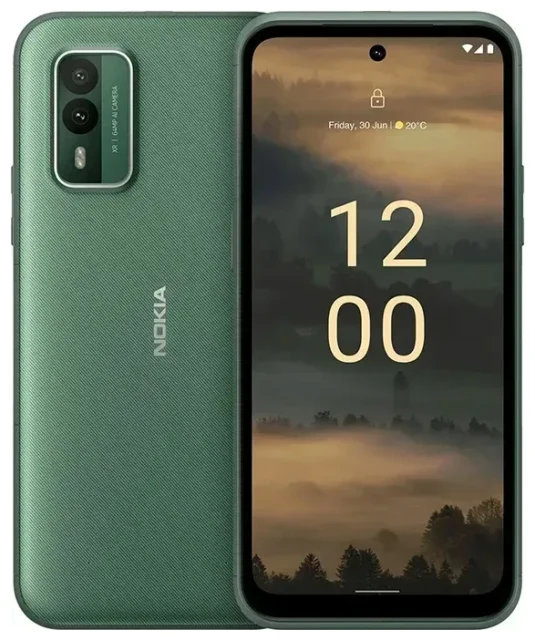
Does the Nokia Xr21 support eSIM?
Yes, the Nokia Xr21 supports eSIM. All models of this rugged device come with eSIM capability as standard, regardless of where you bought it. You can use the eSIM alongside the physical nano-SIM slot for true dual SIM functionality.
Nokia Xr21 eSIM compatibility
The Nokia Xr21 offers dual SIM support: one physical nano-SIM tray and one eSIM. Both can be active simultaneously, so you can keep your primary number on the physical SIM and add a second line via eSIM—perfect for separating work and personal calls, or adding a local data plan when you travel. The device does not support dual eSIM; it's strictly one physical SIM plus one eSIM at a time.
This rugged smartphone runs Android and follows standard eSIM protocols, which means it works with most major carriers and third-party eSIM providers worldwide. If you're shopping for a durable phone that handles eSIM for international travel or backup connectivity, the Nokia Xr21 delivers that out of the box.
How to set up an eSIM on the Nokia Xr21
Setting up your Nokia Xr21 eSIM takes about a minute once you have your QR code from your carrier or eSIM provider. Make sure you're connected to Wi-Fi before you start, because the device needs to download your eSIM profile during activation.
Set up an eSIM in Settings
- Open Settings and tap Network & internet.
- Tap SIMs (or Mobile network, depending on your Android build).
- Select Add mobile plan or the plus icon to add a new eSIM.
- When prompted, tap Scan QR code and hold your phone over the QR code provided by your carrier or eSIM service.
- Confirm the download and wait about 30–60 seconds while the eSIM profile installs.
- Once installed, give the line a label—something like "Travel" or "Work"—so you can tell your SIMs apart.
- Choose which line you want to use for mobile data, calls, and SMS in the SIM settings menu.
If your provider sent you an activation code instead of a QR code, tap Enter activation code manually in step four and paste the code. The rest of the process is identical. After activation, your new eSIM line will appear in the SIM manager, and you can toggle it on or off whenever you need.
Label your lines clearly
Once both SIMs are active, the Nokia Xr21 will ask which line to use by default for data and which for calls. Take a moment to label each SIM clearly—"Home," "Travel Data," or "Work," for example—so you don't accidentally burn through expensive roaming data on the wrong line.
Using a travel eSIM on the Nokia Xr21
A travel eSIM is the simplest way to stay connected abroad without paying roaming fees from your home carrier. You install the eSIM before you fly, keep your primary SIM active for calls and texts, and switch mobile data to the eSIM once you land. That way you get local data rates in your destination country, and you can still receive calls and two-factor authentication codes on your main number.
Install before you fly
Most travel eSIMs let you complete the installation while you're still at home on Wi-Fi. The plan only activates when you reach your destination and turn on data roaming for that line, so there's no risk of wasting days on your data allowance. Once you're abroad, go into Settings, select your travel eSIM as the data line, and enable data roaming for it. Your Nokia Xr21 will connect to a local network within seconds.
You can browse eSIM plans for more than 200 countries and regions, compare data allowances, and install directly on your Nokia Xr21. Because the device holds one eSIM and one physical SIM, you won't need to swap anything or remove your home SIM card—just toggle which line handles data in the settings.
Tips & troubleshooting
Most eSIM activations on the Nokia Xr21 work on the first try, but a few settings and common issues are worth knowing before you travel.
Turn on data roaming for the eSIM line
Your eSIM will only connect to foreign networks if data roaming is enabled for that specific line. Go to Settings > Network & internet > SIMs, tap your eSIM, and toggle Roaming on. Leave roaming off for your home physical SIM unless you actually want to use it abroad—this prevents bill shock if your phone tries to connect on your primary carrier's roaming rates.
Keep the home SIM for calls and two-factor authentication
Set your physical SIM as the default for calls and SMS so you can still receive verification codes and calls to your main number. Only the data connection should run through the travel eSIM. That way your Nokia Xr21 routes internet traffic over the cheap local plan and voice over your existing number.
Fix an eSIM that won't activate
If the QR code won't scan, check that your camera lens is clean and the lighting is even. You can also manually enter the activation code—look for the SM-DP+ address and activation code in the email or app from your provider and type those in. If the profile downloads but won't activate, restart your Nokia Xr21 and make sure you have a strong Wi-Fi connection; weak signal can interrupt the final handshake with the carrier's server.
If you're still stuck, eSIM setup help can walk you through carrier-specific quirks or error codes. You can also delete a failed eSIM profile from the SIM manager and try installing it again—most providers let you re-download the same profile at least once.
Check eSIM compatibility for other devices
If you're managing eSIMs across multiple phones or tablets, you can check another device's eSIM compatibility to confirm which of your gadgets support eSIM and which still need a physical SIM card.








