 WhatsApp +44 7367 063273
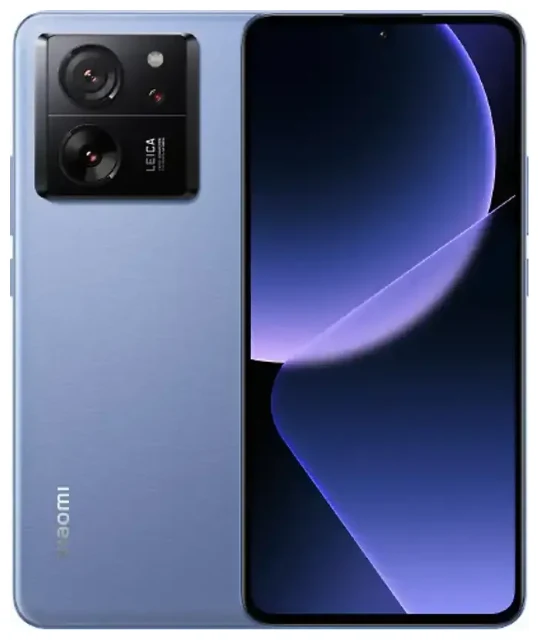
Does the OnePlus 13t support eSIM?
OnePlus 13t eSIM compatibility
Yes, the OnePlus 13t supports eSIM—with one important exception. Most international variants of the OnePlus 13t include eSIM functionality, but the India variant is physical SIM only. If you purchased your OnePlus 13t in India or from an Indian retailer, your device will only accept physical nano-SIM cards.
For markets outside India, the OnePlus 13t offers dual-SIM capability through one physical nano-SIM slot and one eSIM profile. You can use both simultaneously, which makes the OnePlus 13t a practical choice for travellers who want to keep their home number active while adding local data through an eSIM.
Dual-SIM configuration
The OnePlus 13t allows you to run one physical SIM and one eSIM at the same time. You can choose which line handles mobile data, calls, and messages independently. This flexibility means you can keep your primary number for calls and texts while routing data through a travel eSIM to avoid roaming charges.
How to set up an eSIM on the OnePlus 13t
Set up an eSIM in Settings
Setting up an eSIM on your OnePlus 13t takes about sixty seconds once you have your QR code from your carrier or travel eSIM provider. Make sure you're connected to Wi-Fi before you start—the device needs internet access to download the eSIM profile.
- Open Settings and tap Mobile network or SIM & network.
- Select Add eSIM or Add mobile plan.
- Tap Scan QR code and point your camera at the QR code provided by your eSIM provider.
- Confirm the plan details and tap Add or Download.
- Wait for the eSIM profile to install—you'll see a confirmation message when it's ready.
- Label your eSIM line (e.g., "Travel" or "Work") so you can tell your lines apart.
- Choose which SIM handles mobile data in Mobile network settings.
Activation and network selection
After installation, your OnePlus 13t may take a few moments to connect to the network. If the eSIM doesn't activate immediately, toggle aeroplane mode on and off or restart your device. You can switch between your physical SIM and eSIM for data at any time in the mobile network settings.
Using a travel eSIM on the OnePlus 13t
Travel eSIMs offer a straightforward way to get mobile data abroad without paying roaming fees or hunting for a local SIM card shop. You buy a data plan for your destination, install the eSIM profile on your OnePlus 13t before you leave, and activate it when you land. Your home SIM stays in the phone, so you still receive calls and texts on your regular number.
Install your travel eSIM while you're still at home and connected to Wi-Fi. Most providers send the QR code instantly by email, and you can store the profile on your device without activating it. When you arrive at your destination, turn on data roaming for the eSIM line in your mobile network settings, and you're connected. You can browse eSIM plans for hundreds of destinations and compare coverage and data allowances.
Why choose eSIM for travel
Using an eSIM means no physical card to swap, no risk of losing your home SIM, and no need to find a store that's open when you arrive. You keep your regular number active for two-factor authentication codes and important calls, while your travel eSIM handles data for maps, messaging, and web browsing.
Tips & troubleshooting
Turn on data roaming for your eSIM line
Your OnePlus 13t treats an eSIM like a separate carrier, so you need to enable data roaming for that specific line when you're travelling. Go to Settings > Mobile network, select your eSIM, and toggle Data roaming on. You won't be charged roaming fees by your home carrier because the eSIM is a separate plan with its own data allowance.
Keep your home SIM active for calls and texts, but disable data roaming on that line to avoid accidental charges. In the mobile network settings, set your eSIM as the preferred line for mobile data.
Fix an eSIM that won't activate
If the QR code won't scan, check that your camera lens is clean and you have adequate lighting. You can also enter the activation code manually—look for the Enter code manually option in the add eSIM menu. Your provider will include the activation code (sometimes called SM-DP+ address and activation code) in the same email as the QR code.
If your eSIM installs but doesn't connect to a network, restart your OnePlus 13t and confirm that the eSIM line is set to On in mobile network settings. Check that you've selected the correct line for mobile data, and verify that data roaming is enabled for the eSIM if you're outside your plan's home region. If you're still stuck, eSIM setup help can walk you through additional troubleshooting steps.
Remember: if you have the India variant of the OnePlus 13t, eSIM functionality is not available, and you'll need to use a physical SIM card instead. You can check another device's eSIM compatibility if you're considering a different phone or tablet.








