 WhatsApp +44 7367 063273
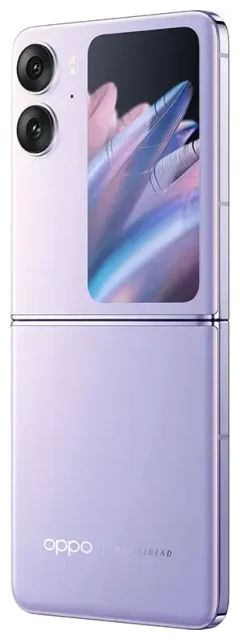
Does the OPPO Find N2 Flip support eSIM?
Yes, the OPPO Find N2 Flip supports eSIM on its global variant. The international model (CPH2437) released outside China includes eSIM functionality, while the Chinese domestic version does not. This foldable flip phone offers dual SIM capability: one physical nano-SIM slot plus eSIM support, letting you run two numbers simultaneously—ideal if you want to keep your home line active while adding a travel data plan.
OPPO Find N2 Flip eSIM compatibility by region
The global OPPO Find N2 Flip sold in Europe, Southeast Asia, and other international markets includes eSIM as standard. If you purchased your device in mainland China, it likely uses dual physical nano-SIM slots instead of eSIM. Check your phone's model number in Settings > About device to confirm. The CPH2437 model number indicates global eSIM support.
Dual SIM configuration options
You can use the physical SIM slot and eSIM together on the OPPO Find N2 Flip. This means one physical card for your primary number and an eSIM for a second line—whether that's a local number, business line, or travel data plan. The phone does not support dual eSIM; you're limited to one eSIM profile active at a time alongside the physical slot.
How to set up an eSIM on the OPPO Find N2 Flip
Setting up an eSIM on the OPPO Find N2 Flip takes about a minute once you have your QR code from your carrier or travel eSIM provider. The process installs a digital SIM profile directly onto your phone without needing a physical card.
Step-by-step eSIM installation
- Connect to Wi-Fi before you begin—the phone needs internet to download the eSIM profile.
- Open Settings and tap on Mobile network (or SIM card & mobile data, depending on your ColorOS version).
- Select Add eSIM or Add mobile plan. The exact wording varies slightly with ColorOS updates.
- Tap Scan QR code and point your camera at the QR code provided by your eSIM carrier. Hold steady until the phone recognizes it.
- Confirm the plan details, then tap Add or Download. The profile installs in roughly 60 seconds.
- Label the new line with a recognizable name—"Travel," "Work," or the country name—so you can easily distinguish it from your primary SIM.
- Choose which SIM to use for mobile data, calls, and messages in the SIM card settings. You can switch anytime.
Activating your eSIM profile
Once installed, turn on the eSIM line by toggling it active in Settings > Mobile network. You'll see both your physical SIM and eSIM listed. Tap the eSIM, enable it, and set it as your data line if you want to use it for internet. Your OPPO Find N2 Flip will now connect through that profile.
Using a travel eSIM on the OPPO Find N2 Flip
A travel eSIM gives you local data rates abroad without swapping your physical SIM or paying roaming fees. Because the OPPO Find N2 Flip supports eSIM, you can install a data plan for your destination before you fly, then activate it when you land. Your home SIM stays in the physical slot, so you still receive calls and texts on your regular number.
Why install a travel eSIM before departure
Download and install the eSIM profile while you're still at home on Wi-Fi. The eSIM won't consume data or activate charges until you toggle it on and arrive in the destination country. This means you step off the plane with data already configured—no hunting for a SIM vendor or cafe Wi-Fi. Simply enable the travel eSIM line in Settings, and you're connected.
You can browse eSIM plans for more than 200 countries and regions, comparing data allowances and coverage to find the right fit for your trip. Install the profile days or even weeks ahead; it remains dormant until you switch it on.
Tips and troubleshooting
Most eSIM setups on the OPPO Find N2 Flip are straightforward, but a few settings adjustments ensure smooth operation—especially when travelling.
Turn on data roaming for your eSIM line
Even though your travel eSIM is "local" in the destination country, the OPPO Find N2 Flip treats any non-home network as roaming. Go to Settings > Mobile network, select your eSIM, and toggle Data roaming to On. Without this, the eSIM won't connect to mobile data abroad. Your physical home SIM can stay on or off for roaming depending on whether you want to receive calls.
Keep your home SIM active for calls and 2FA
Leave your physical SIM enabled even when the eSIM handles data. This way you receive voice calls, SMS, and two-factor authentication codes on your usual number without extra cost (standard roaming rates for incoming calls may apply, but many carriers offer free or low-cost incoming). Set the eSIM as the default data line so app traffic and browsing use your travel plan, not expensive home-network roaming.
What to do if the QR code won't scan
If the camera struggles to read the QR code, check that you're in good light and holding the phone steady. Alternatively, choose Enter activation code manually in the Add eSIM menu and type the code string provided by your carrier—it's usually labeled SM-DP+ Address and Activation Code. If the eSIM still won't install, restart the OPPO Find N2 Flip and confirm you're connected to Wi-Fi. For persistent issues, eSIM setup help can walk you through device-specific steps.
Managing multiple eSIM profiles
The OPPO Find N2 Flip stores several eSIM profiles but only one can be active at a time. If you travel frequently, install eSIMs for different regions and switch between them in Settings > Mobile network by toggling the profile you need. Deactivating an eSIM doesn't delete it; you can re-enable it on your next trip without reinstalling.
If you're unsure whether another device in your household supports eSIM, you can check another device's eSIM compatibility to confirm before purchasing a plan.








