 WhatsApp +44 7367 063273
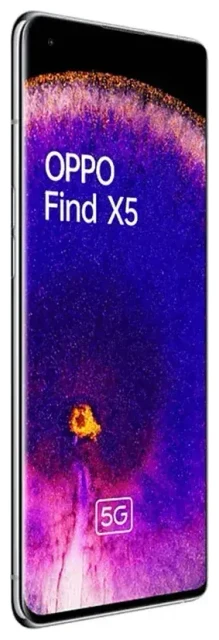
Does the OPPO Find X5 support eSIM?
OPPO Find X5 eSIM compatibility
The OPPO Find X5 has limited eSIM support that varies by regional variant. Some markets received models with eSIM capability, while others have only dual nano-SIM slots. This inconsistency makes it essential to verify your specific device before purchasing a travel eSIM.
The standard OPPO Find X5 sold in most European and Asian markets typically does not include eSIM. The Find X5 Pro, however, does support eSIM in select regions—particularly models distributed in Europe and parts of Asia. The Find X5 Lite does not support eSIM at all and relies exclusively on physical SIM cards.
Regional variants and dual SIM configuration
If your OPPO Find X5 does support eSIM, it will offer dual SIM functionality: one physical nano-SIM slot plus one eSIM. You cannot use dual eSIMs simultaneously on this device. Because OPPO's eSIM implementation varies significantly by market and model number, you should confirm your device's capabilities in Settings > SIM card & mobile data. If you see an "Add eSIM" or "Download SIM" option, your variant supports it. If not, your model uses only physical SIM cards.
Given the uncertainty around the standard OPPO Find X5 eSIM support, we recommend checking your device's specification sheet or contacting OPPO support for your region to confirm definitively before relying on eSIM functionality.
How to set up an eSIM on the OPPO Find X5
Set up an eSIM in Settings
If your OPPO Find X5 variant supports eSIM, the activation process takes about sixty seconds. You'll receive a QR code from your eSIM provider via email after purchase. Make sure you have a stable Wi-Fi connection before starting—mobile data alone may not complete the download reliably.
- Open Settings and tap SIM card & mobile data.
- Select Add eSIM or Download SIM (wording varies by ColorOS version).
- Tap Scan QR code and point your camera at the QR code provided by your eSIM provider.
- Confirm the plan details and tap Add or Download.
- Wait for the eSIM profile to install—this typically completes in 30–60 seconds.
- Label your eSIM line with a recognizable name like "Travel" or "Work" to distinguish it from your physical SIM.
- Choose which line you want to use for mobile data, calls, and messages in the SIM settings.
Activate your eSIM profile
Once installed, your OPPO Find X5 eSIM should activate automatically if you're in the coverage area. You can toggle between your physical SIM and eSIM for data by returning to Settings > SIM card & mobile data and tapping your preferred line under Mobile data.
Using a travel eSIM on the OPPO Find X5
Get data abroad without roaming charges
A travel eSIM is the simplest way to stay connected internationally on your OPPO Find X5 without paying roaming fees from your home carrier. You purchase a data plan for your destination country or region, install the eSIM before you fly, and switch to that line for mobile data when you land. Your physical SIM stays active for incoming calls and text messages, including two-factor authentication codes.
Install your travel eSIM while you still have Wi-Fi at home or at the airport—you cannot download an eSIM profile without an internet connection. Once installed, the eSIM sits dormant until you enable it and turn on data roaming for that line. You can browse eSIM plans for more than 200 countries and regions, comparing data allowances and coverage to find the right fit for your trip.
Keep your home number available
With dual SIM capability, your home number remains reachable for calls and SMS while your eSIM handles data. This setup means you won't miss important calls or verification texts, and you'll avoid the surprise charges that come with using your home carrier's data abroad.
Tips & troubleshooting
Turn on data roaming for the eSIM line
A common mistake is forgetting to enable data roaming for your eSIM. Even though it's a local plan in your destination, your OPPO Find X5 treats it as a secondary line. Go to Settings > SIM card & mobile data, tap your eSIM, and toggle Data roaming on. Also confirm that Mobile data is set to your eSIM line, not your physical SIM.
What to do if the QR code won't scan
If your camera won't focus on the QR code or the scan fails repeatedly, request manual activation details from your eSIM provider. Most send an SM-DP+ address and activation code that you can enter by hand. In Settings > SIM card & mobile data > Add eSIM, look for Enter code manually or a similar option, then type in the SM-DP+ address and confirmation code exactly as provided.
Verify eSIM capability before purchasing
Because OPPO Find X5 eSIM compatibility is inconsistent across variants, always confirm your device supports eSIM before buying a plan. Check Settings > SIM card & mobile data for an "Add eSIM" option, or consult your original purchase documentation. If you're uncertain, you can check another device's eSIM compatibility or reach out to eSIM setup help with your model number for confirmation.
Keep your physical SIM active for calls and two-factor authentication
Leave your home SIM in the phone and set it as your default line for voice calls and SMS. This way, banking apps, email services, and other accounts that send verification codes to your number will continue to work seamlessly while your eSIM handles data.








