 WhatsApp +44 7367 063273
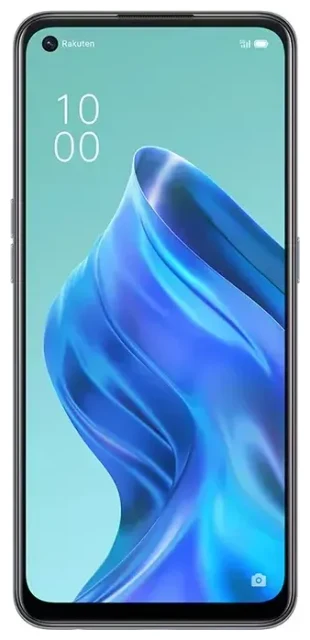
Does the OPPO Reno5 a support eSIM?
Yes, the OPPO Reno5 a supports eSIM, but only in the Japan market variant. If you purchased your device from a Japanese carrier (such as Y!mobile, Rakuten Mobile, or SoftBank), your OPPO Reno5 a includes eSIM functionality. Models sold in other markets do not support eSIM at all.
OPPO Reno5 a eSIM compatibility by region
The OPPO Reno5 a was primarily released in Japan, where it carries model number A103OP or A101OP depending on the carrier. These Japanese variants support dual SIM: one physical nano-SIM slot plus one eSIM. You cannot use two eSIMs simultaneously—only one eSIM and one physical SIM at a time.
If you're unsure whether your specific OPPO Reno5 a model supports eSIM, check the original retail packaging or confirm on OPPO's official spec sheet for your region. The manufacturer's documentation will state eSIM support clearly if available.
How to set up an eSIM on the OPPO Reno5 a
Setting up an eSIM on your OPPO Reno5 a takes about 60 seconds once you have your QR code from your carrier or eSIM provider. You'll need a stable Wi-Fi connection during activation.
Install your eSIM in Settings
- Open Settings and tap SIM Card & Mobile Data (or Mobile Network depending on your ColorOS version).
- Tap Add eSIM or Add Mobile Plan.
- Scan the QR code provided by your carrier or eSIM provider using your device's camera.
- Confirm the plan details and tap Add to download the eSIM profile.
- Wait 30–60 seconds while the eSIM activates—your device will show a confirmation message when complete.
- Label your lines (e.g., "Personal" for your physical SIM and "Travel" for the eSIM) to keep them organized.
- Choose which line to use for mobile data, calls, and SMS in the SIM settings menu.
Set up your eSIM before departure
You can install your travel eSIM profile while still at home, even if you won't activate it until you land. The profile sits dormant on your device until you enable mobile data for that line in your destination country.
Using a travel eSIM on the OPPO Reno5 a
A travel eSIM gives you mobile data abroad without expensive roaming charges from your home carrier. You keep your regular physical SIM in place for calls and texts, while the eSIM handles data through a local or regional plan.
Install your travel eSIM before you fly
Download your travel eSIM profile before your flight, while you still have reliable Wi-Fi. Once you land, simply turn on data roaming for the eSIM line and switch mobile data to that profile. Your physical SIM stays active for incoming calls and two-factor authentication codes, but won't rack up data roaming fees.
When you're ready to get connected abroad, browse eSIM plans for your destination and install the profile following the steps above. Most travel eSIMs activate automatically when you connect to a network in the coverage region.
Dual-SIM flexibility for work and travel
The OPPO Reno5 a lets you run two numbers simultaneously—perfect if you need a local data plan while keeping your home number reachable. You can toggle which SIM handles data, calls, and messages independently, giving you control over connectivity and costs.
Tips & troubleshooting
Most eSIM installations on the OPPO Reno5 a work smoothly, but a few settings tweaks can save you from common headaches.
Turn on data roaming for your eSIM line
Even though you're using a local or regional eSIM, you still need to enable data roaming for that specific line. Go to Settings > SIM Card & Mobile Data, tap your eSIM profile, and toggle Data Roaming on. This won't trigger roaming fees on a travel eSIM—it simply allows the profile to connect to partner networks.
Keep your physical SIM active for calls and texts
Set your physical SIM as the default for voice calls and SMS so friends, family, and services can still reach you on your regular number. In the SIM settings menu, assign Calls and Messages to your physical line, and Mobile Data to your eSIM. This setup ensures two-factor authentication codes come through while you enjoy affordable data abroad.
Fix an eSIM that won't activate
If your QR code won't scan, check that your camera lens is clean and the code is displayed clearly on another screen—don't try scanning from a cracked or dim display. You can also enter the activation code manually by tapping Enter Code Manually in the add-eSIM screen and typing the SM-DP+ address and activation code provided by your carrier.
If the eSIM downloads but won't connect, restart your OPPO Reno5 a and confirm you've enabled data roaming for that line. Check that your device isn't in airplane mode and that the eSIM profile shows as active in your SIM settings. For persistent issues, eSIM setup help can walk you through advanced troubleshooting.
Not sure if another device supports eSIM? You can check another device's eSIM compatibility before you buy a new phone or plan your next trip.








